Originally based on a tutorial from developer.ibm.com. Steps use Red Hat OpenShift on IBM Cloud and the Node.js Application Modernization Source-to-Image (S2I) pattern.
Manually triggering container builds after every code change is a source of friction in any CI/CD pipeline. GitHub webhooks solve this by sending an HTTP POST to a target URL the moment a push event occurs in your repository. When that target is an OpenShift BuildConfig, a new Source-to-Image build starts automatically — no manual intervention required.
This tutorial walks through the complete workflow: deploying a Node.js application to an OpenShift cluster, wiring up a GitHub webhook, verifying the automated build, and managing the webhook configuration going forward.
What You Will Learn
- Deploy a Node.js application to an OpenShift cluster using Source-to-Image (S2I).
- Configure a GitHub webhook that fires on every push to the repository.
- Verify that a new OpenShift build is triggered automatically.
- Retrieve and modify webhook settings from the OpenShift build configuration.
Prerequisites
Before starting, make sure you have the following:
- A GitHub account with write access to the repository you intend to use.
- An IBM Cloud account.
- A Red Hat OpenShift cluster provisioned on IBM Cloud.
Estimated time: approximately 30 minutes.
Step 1: Fork the Repository
Fork the node-s2i-openshift repository from github.com/IBM/node-s2i-openshift into your own GitHub account. Using your own fork is important because you need write permissions to the repository in order for the webhook to fire on your pushes.
Step 2: Set Up the OpenShift Project
Once your OpenShift cluster is running on IBM Cloud, open the OpenShift web console dashboard.
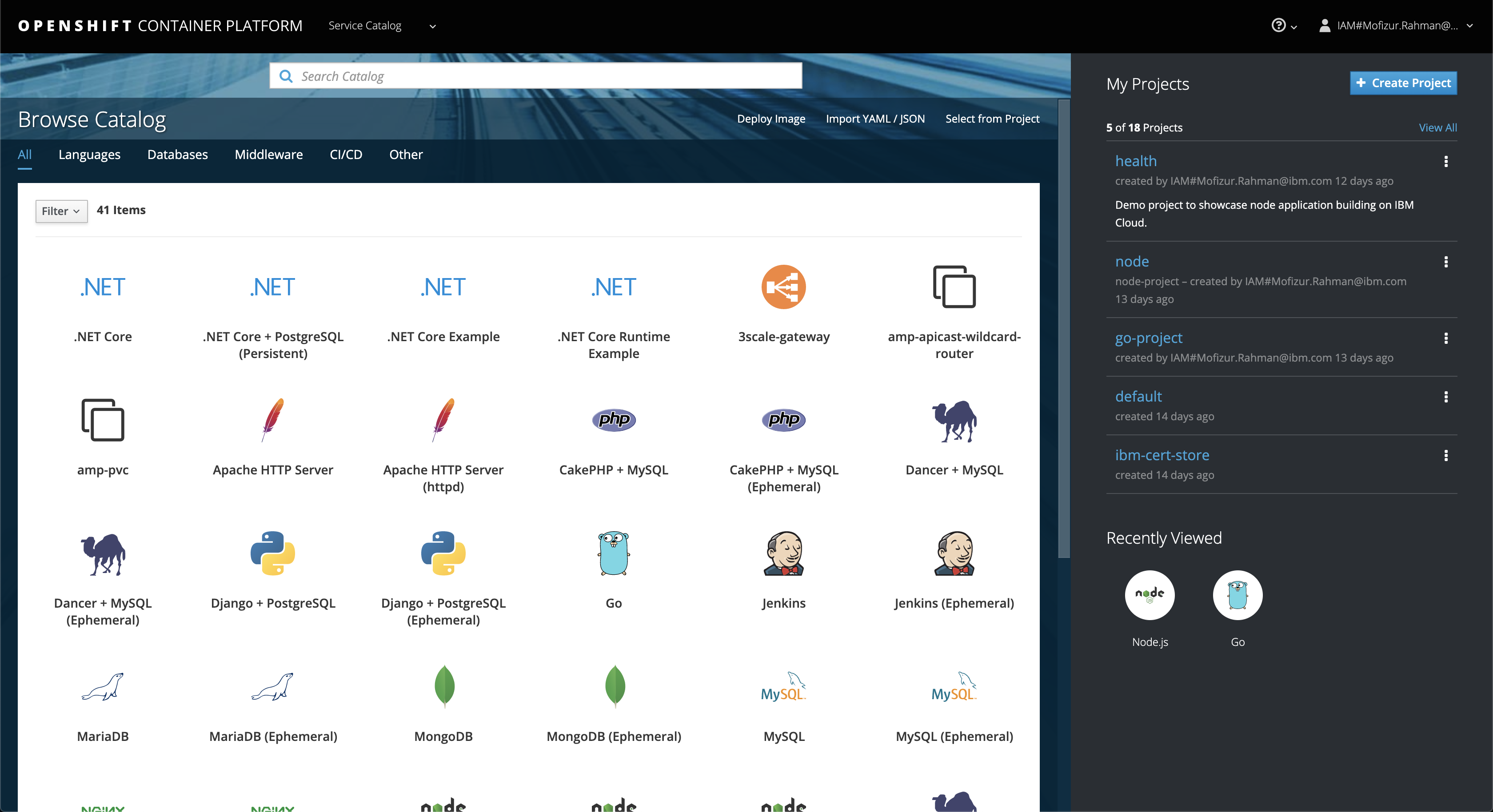
- Click Create Project and give the project a descriptive name, for example
health-webhook. - Click Browse Catalog and select Node.js.
- Click Next, then click Advanced Options.
- Enter the GitHub URL for your forked repository — for example,
https://github.com/<your-username>/node-s2i-openshift/. You must use a repository where you have write access. - Scroll to the bottom and click Create.
After the project is created, OpenShift generates a GitHub webhook payload URL in the following format:
https://<cluster-host>:<port>/apis/build.openshift.io/v1/namespaces/health-webhook/buildconfigs/health/webhooks/<SECRET>/githubCode language: HTML, XML (xml)Copy this URL and note the <SECRET> portion — you will need both values when configuring the webhook in GitHub. Click the Overview tab and wait for the initial build to complete. Once the build finishes, a route is created and you can verify the app is accessible before proceeding.
Step 3: Set Up a Webhook in GitHub
With the OpenShift payload URL and secret in hand, configure the webhook on the GitHub side:
- In your forked GitHub repository, navigate to Settings > Webhooks.
- Click Add webhook.
- Fill in the fields:
- Payload URL: the OpenShift webhook URL copied in Step 2.
- Content type:
application/json. - Secret: the secret value from the OpenShift payload URL.
- Leave the trigger set to Just the push event (the default), then click Add webhook.
From this point on, every push to the repository will send a signed HTTP POST to OpenShift, which will automatically start a new S2I build. You can confirm webhook delivery history from the GitHub Webhooks settings page — GitHub lists each delivery attempt, its HTTP response code, and the full request and response payloads.
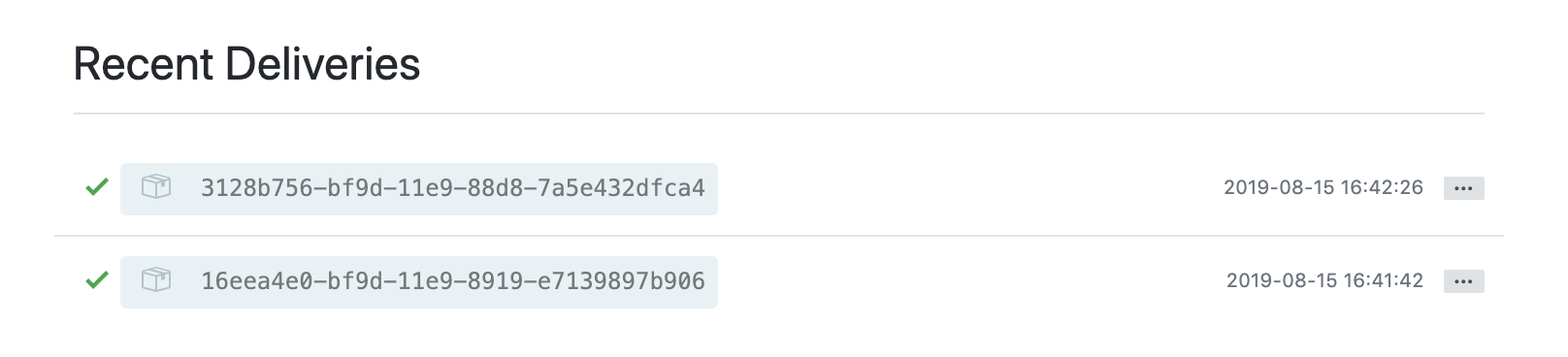
In the example above, the first delivery was the ping event sent when the webhook was created. The second delivery corresponds to a subsequent push that included minor UI changes.
Step 4: Verify the New OpenShift Build
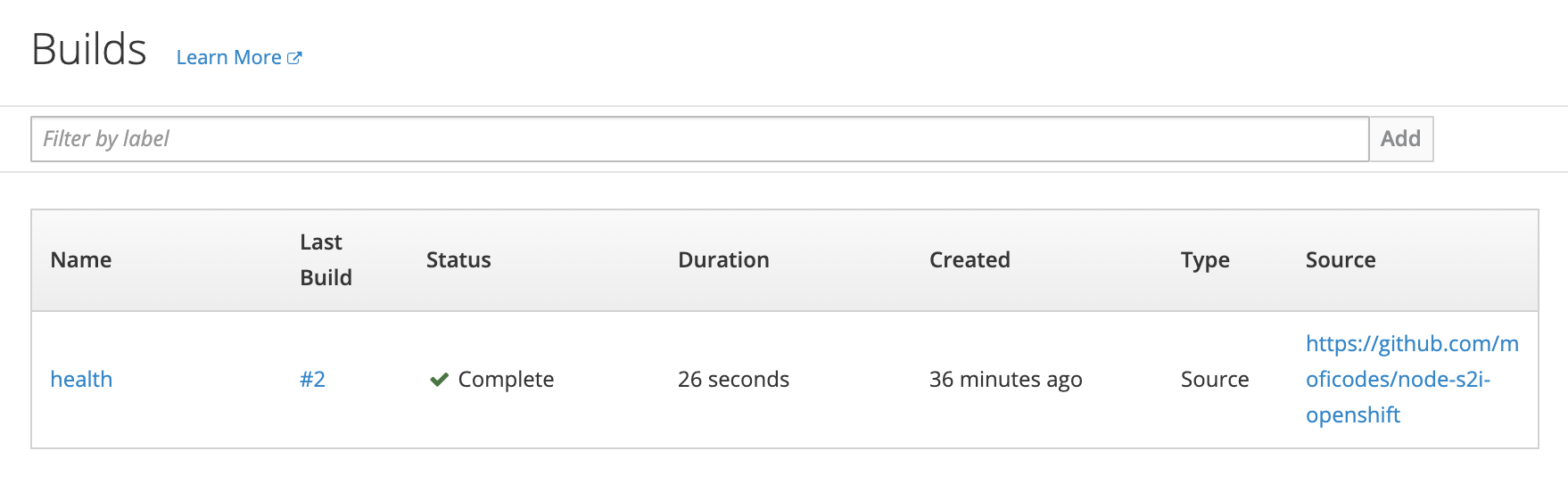
Return to the OpenShift web console and navigate to Builds > Builds in the left-hand menu. You should see a second build entry (#2) that was triggered by the webhook push. Click into the build to monitor its progress and, once it completes, follow the route URL to verify that the UI changes are live in the running application.
Step 5: Retrieve the Webhook URL from OpenShift
If you need to retrieve the webhook URL at any time after the initial setup — for example, to add it to another repository or to inspect the secret — you can find it directly in the build configuration:
- In the OpenShift console, navigate to Builds > Builds and click the build name.
- Click the Configuration tab.
- Locate the GitHub Webhook URL field and copy the value.
Step 6: Modify the Webhook or Build Configuration
You may need to update the build configuration over time — for instance, to point at a different branch, change the source context directory, or rotate the webhook secret. To do this:
- From the build detail page, click Actions > Edit.
- Update the desired fields, such as the Git branch or context directory.
- In the Triggers section you can view and manage the webhook secret used to authenticate incoming payloads from GitHub.
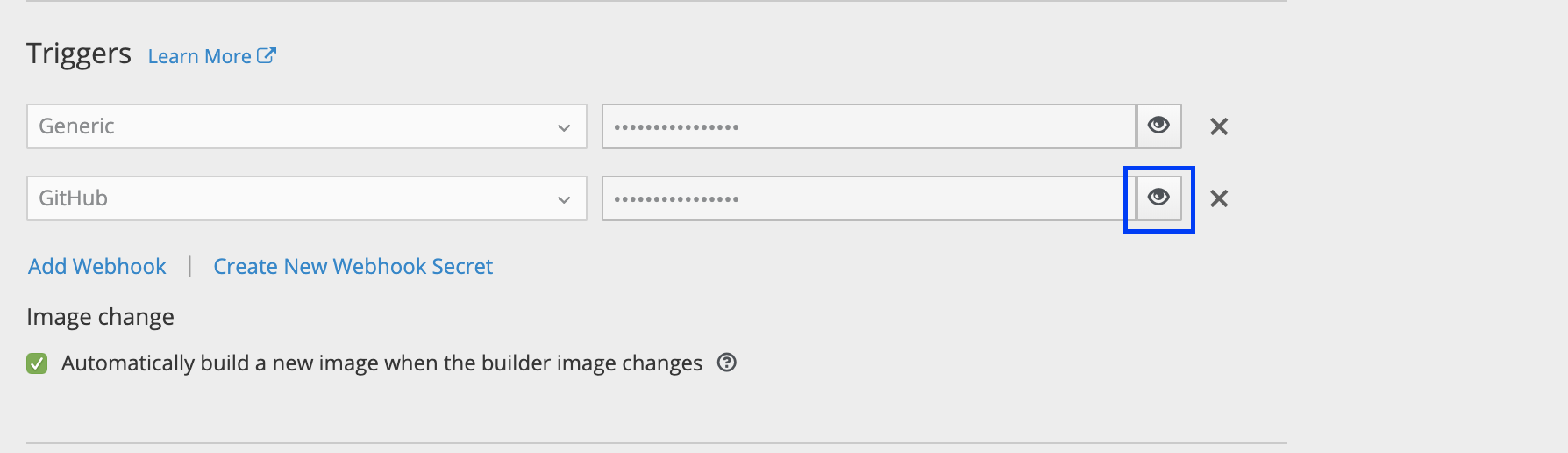
If you rotate the secret, remember to update the corresponding value in the GitHub webhook settings page to keep the two sides in sync.
Summary
You have now set up a fully automated build pipeline between GitHub and Red Hat OpenShift on IBM Cloud. The workflow covers:
- Deploying a Node.js application to OpenShift using the Source-to-Image (S2I) build strategy.
- Generating and configuring a signed GitHub webhook payload URL from the OpenShift
BuildConfig. - Verifying that each push to the GitHub repository automatically triggers a new container image build and deployment.
- Locating and editing the webhook configuration from within the OpenShift console.
This pattern scales well to production workflows: combining GitHub webhooks with OpenShift S2I gives you a lightweight, low-configuration continuous delivery loop without requiring a separate CI server for basic build automation.
For further reading, refer to the official Red Hat OpenShift on IBM Cloud documentation for details on BuildConfig triggers and cluster access configuration.