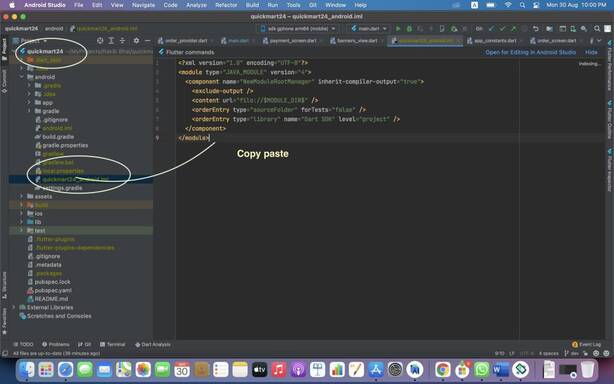
In Android Studio, the “open for editing” feature allows you to edit a Flutter package that is imported as a dependency in your project. Here are the steps to enable it:
- Open the Flutter project in Android Studio.
- In the Project view, locate the package that you want to edit. It will be displayed as a dependency under the “External Libraries” section.
- Right-click on the package and select “Library Properties” from the context menu.
- In the “Library Properties” dialog, select the “Sources” tab.
- Check the box next to “Specify sources for the package”.
- Click the “Choose” button and navigate to the location of the package’s source code.
- Click “OK” to close the dialog.
reate a file in android studio inside android name
[project_name]_android.iml