There are two methods of getting SHA-1 key, but First one is not working for Windows user. So, if you are a Windows user then go for 2nd Method.
Update:- On Android Studio Latest version(on 24 Sept 2021) 2020.3.1 for Windows 64-bit (912 MiB), Step 2 will not Work. So, go for Step 3.
1. Using Keytool
Open a terminal and run the keytool the utility provided with Java to get the SHA-1 fingerprint of the certificate. You should get both the release and debug certificate fingerprints.
To get the release certificate fingerprint:
For Windows:-
keytool -list -v \
-alias androiddebugkey -keystore %USERPROFILE%\.android\debug.keystoreCode language: CSS (css)
For Mac/Linux:-
keytool -list -v \
-alias androiddebugkey -keystore ~/.android/debug.keystore
Note:- If you are not able to get your SHA-1 key using Keytool then Follow the below Method, in this method you will definitely get your SHA-1 key.
2. Using Gradle’s Signing Report
You can also get the SHA-1 of your signing certificate by Gradle signingReport. But for that, you have to follow some steps.
Step 1: – First of all
=> open your project in Android Studio and open the project.
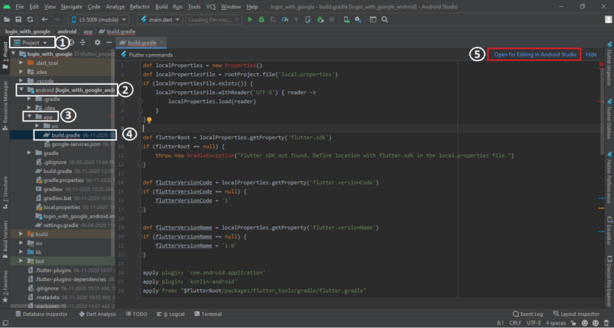
=>In the project, go to the android/app directory where you find build.gradle file. => Open it.
=> After opening, you’ll find an Open for Editing in Android Studio option, Click on it and open it in a new Tab. See the Below Image.
=> After that Open Android->Tasks->android and Double click on signingReport.
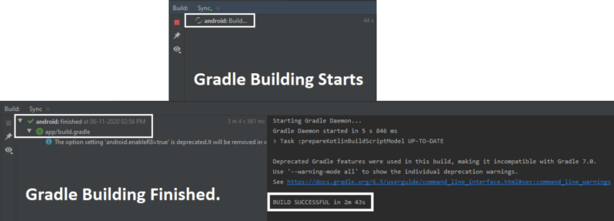
See the Below Image For Help.

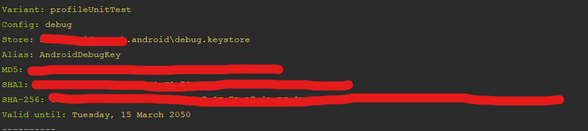
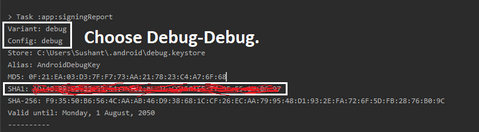
Step 3:- After Clicking on it, you’ll get a List of SHA-1 Keys but you have to choose Debug-Debug SHA-1 Key and copy and paste it on your Firebase. See the Below Image:-
3. Using gradlew
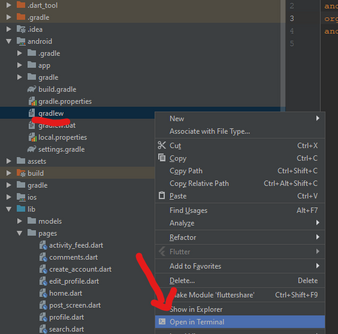
Step 1:- Right-click on ‘gradlew’ and go to ‘Open in Terminal’ This file is found under {{YOUR PROJECT}}/android/gradlew
<strong>gradlew signingReport</strong>

Code language: HTML, XML (xml)
If did not work first try the second command:
<strong>./gradlew signingReport</strong>Code language: HTML, XML (xml)