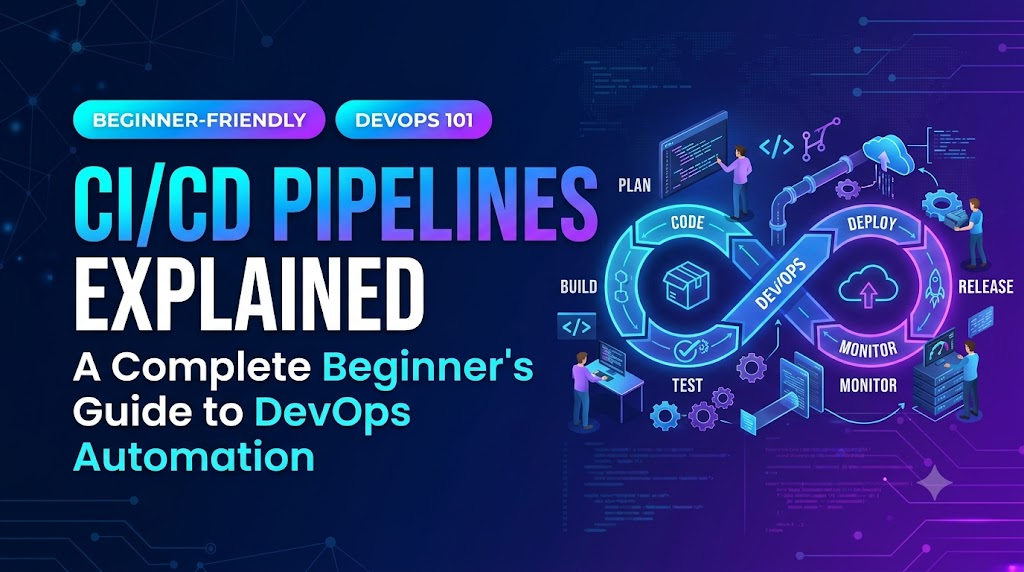
Every developer has experienced the frustration of a project working perfectly on their personal laptop, only to fail the moment it is pushed to a shared server. Traditionally, turning raw source code into running software was a manual, high-stress process. Developers bundled their work at the end of sprints, manually ran test suites, compiled artifacts, and handed files over to system administrators to deploy. If something broke, pinpointing which code change caused the failure required hours of detective work.
As software systems grow larger and release cycles shrink from months to days or even minutes, relying on manual releases becomes unsustainable. Humans make copy-paste errors, skip test runs when deadlines loom, and configure servers inconsistently.
Modern engineering teams bridge this gap with DevOps automation, centered around the CI/CD pipeline. By transforming repetitive tasks into automated, deterministic workflows, teams release software faster, catch bugs within minutes of writing them, and deploy updates with minimal operational risk.
What Is a CI/CD Pipeline?
At its core, a CI/CD pipeline is an automated workflow that guides a software change from a developer’s keyboard all the way to end users.
Think of it like an automotive assembly line. When a frame arrives on the line, robotic arms weld parts, install components, run diagnostic safety checks, and inspect the finish. If a bolt is missing or a sensor reports an anomaly, the line stops immediately so the defect cannot travel downstream.
In software, the assembly line is code-driven:
[ Code Commit ] ➔ [ Build & Compile ] ➔ [ Automated Tests ] ➔ [ Package Artifact ] ➔ [ Deploy ]
Code language: CSS (css)
Whenever a developer pushes code to a shared repository (such as GitHub or GitLab), the CI/CD system detects the update and executes a series of predefined instructions. If any step fails—whether a syntax error, a broken unit test, or a security vulnerability—the pipeline halts and alerts the engineer.
Pipeline vs. Tools: An Important Distinction
A common misconception among newcomers is equating a pipeline with a specific tool (e.g., saying “we use GitHub Actions, so we have CI/CD”).
- The Pipeline is the process and design—the exact sequence of steps, gates, and tests your project must undergo to be considered production-ready.
- The CI/CD Tool (such as Jenkins, GitLab CI/CD, or GitHub Actions) is the engine that runs those steps on virtual machines or containers.
Continuous Integration, Continuous Delivery, and Continuous Deployment Explained
The acronym CI/CD bundles three distinct engineering practices together. While related, they represent progressive levels of automation and organizational maturity.
1. Continuous Integration (CI)
Continuous Integration focuses on the developer workflow. In traditional environments, engineers worked on isolated feature branches for weeks before attempting a massive “merge day,” which often resulted in conflicting code and broken dependencies.
With CI, developers merge code into the shared main branch frequently—often multiple times a day. Each merge triggers an automated build and test sequence.
Core Goal: Detect integration conflicts, syntax errors, and regression bugs within minutes of code submission, keeping the main branch stable at all times.
2. Continuous Delivery (CD)
Continuous Delivery takes the validated code from CI and automatically prepares it for a release. The pipeline compiles binaries, builds container images, runs integration tests, and deploys the build to staging or user-acceptance testing (UAT) environments.
However, in Continuous Delivery, the final push to production requires a manual trigger or business approval.
Core Goal: Ensure that the software is always in a releasable state, giving product managers and stakeholders the freedom to hit the “Deploy to Production” button whenever the business is ready.
3. Continuous Deployment (CD)
Continuous Deployment removes the manual approval step entirely. If a code change successfully navigates every build check, integration test, quality gate, and security scan, the pipeline automatically deploys it directly to production servers without human intervention.
Core Goal: Eliminate manual operational bottlenecks and deliver value to end users as fast as possible. This approach requires mature automated testing suites and real-time observability.
Summary Comparison
| Capability | Continuous Integration | Continuous Delivery | Continuous Deployment |
| Primary Focus | Build validation & unit testing | Release readiness & staging tests | Autonomous production release |
| Trigger Mechanism | Code push or pull request | Continuous / automated staging | Continuous end-to-end |
| Production Release | Manual / Out of scope | Manual sign-off / One-click | Fully automated via code pass |
| Prerequisites | Version control, automated unit tests | Comprehensive staging & integration suites | High test coverage, robust monitoring & rollbacks |
Key Stages of a Modern CI/CD Pipeline
While pipelines are tailored to fit specific tech stacks and compliance needs, most production workflows follow a standard sequence of stages:
+---------------------------------------------------------------------------------------+
|                                TYPICAL PIPELINE FLOW                                  |
|                                                                                       |
|   1. SOURCE        2. BUILD        3. TEST        4. QUALITY      5. PACKAGE          |
|   [Git Push]  ──>  [Dependencies] ──> [Unit Tests] ──> [Linters &] ──> [Docker Image] |
|                    [Compilation ]     [Integrate ]     [Security ]     [Artifact Hub] |
|                                                                       │               |
|                                7. PRODUCTION    6. STAGING            │               |
|                                [Live Deploy] <── [Test Env] <─────────┘               |
+---------------------------------------------------------------------------------------+
1. Source (Trigger)
The pipeline monitors the source code management (SCM) system. When an event occurs—such as opening a pull request, merging to the main branch, or creating a release tag—the CI/CD system initiates a job run.
2. Build & Dependency Resolution
The pipeline provisions a clean environment (a virtual runner or container), checks out the source code, and retrieves external dependencies (like npm packages, Python wheels, or Maven libraries). If the language is compiled (Go, Java, C++, Rust), the code is compiled into binaries. If a syntax error or missing package exists, the run stops here.
3. Automated Testing
This stage protects software health. Tests typically execute in tiers:
- Unit Tests: Fast, isolated checks verifying individual functions and logic.
- Integration Tests: Verifying that distinct components—like your application code and its database—communicate correctly.
- End-to-End (E2E) Tests: Simulating real user interactions in a browser or API client.
4. Code Quality & Security Scanning
Modern pipelines enforce standards before software ever reaches an environment:
- Static Application Security Testing (SAST): Scans source code for known security patterns and antipatterns.
- Dependency Scanning (SCA): Inspects third-party libraries for known Common Vulnerabilities and Exposures (CVEs).
- Linting & Formatting: Checks code style consistency across team members.
5. Packaging & Artifact Management
Once tests and scans pass, the pipeline packages the application into a deployable artifact. For modern architectures, this is typically an immutable Docker container image tagged with the specific Git commit hash and pushed to a secure container registry. For other platforms, this could be a .zip file, a .jar, or an installer bundle.
6. Staging Deployment & Validation
The artifact is deployed to a staging or pre-production environment that mirrors production configurations. Automated smoke tests verify that the application boots, connects to external services, and responds to network requests.
7. Production Release & Monitoring
Depending on whether the team uses Continuous Delivery or Continuous Deployment, the artifact is released to production either following manual approval or automatically. Modern teams often use progressive deployment strategies—such as canary releases (sending 5% of traffic to the new version first) or blue/green deployments (swapping traffic between parallel environments)—to ensure zero downtime and enable quick rollbacks if runtime errors spike.
How It Works in Practice: A Real-World Walkthrough
To see how these pieces fit together, consider a practical scenario: a developer updating a user authentication service.
1. Developer edits code & pushes branch to GitHub
                     │
                     ▼
2. GitHub sends webhook event to CI Runner
                     │
                     ▼
3. CI Runner boots clean container:
   ├── Checks out code
   ├── Installs dependencies
   └── Runs automated test suite
                     │
          ┌──────────┴──────────┐
          ▼                     ▼
     [Tests Pass]          [Tests Fail]
          │                     │
          │                     └── Pipeline stops; developer notified via Slack/email
          ▼
4. Builds Docker container image
                     │
                     ▼
5. Deploys to Staging server
                     │
                     ▼
6. Smoke tests confirm service health
- The Code Change: A developer fixes a bug in the password reset logic, commits the change to a Git branch named
fix/reset-token, and pushes it to GitHub. - Webhook Trigger: GitHub sends an instant notification (webhook) to the CI runner with details about the new commit.
- Automated Verification: The runner spins up an isolated Linux container, pulls down the project code, installs project dependencies, and runs the test suite.
- Immediate Feedback: If a junior developer accidentally broke an existing feature, the test suite catches it, turns the pipeline red, and sends a notification. The main branch remains protected.
- Release Packaging: Once the pull request is reviewed by a peer and merged into
main, the pipeline triggers again. It re-runs the checks, builds a Docker image, and deploys the update to the staging environment for quality assurance verification.
Common CI/CD Tools for Beginners
Choosing a first CI/CD platform can feel overwhelming due to the sheer number of options. Beginners should focus on tools that reduce operational friction and integrate directly with their code repository.
1. GitHub Actions
- Best For: Beginners, open-source projects, and teams already hosting their code on GitHub.
- Why It Fits: GitHub Actions requires no external server setup. Workflows are defined directly in your project repository using human-readable YAML files located in
.github/workflows/. Its vast marketplace provides thousands of pre-made, reusable steps created by the community.
2. GitLab CI/CD
- Best For: Teams using GitLab for all-in-one repository management, issue tracking, and operations.
- Why It Fits: GitLab includes built-in CI/CD out of the box. You configure pipelines by adding a
.gitlab-ci.ymlfile to the root of your project. It offers native container registry integration and simple configuration syntax.
3. Jenkins
- Best For: Large enterprises, legacy applications, and self-hosted on-premises setups.
- Why It Fits: Jenkins is one of the earliest open-source automation servers. It offers almost limitless customization through thousands of plugins. However, Jenkins requires you to install, secure, and maintain your own server infrastructure, which introduces significant operational overhead for beginners.
4. Cloud-Native Services (AWS CodePipeline, Google Cloud Build, Azure DevOps)
- Best For: Teams heavily committed to a specific cloud provider’s ecosystem.
- Why They Fit: These tools integrate natively with cloud identity systems (IAM), storage buckets, serverless functions, and managed Kubernetes clusters, though their proprietary configurations can cause platform lock-in.
Benefits and Operational Realities
Adopting automated delivery brings immense advantages, but it is not a silver bullet. Understanding both sides helps set realistic expectations.
Practical Benefits
- Fast Feedback Loops: Developers know within minutes whether their changes work or cause regressions.
- Consistency: Automated systems run the exact same commands in the exact same sequence every single time, eliminating the human error of forgotten steps.
- Smaller, Lower-Risk Releases: Because releasing requires little manual effort, teams deploy small batches of code frequently rather than saving up months of changes for one risky, sprawling release.
- Self-Documenting Processes: Pipeline configuration files live directly alongside your code in version control, making your build and deployment process transparent and reviewable.
Challenges and Limitations
- Flaky Tests: If an automated test fails intermittently due to timing issues or external network calls, developers lose trust in the pipeline and begin ignoring red alerts.
- Maintenance Overhead: Pipelines are software too. Runner environments need operating system updates, security patches, dependency cache refreshes, and secret rotations.
- False Sense of Security: A green pipeline only proves that your written tests passed. It cannot prove that the business logic solves the customer’s problem or that unmonitored edge cases will not fail in production.
Beginner Mistakes to Avoid
When building your first pipeline, avoid these common traps:
- Automating Deployments Before Tests Are Reliable: Deploying broken code faster just creates faster downtime. Focus first on building a stable suite of unit tests before wiring up automated deployment stages.
- Hardcoding Secrets and API Keys: Never put passwords, cloud access keys, or database credentials directly into your pipeline YAML files or Git commits. Use your CI tool’s built-in encrypted secrets store (such as GitHub Actions Secrets or GitLab CI Variables).
- Building Overly Complex Workflows Early: Avoid multi-stage matrix builds, complex parallelization, and exotic plugins on day one. Start with a simple 10-line workflow that installs dependencies and runs tests. Add stages only as the project demands them.
- Ignoring Runner Cleanliness: Assuming the pipeline runner retains files from previous runs can cause subtle bugs. Treat pipeline runners as ephemeral (temporary) environments that build from a clean slate each time.
A Practical Starter Project: Your First Pipeline
The fastest way to understand CI/CD is to build a minimal pipeline yourself. You do not need expensive cloud hosting or complex servers—all you need is a free GitHub account.
Step 1: Create a Basic Node.js Application
Create a simple project with a minimal test file. In your local terminal:
Bash
mkdir my-first-ci-pipeline
cd my-first-ci-pipeline
npm init -y
In your package.json, set up a simple test script:
JSON
"scripts": {
  "test": "node -e \"console.log('Running tests...'); process.exit(0);\""
}
Code language: JavaScript (javascript)
(Notice that process.exit(0) indicates a passing test, while process.exit(1) would indicate a failure).
Step 2: Write Your Workflow Configuration
Inside your project folder, create a directory structure for GitHub Actions:
Bash
mkdir -p .github/workflows
touch .github/workflows/test.yml
Open test.yml and add this simple automated build instruction:
YAML
name: Run Automated Tests

on:
  push:
    branches: [ main ]
  pull_request:
    branches: [ main ]

jobs:
  build-and-test:
    runs-on: ubuntu-latest

    steps:
      - name: Check out repository code
        uses: actions/checkout@v4

      - name: Set up Node.js runtime
        uses: actions/setup-node@v4
        with:
          node-version: 20

      - name: Install dependencies
        run: npm install

      - name: Execute automated test suite
        run: npm test
Code language: HTTP (http)
Step 3: Push and Observe
Initialize a Git repository, commit your files, and push them to a new repository on GitHub:
Bash
git init
git add .
git commit -m "feat: add initial CI workflow"
git branch -M main
git remote add origin https://github.com/<your-username>/my-first-ci-pipeline.git
git push -u origin main
Code language: JavaScript (javascript)
Navigate to the Actions tab on your GitHub repository page. You will see your pipeline running live inside an Ubuntu virtual machine, executing your test script, and marking the commit with a green checkmark. If you change process.exit(0) to process.exit(1) and push again, you will see the pipeline fail and reject the build.
Frequently Asked Questions (FAQ)
What is a CI/CD pipeline in simple terms?
A CI/CD pipeline is an automated series of steps that takes code from a developer’s computer, runs quality checks and tests on it, packages it, and delivers it to servers where users can access it—all without requiring manual intervention for every release.
What is the biggest difference between Continuous Delivery and Continuous Deployment?
The difference lies in the final release step. Continuous Delivery automatically prepares, tests, and validates code for production, but waits for a human to approve the actual release. Continuous Deployment automates that final step as well, releasing every passing commit directly to users.
Can I build a CI/CD pipeline without deploying to a live server?
Yes. Many teams use CI/CD purely for Continuous Integration—running automated tests, style checks, and security scans whenever a pull request is submitted. You can gain immense value from automated testing without ever automating deployment.
Do I need to pay for cloud infrastructure to learn CI/CD?
No. Platforms like GitHub Actions and GitLab provide free usage tiers each month for public and private repositories. You can write pipelines, run unit tests, and build container images entirely within their free environments.
Which skills should I learn first before tackling CI/CD?
Focus on three foundational skills:
- Git basics: Committing, branching, merging, and pull requests.
- Command-line fundamentals: Running shell commands, setting environment variables, and file management in Linux.
- Application testing: Writing basic unit tests in your programming language of choice.
Summary
CI/CD pipelines replace unpredictable, manual software releases with a repeatable, automated discipline. By verifying every code change through automated builds, security checks, and testing suites, teams shorten the distance between writing a feature and delivering value to users. If you are just getting started, resist the urge to automate everything at once. Begin with a single automated test run triggered on every code commit. Once that step is stable and trusted, gradually introduce staging deployments, security scans, and artifact management. A reliable pipeline is built one automated step at a time.