This tutorial walks through how to use the SonarQube Maven Plugin to perform continuous code quality inspection on a Maven-based Java project. It builds on the foundational step of having SonarQube installed and running locally. If you have not yet installed SonarQube, complete that setup before proceeding.
Original tutorial credit: TheServerSide.com. Screenshots and example project by Cameron McKenzie.
Prerequisites
- SonarQube server installed and running (default:
http://localhost:9000) - Apache Maven installed and available on your system
PATH - A Maven-based Java project with a
pom.xmlfile at its root - Git installed (if cloning the example project)
The SonarQube Maven Plugin Command
When you first configure SonarQube, the setup wizard asks which build tool you use — Gradle or Maven. If you select Maven, SonarQube provides a ready-made command for triggering analysis during your build. For a default local SonarQube installation, the invocation command is:
mvn sonar:sonar -Dsonar.host.url=http://localhost:9000Code language: JavaScript (javascript)This command must be entered as a single line with no line breaks. Run it from the root directory of your Maven project — the directory that contains pom.xml.
Setting Up a Sample Maven Project
If you do not have an existing Maven project to hand, you can clone the following open-source rock-paper-scissors Java project to follow along with this example:
git clone https://github.com/cameronmcnz/rock-paper-scissors.git
cd rock-paper-scissors
dir pom.*Code language: PHP (php)
These commands do the following:
- Clone the remote GitHub repository to your local machine.
- Change the working directory into the project root.
- List files matching
pom.*to confirm that apom.xmlfile exists.
The output of the dir pom.* command should show a single pom.xml file — the Maven project descriptor that the SonarQube plugin requires to run.
Invoking the SonarQube Maven Plugin
From the project root (where pom.xml resides), run the SonarQube Maven Plugin:
mvn sonar:sonar -Dsonar.host.url=http://localhost:9000Code language: JavaScript (javascript)Maven will resolve the sonar plugin, compile and analyse the source code, and submit the results to your local SonarQube server. The process typically takes a few minutes depending on project size.
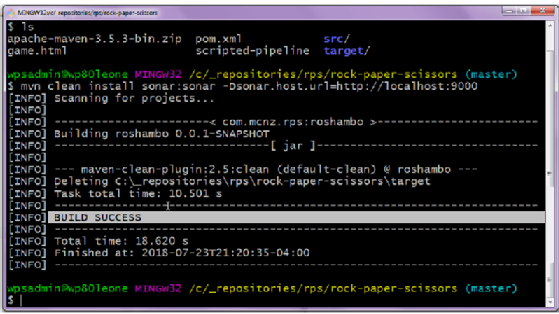
When the scan completes successfully, Maven prints a BUILD SUCCESS message. You can then open the SonarQube dashboard in your browser at http://localhost:9000 to review the results.
Interpreting SonarQube Metrics
After the scan, the SonarQube dashboard displays a quality gate result and a breakdown of issues found. In the rock-paper-scissors example project, SonarQube awarded a passing grade overall, but flagged 14 code smells.
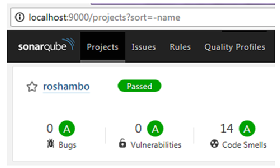
Drilling down into the issues view reveals the severity breakdown of those 14 code smells:
- Blocker: 0
- Critical: 3
- Major: 5
- Minor / Info: remaining issues
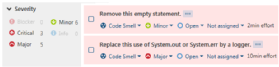
SonarQube evaluates code against multiple quality axes — including reliability, security, maintainability, coverage, duplications, and complexity. Each issue is linked to a specific rule so developers can understand what the problem is and how to fix it.
Key Takeaways
- The SonarQube Maven Plugin requires only a single
mvn sonar:sonarcommand to trigger a full code quality scan. - The command must be run from the directory containing
pom.xml. - Results are immediately available in the SonarQube web dashboard after a successful build.
- Issue severity levels — Blocker, Critical, Major, Minor, Info — help teams prioritise remediation effort.
- Integrating this command into your CI pipeline (Jenkins, GitLab CI, GitHub Actions, etc.) enables automatic quality checks on every commit or pull request.
Next Steps
Once you are comfortable running on-demand scans, consider the following improvements:
- Add authentication: Secure your SonarQube instance and pass a token using
-Dsonar.login=<token>. - Configure Quality Gates: Define pass/fail thresholds in the SonarQube UI so that a CI build fails automatically when quality drops below your standards.
- Embed in CI: Add the
mvn sonar:sonarstep to your pipeline definition file so every push is analysed without manual intervention. - Tune rules: Customise the active Quality Profile in SonarQube to match your team’s coding standards.