This article is based on foundational Jenkins documentation and introductory guidance originally summarised from TechTarget. Screenshots referenced below are sourced from TechTarget editorial content.
What Is Jenkins?
Jenkins is an open-source automation server that manages how a development team compiles software code, runs tests, and pushes validated builds out to target systems. It sits at the heart of many CI/CD (Continuous Integration / Continuous Delivery) pipelines and is widely considered a foundational DevOps tool.
In a typical workflow, Jenkins collects code commits from multiple developers, executes unit and functional tests against the combined codebase, and — only after those tests pass — deploys the tested artifacts to target environments. Configuration management tools such as Ansible, Puppet, Chef, or Salt can be attached to the end of a Jenkins pipeline, making Jenkins the orchestration layer for the entire software delivery process, not just the build step.
Language Support: Java-Centric but Not Java-Exclusive
Jenkins was originally designed around Java projects, and its terminology reflects that heritage. However, it supports a wide range of languages and runtimes, including Python, Node.js, Ruby, Go, and others through its extensive plugin ecosystem.
The concept of a build varies by language:
- Java: Jenkins pulls source code from a repository, compiles it, and packages the output as a JAR (or WAR) file. That artifact is then deployed to an application server such as Apache Tomcat, which makes the application available to end users.
- Python: There is no compilation step, but Jenkins still handles packaging, dependency management, and deployment.
- Node.js: Jenkins typically runs
npm installand any defined test scripts before packaging and deploying.
What Jenkins Can Do for a Dev Team
Jenkins is well suited to medium and large development teams where multiple developers commit code to a shared repository — such as GitHub, GitLab, or Subversion — throughout the day. Jenkins can be configured to react to repository events (webhooks) or to run on a fixed schedule.
Automated Testing
Jenkins does not deploy new code until it has passed a defined set of tests. Teams typically implement two layers of automated testing inside a Jenkins pipeline:
- Unit tests validate individual subroutines, functions, or classes in isolation.
- Functional (integration) tests exercise larger scenarios — for example, simulating user interactions end-to-end using frameworks such as Selenium or Cucumber.
Volume or load tests can optionally be added to the pipeline, though teams often split these into a separate stage to avoid slowing down the primary build feedback loop.
Infrastructure Provisioning
Jenkins pipelines can include infrastructure-as-code steps written with Ansible, Puppet, Chef, Salt, or similar tools. Common uses include:
- Spinning up ephemeral VM farms or Docker containers for load testing, then tearing them down afterwards.
- Configuring networking and storage for test or staging environments.
- Deploying containerised applications to a Kubernetes cluster.
CI/CD and Agile Fit
The automated, end-to-end nature of Jenkins makes it a natural fit for CI/CD workflows and Agile software development. By surfacing build failures immediately — many teams project the Jenkins build console onto a shared screen, showing red (failed), green (passing), or in-progress status — Jenkins keeps the whole team aligned on code health in real time.
Jenkins Plugins and Scalability
Jenkins has a large plugin ecosystem (the exact plugin count changes regularly — check the Jenkins Plugin Index for the current number). Notable plugin categories include:
- Source control: Git, Subversion, Mercurial
- Build tools: Maven, Gradle, Ant, npm
- Testing frameworks: JUnit, Cucumber, Selenium
- Deployment targets: Kubernetes, Docker, AWS, Azure
- Project management: Atlassian Jira integration for issue tracking in Agile teams
For scalability, Jenkins supports a controller/agent architecture. The Jenkins controller distributes build jobs to multiple agent nodes, and the entire setup can run on a Kubernetes cluster, allowing the build infrastructure itself to scale elastically.
How to Install Jenkins
The quickest way to get Jenkins running for evaluation purposes is to use the standalone WAR file. A WAR file is a Java web application archive — essentially a JAR file packaged for deployment to a servlet container.
Prerequisites
- A supported Java Development Kit (JDK) installed on the host machine. Check the Jenkins Java requirements page for the currently supported versions.
- Sufficient memory and disk space for your expected build workloads.
Starting Jenkins from the WAR File
Download the latest stable jenkins.war from the official Jenkins download page, then run:
java -jar jenkins.warCode language: CSS (css)Jenkins starts an embedded web server (Winstone/Jetty) on port 8080 by default. Watch the console output: Jenkins prints a randomly generated initial admin password during startup. Copy that password, then open http://localhost:8080 in a browser to complete the setup wizard.
The setup wizard walks you through:
- Entering the initial admin password.
- Installing a recommended set of plugins or selecting plugins manually.
- Creating the first admin user account.
No additional configuration is required to get a basic Jenkins instance running.
Alternative Installation Methods
The WAR approach is fine for experimentation. For production use, consider one of these alternatives:
- Native packages: Jenkins provides
.deband.rpmpackages for Debian/Ubuntu and Red Hat/CentOS systems, managed via the official Jenkins APT/YUM repositories. - Docker: The official
jenkins/jenkinsimage on Docker Hub provides a containerised Jenkins instance that is straightforward to run and upgrade. - Kubernetes (Helm): The Jenkins Helm chart deploys Jenkins to a Kubernetes cluster with controller/agent scaling configured out of the box.
Building Your First Pipeline
Once Jenkins is running, the main dashboard is where you create and manage pipelines — ordered sequences of steps that together produce a deployable artifact.
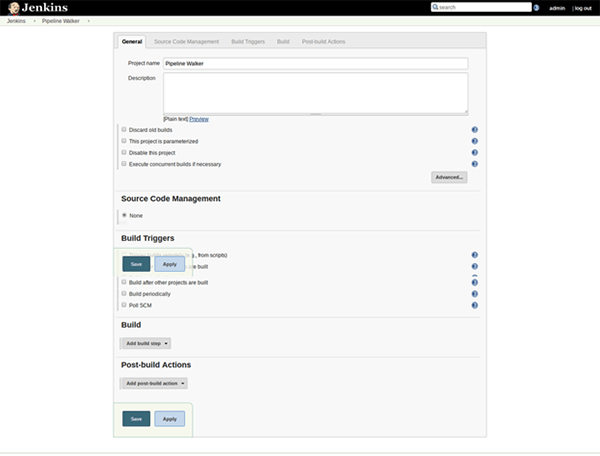
For a Java project, a minimal pipeline typically includes these stages:
- Checkout: Pull source code from the configured repository.
- Build: Run Apache Maven or Ant to resolve dependencies, compile Java source files, and produce a JAR or WAR artifact.
- Test: Execute unit and functional test suites; fail the pipeline if any test fails.
- Package / Archive: Store the artifact so it is available to downstream stages or for manual download.
- Deploy: Push the artifact to a target application server or container environment.
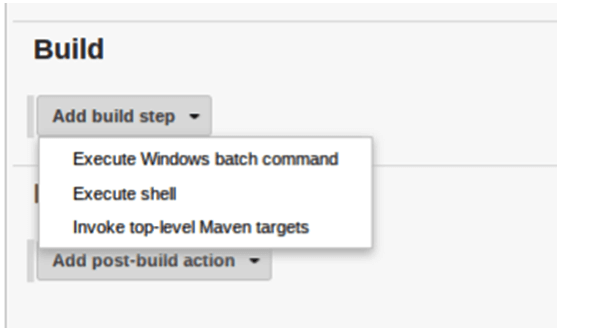
Each stage can set environment variables — such as a version string, a generated token, or a deployment target URL — that are passed forward to subsequent stages. If any stage fails, the pipeline halts immediately and reports the failure, preventing broken code from reaching downstream environments.
Key Takeaways
- Jenkins automates the compile → test → deploy loop, reducing manual errors and speeding up feedback for development teams.
- It supports multiple languages and integrates with a broad range of source control, testing, and deployment tools through plugins.
- Jenkins pipelines can include infrastructure provisioning steps, making it a single orchestration point for both application and environment changes.
- Getting started requires only a JDK and a single
java -jar jenkins.warcommand; production deployments benefit from native packages, Docker, or Kubernetes. - The controller/agent architecture and Kubernetes support allow Jenkins to scale with team and workload growth.
For the full Jenkins documentation, installation guides, and plugin catalogue, visit jenkins.io/doc.