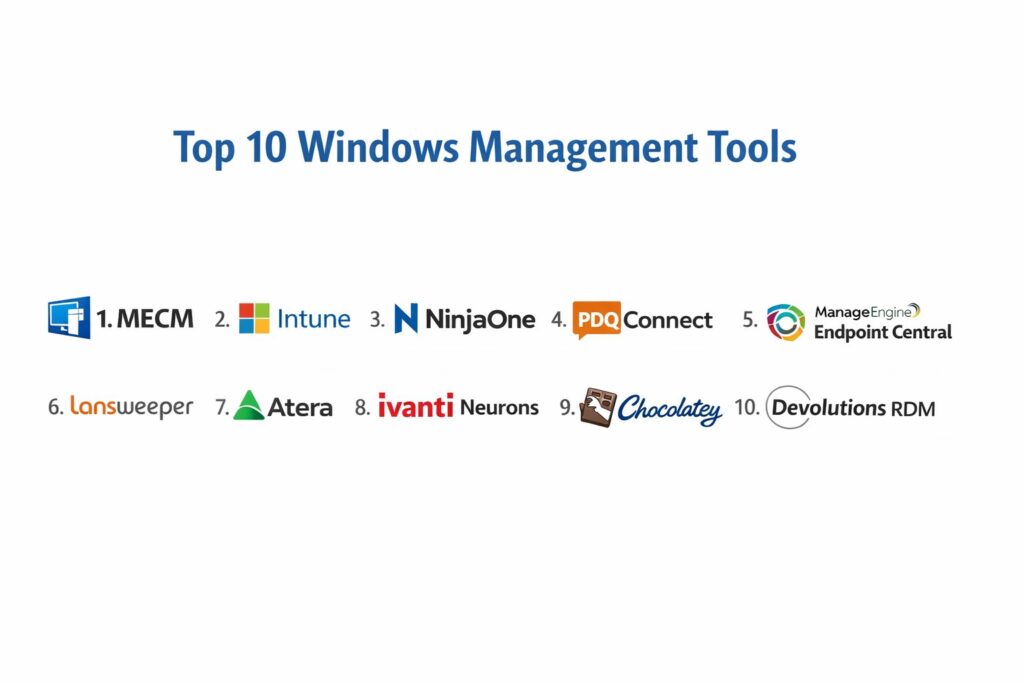
Introduction
Windows management tools represent a critical category of administrative software designed to oversee, configure, and secure the vast ecosystem of Windows-based endpoints within an enterprise. In a modern corporate environment, the sheer volume of workstations, servers, and remote devices necessitates a centralized system for automating routine tasks like patch deployment, software installation, and policy enforcement. These tools serve as the operational backbone for IT departments, providing a unified interface to maintain system health and ensure that every device remains compliant with organizational standards. By shifting from manual, machine-by-machine troubleshooting to automated, fleet-wide management, these platforms significantly reduce operational overhead and mitigate the risks associated with human error.
The current landscape of system administration is defined by the transition to hybrid work, where devices are no longer confined to a single physical office network. This shift has forced Windows management technology to evolve beyond traditional on-premises solutions toward cloud-native architectures that can reach any device with an internet connection. Modern management involves a multi-layered approach that includes real-time telemetry, remote desktop capabilities, and automated remediation of security vulnerabilities. For IT leadership, evaluating a management tool requires a deep look at the breadth of its automation engine, the granularity of its reporting, and the robustness of its security protocols. A well-implemented management suite is not just a utility but a strategic asset that enables the enterprise to scale its digital infrastructure without a proportional increase in administrative staff.
Best for: IT administrators, systems engineers, and Managed Service Providers (MSPs) who need to maintain security, performance, and compliance across a distributed fleet of Windows endpoints.
Not ideal for: Individual home users with a single computer or organizations running exclusively on non-Windows operating systems without any requirement for cross-platform integration.
Key Trends in Windows Management Tools
The integration of AI-driven proactive maintenance has become a dominant force, with tools now capable of predicting hardware failures or identifying anomalous system behavior before a crash occurs. This transition from reactive troubleshooting to predictive healing allows IT teams to solve problems before the end-user is even aware of an issue. We are also seeing a massive surge in “Zero Trust” management frameworks, where every configuration change and administrative action is continuously verified and logged. This ensures that even if an administrative account is compromised, the impact on the wider device fleet is strictly contained.
Another significant move is toward unified endpoint management (UEM), where Windows devices are managed alongside mobile and macOS assets in a single pane of glass. This convergence simplifies the IT stack and ensures consistent security policies across all hardware types. Autopilot and zero-touch provisioning have also matured, allowing organizations to ship a new laptop directly to an employee’s home and have it automatically configure itself upon the first login. Furthermore, the rise of “Configuration as Code” allows senior engineers to manage thousands of machines using version-controlled scripts, ensuring that the desired state of the network is always documented and reproducible.
How We Selected These Tools
Our selection process involved an intensive review of market adoption and technical reliability specifically within the enterprise and mid-market sectors. We prioritized platforms that have demonstrated long-term stability and are recognized as industry standards by global professional communities. A primary criterion was the “depth of management,” evaluating how much control a tool provides over the underlying Windows OS, from registry edits to BIOS-level configurations. We looked for a balance between modern cloud-first interfaces and the powerful legacy capabilities required to manage complex corporate environments.
Scalability was a major factor in our evaluation; we selected tools that can effectively manage anywhere from a few dozen to several hundred thousand devices without a loss in performance. Security posture was scrutinized to ensure that each tool provides robust encryption, multi-factor authentication, and comprehensive audit logs for all administrative actions. We also assessed the strength of the community and the availability of pre-built scripts and templates, which are essential for accelerating the deployment of common management tasks. Finally, we considered the total cost of ownership, including the infrastructure required to host the tool and the training time needed for an IT team to become proficient.
1. Microsoft Configuration Manager (MECM)
Microsoft Configuration Manager, formerly known as SCCM, is the definitive enterprise-grade solution for managing large-scale Windows environments. It provides unparalleled control over software distribution, patch management, and operating system deployment. It is typically the go-to choice for massive organizations that require deep on-premises control and complex infrastructure management.
Key Features
The platform features a robust “Software Center” that allows users to install approved applications on demand. It includes advanced “Task Sequences” for automating the deployment of new Windows versions across thousands of machines. The system offers deep integration with Windows Update for Business to manage granular patching cycles. It features a powerful hardware and software inventory system that tracks every component across the fleet. It also provides “Endpoint Analytics” to identify which devices are slowing down employee productivity due to long startup times or frequent app crashes.
Pros
It provides the most granular level of control over the Windows operating system of any tool on the market. The integration with the broader Microsoft ecosystem is native and comprehensive.
Cons
The infrastructure required to host and maintain the system is massive and complex. It requires highly specialized knowledge and significant training to manage effectively.
Platforms and Deployment
Windows Client and Server management. It is primarily an on-premises deployment with hybrid cloud attachments.
Security and Compliance
Full support for RBAC, MFA, and secure client communication via HTTPS. It is the gold standard for corporate compliance reporting.
Integrations and Ecosystem
Native integration with Microsoft Intune, Active Directory, and SQL Server for advanced reporting.
Support and Community
Supported by Microsoft’s premier support and a global community of millions of certified professionals.
2. Microsoft Intune
Microsoft Intune is a cloud-native endpoint management solution that has become the modern alternative to traditional on-premises tools. It is designed for the mobile-first, cloud-first era, allowing IT to manage Windows devices over the internet without the need for a VPN or internal server infrastructure.
Key Features
The platform features “Windows Autopilot” for zero-touch device provisioning directly from the hardware vendor to the employee. It includes a comprehensive “Mobile Device Management” (MDM) framework that enforces security policies like disk encryption and password complexity. The system offers “App Protection Policies” to secure corporate data within applications without managing the entire device. It features a cloud-based patching system that ensures remote devices stay updated regardless of their location. It also provides a unified portal for managing Windows, iOS, and Android devices in one place.
Pros
It eliminates the need for complex on-premises server infrastructure. It is exceptionally well-suited for managing remote and hybrid workforces.
Cons
It lacks some of the deep, low-level registry and BIOS control found in traditional on-premises tools. Reliance on a constant internet connection is required for real-time policy updates.
Platforms and Deployment
Windows, macOS, iOS, Android, and Linux. It is a pure cloud-based SaaS deployment.
Security and Compliance
Deep integration with Azure Active Directory and Conditional Access for a Zero Trust security model.
Integrations and Ecosystem
Part of the Microsoft 365 stack, integrating seamlessly with Office 365 and Microsoft Defender.
Support and Community
Offers a wealth of online documentation and a massive ecosystem of cloud-focused IT professionals.
3. NinjaOne
NinjaOne is a modern, fast-growing remote monitoring and management (RMM) platform designed for both MSPs and internal IT departments. It is known for its high-speed interface and its ability to provide real-time visibility into the health and security of a distributed Windows fleet.
Key Features
The platform features a centralized “Patch Management” engine that automates the update process for both the Windows OS and hundreds of third-party applications. It includes a robust “Remote Tools” suite that allows administrators to access terminal prompts and file systems without interrupting the user. The system offers automated “Health Monitoring” that alerts IT to high CPU usage or failing hard drives. It features an integrated “Backup Solution” that secures data at the endpoint level. It also provides a powerful scripting engine that supports PowerShell and batch files for custom automation.
Pros
The user interface is exceptionally fast and intuitive, requiring very little training for new technicians. It offers excellent visibility into the real-time status of remote devices.
Cons
Some of the advanced reporting features are not as deep as those found in legacy enterprise suites. It is a premium-priced product compared to some entry-level RMM tools.
Platforms and Deployment
Windows, macOS, and Linux. It is a cloud-based SaaS platform.
Security and Compliance
Offers MFA, granular permission levels, and secure, encrypted remote access tunnels.
Integrations and Ecosystem
Integrates with popular documentation tools, help desks, and security software like SentinelOne.
Support and Community
Renowned for having the highest-rated customer support in the RMM category and a vibrant user community.
4. PDQ Connect & PDQ Deploy
PDQ is a favorite among Windows administrators for its “no-nonsense” approach to software deployment and inventory management. It is designed to do a few things exceptionally well: getting software onto machines and keeping a live inventory of what is installed.
Key Features
The platform features a massive “Package Library” with hundreds of pre-built, ready-to-deploy applications that are kept up to date by the PDQ team. It includes a powerful “Dynamic Collections” feature that automatically groups machines based on criteria like “outdated version of Chrome.” The system offers a “Heartbeat” trigger that deploys software as soon as a machine comes online. It features a simple, agentless architecture for on-premises management and an agent-based model for remote work. It also provides deep reporting on every hardware and software attribute of the Windows environment.
Pros
It is incredibly fast to set up and start deploying software, often taking less than an hour. The pre-built package library saves administrators hundreds of hours of manual packaging work.
Cons
It is primarily a Windows-only tool, making it less ideal for mixed-OS environments. The on-premises version requires a direct network connection or VPN for deployments.
Platforms and Deployment
Windows only. Offers both on-premises (Deploy/Inventory) and cloud (Connect) deployment models.
Security and Compliance
Maintains secure local databases and uses standard Windows authentication protocols for network actions.
Integrations and Ecosystem
Integrates with Active Directory and various help desk systems for a streamlined IT workflow.
Support and Community
Boasts a legendary YouTube channel and community forum filled with practical Windows administration advice.
5. ManageEngine Endpoint Central
ManageEngine Endpoint Central is an all-in-one management suite that covers everything from patch management to remote control and asset tracking. it is known for providing a very high feature count at a price point that is accessible to mid-market organizations.
Key Features
The platform features a comprehensive “Patch Management” module that supports over 850 third-party applications alongside Windows updates. It includes a “Mobile Device Management” component for managing smartphones within the same console. The system offers “OS Imaging and Deployment” for setting up new workstations from scratch. It features a “Remote Desktop” tool with voice and video chat to assist users during troubleshooting. It also provides advanced “Power Management” settings to reduce energy costs by scheduling shutdowns across the fleet.
Pros
It offers one of the best feature-to-price ratios in the industry. The single-console approach for both desktops and mobile devices simplifies the administrative workflow.
Cons
The user interface can be cluttered and overwhelming due to the sheer volume of available modules. Some users report that the initial setup and configuration can be complex.
Platforms and Deployment
Windows, macOS, Linux, iOS, and Android. Available as both on-premises and cloud SaaS.
Security and Compliance
Features vulnerability scanning and automated remediation to ensure all devices meet security baselines.
Integrations and Ecosystem
Deeply integrated with the broader ManageEngine suite, including their ServiceDesk Plus and OpManager products.
Support and Community
Offers a wide range of training materials and 24/5 technical support for its global user base.
6. Lansweeper
Lansweeper is a specialized “Asset Management” and discovery tool that excels at finding everything connected to a network. While it is not a deployment tool, its ability to provide a complete “Source of Truth” for Windows environments is unmatched.
Key Features
The platform features an “Agentless Discovery” engine that finds Windows machines, printers, routers, and IoT devices without needing to install software. It includes a deep “Hardware and Software Inventory” that tracks serial numbers, CPU models, and installed licenses. The system offers an “Admirative Alerts” system that notifies IT when a disk is nearly full or a specific software is installed. It features a built-in “Knowledge Base” and help desk for managing user requests. It also provides automated “Cloud Inventory” for tracking assets in Azure and AWS.
Pros
It is the gold standard for IT asset discovery, finding devices that other tools often miss. The reporting engine is incredibly flexible and can query almost any data point.
Cons
It does not have built-in software deployment or patching capabilities, meaning it must be paired with another tool. The licensing model can get expensive as the device count grows.
Platforms and Deployment
Windows-centric but discovers all networked devices. Available as on-premises or cloud.
Security and Compliance
Provides a complete audit trail of all hardware and software changes, which is vital for compliance audits.
Integrations and Ecosystem
Integrates with nearly every major IT management tool through its powerful API.
Support and Community
Supported by a dedicated team and an active forum where users share custom SQL reports.
7. Atera
Atera is a unique management platform that combines RMM capabilities with a full Professional Services Automation (PSA) suite. It is particularly popular with smaller IT departments and MSPs because of its disruptive “per-technician” pricing model.
Key Features
The platform features a “Unified Console” that manages tickets, billing, and device monitoring in one place. It includes an AI-driven “Auto-Healing” engine that can automatically run scripts to fix common Windows issues. The system offers “Network Discovery” to find and manage new devices as they join the environment. It features a “Customer Portal” where end-users can track the status of their IT requests. It also provides integrated “AnyDesk” remote access for high-speed screen sharing and troubleshooting.
Pros
The pricing model is very attractive for growing teams, as you pay for the number of technicians, not the number of devices. The integrated PSA features reduce the need for multiple software subscriptions.
Cons
The mobile management and deep enterprise features are not as mature as those found in Intune or MECM. Some advanced automations require more manual setup.
Platforms and Deployment
Windows, macOS, and Linux. It is a pure cloud-based SaaS platform.
Security and Compliance
Includes MFA, 256-bit encryption for remote sessions, and comprehensive activity logs.
Integrations and Ecosystem
Integrates with various backup, security, and accounting tools like QuickBooks and Xero.
Support and Community
Known for its responsive support and a community that shares a large library of automation scripts.
8. Ivanti Neurons for Discovery & Patch
Ivanti Neurons is an enterprise-grade platform that focuses on “Self-Healing” and hyper-automation. It is designed to manage complex environments where security and rapid patching are the highest priorities.
Key Features
The platform features a “Hyper-Automation” engine that uses AI to identify and remediate security vulnerabilities automatically. It includes “Real-Time Intelligence” which can query the entire fleet in seconds to find specific files or settings. The system offers “Predictive Patching” which prioritizes updates based on actual risk and exploitability in the wild. It features a “Self-Service Portal” that allows users to fix common issues themselves. It also provides deep “License Optimization” to help organizations reduce software spending by identifying unused apps.
Pros
It is one of the most technologically advanced tools for automated security and self-healing. Its ability to provide real-time data from thousands of machines is exceptional.
Cons
The licensing and implementation costs are at the very high end of the market. It requires a significant time commitment to set up the automation workflows correctly.
Platforms and Deployment
Windows, macOS, Linux, and Mobile. Cloud-native and hybrid options.
Security and Compliance
Meets the highest global security standards and is used by some of the world’s most secure government and financial institutions.
Integrations and Ecosystem
Integrates with a vast array of enterprise IT and security platforms through the Ivanti ecosystem.
Support and Community
Provides top-tier global support and a professional community focused on enterprise IT service management.
9. Chocolatey for Business
Chocolatey is a specialized “Package Manager” for Windows that brings the power of Linux-style command-line management to the Windows ecosystem. It is an essential tool for administrators who want to automate the entire lifecycle of Windows software.
Key Features
The platform features “Central Management” which provides a GUI for viewing the software status of all machines in the environment. It includes “Package Internalizer” which allows organizations to take public packages and host them privately for maximum security. The system offers automated “Software Auditing” to ensure all apps are at the approved version. It features a “Self-Service GUI” for users to install software without administrative rights. It also provides a robust “PowerShell” foundation for creating custom deployment scripts.
Pros
It makes managing Windows software as easy as typing a single command. The ability to manage software updates without a heavy agent is a major technical advantage.
Cons
It is primarily a software management tool, not a full-device management suite like Intune. It requires a high degree of comfort with the command line and PowerShell.
Platforms and Deployment
Windows only. Can be deployed on-premises or via cloud-based automation tools.
Security and Compliance
Supports virus scanning of all packages and private repository hosting to ensure software integrity.
Integrations and Ecosystem
Integrates seamlessly with MECM, Intune, and various RMM platforms to handle the “software layer” of management.
Support and Community
Offers professional support for business users and has a massive community-driven package repository.
10. Remote Desktop Manager (Devolutions)
Remote Desktop Manager is a specialized tool for managing all remote connections and credentials in one secure place. While it doesn’t “manage” the OS in the traditional sense, it is an indispensable tool for administrators who need to jump between hundreds of Windows servers and workstations.
Key Features
The platform features a “Centralized Vault” for securely storing RDP, SSH, and VPN credentials. It includes “Role-Based Access Control” to ensure only authorized technicians can access specific servers. The system offers an “Integrated Console” that supports hundreds of different connection types in a single window. It features “Session Logging” that records exactly who connected to what and when. It also provides an “Offline Mode” so technicians can still access connection info when the network is down.
Pros
It is the ultimate “Efficiency Tool” for IT professionals, ending the chaos of managing hundreds of different passwords and connection strings. It is exceptionally secure and designed for professional use.
Cons
It is a specialized tool and does not provide patching or automated software deployment. It is an additional cost on top of your primary management suite.
Platforms and Deployment
Windows, macOS, iOS, and Android. Cloud or self-hosted database options.
Security and Compliance
Supports MFA, high-level encryption, and full auditing, making it compliant with strict financial and health data standards.
Integrations and Ecosystem
Integrates with various password managers like KeePass and Bitwarden.
Support and Community
Known for having a very active developer team and a professional community of systems administrators.
Comparison Table
| Tool Name | Best For | Platform(s) Supported | Deployment | Standout Feature | Public Rating |
| 1. MECM (SCCM) | Global Enterprise | Windows Client/Server | On-Prem/Hybrid | Task Sequences | 4.4/5 |
| 2. Microsoft Intune | Hybrid / Cloud-First | Win, Mac, iOS, Android | Cloud SaaS | Autopilot | 4.5/5 |
| 3. NinjaOne | MSPs / Modern IT | Win, Mac, Linux | Cloud SaaS | Real-time Patching | 4.8/5 |
| 4. PDQ Connect | Fast Deployment | Windows | Cloud / On-Prem | Package Library | 4.8/5 |
| 5. Endpoint Central | All-in-One Value | Win, Mac, Mobile | Hybrid | 850+ App Patching | 4.4/5 |
| 6. Lansweeper | IT Asset Discovery | All Networked Devices | Hybrid | Agentless Discovery | 4.6/5 |
| 7. Atera | Growing Teams | Win, Mac, Linux | Cloud SaaS | Per-Tech Pricing | 4.7/5 |
| 8. Ivanti Neurons | Self-Healing / Security | Win, Mac, Linux | Cloud SaaS | AI Vulnerability Prioritization | 4.3/5 |
| 9. Chocolatey | Software Automation | Windows | Self-hosted | Package Management | 4.7/5 |
| 10. Devolutions RDM | Connection Management | Win, Mac, Mobile | Hybrid | Credential Vault | 4.8/5 |
Evaluation & Scoring of Windows Management Tools
The scoring below is a comparative model intended to help shortlisting. Each criterion is scored from 1–10, then a weighted total from 0–10 is calculated using the weights listed. These are analyst estimates based on typical fit and common workflow requirements, not public ratings.
Weights:
- Core features – 25%
- Ease of use – 15%
- Integrations & ecosystem – 15%
- Security & compliance – 10%
- Performance & reliability – 10%
- Support & community – 10%
- Price / value – 15%
| Tool Name | Core (25%) | Ease (15%) | Integrations (15%) | Security (10%) | Performance (10%) | Support (10%) | Value (15%) | Weighted Total |
| 1. MECM | 10 | 2 | 10 | 9 | 8 | 9 | 5 | 7.90 |
| 2. Intune | 9 | 7 | 10 | 10 | 9 | 8 | 8 | 8.85 |
| 3. NinjaOne | 8 | 9 | 8 | 9 | 10 | 10 | 8 | 8.70 |
| 4. PDQ Connect | 7 | 10 | 7 | 8 | 10 | 9 | 9 | 8.35 |
| 5. Endpoint Central | 9 | 6 | 9 | 8 | 8 | 8 | 9 | 8.10 |
| 6. Lansweeper | 6 | 8 | 9 | 9 | 9 | 8 | 7 | 7.60 |
| 7. Atera | 7 | 8 | 7 | 8 | 8 | 9 | 10 | 8.00 |
| 8. Ivanti Neurons | 10 | 4 | 8 | 10 | 9 | 8 | 6 | 7.95 |
| 9. Chocolatey | 8 | 6 | 8 | 9 | 10 | 7 | 8 | 7.90 |
| 10. Devolutions RDM | 6 | 9 | 8 | 10 | 10 | 9 | 8 | 8.15 |
How to interpret the scores:
- Use the weighted total to shortlist candidates, then validate with a pilot.
- A lower score can mean specialization, not weakness.
- Security and compliance scores reflect controllability and governance fit, because certifications are often not publicly stated.
- Actual outcomes vary with assembly size, team skills, templates, and process maturity.
Which Windows Management Tool Tool Is Right for You?
Solo / Freelancer
If you are managing a very small fleet of computers for your own startup, you need a tool that is free or extremely low-cost with zero infrastructure requirements. A cloud-native tool that allows you to set up basic security policies and push software without needing an IT degree is the ideal starting point. Focus on platforms that offer a “pay-for-what-you-use” model so your costs only grow as your team does.
SMB
Nonprofits with a small staff should prioritize simplicity and reliability. You likely do not have a dedicated system administrator, so a tool with high automation and a friendly interface is critical. Look for platforms that offer specific nonprofit discounts and have built-in “best practice” templates to ensure your computers stay secure without requiring manual intervention every day.
Mid-Market
Mid-sized organizations need to bridge the gap between simple management and enterprise power. You should look for an RMM or a unified endpoint management suite that can handle both Windows and a few mobile devices in a single console. This segment benefits most from “All-in-One” tools that reduce the number of different software subscriptions the IT department has to manage.
Enterprise
For organizations with thousands of machines, scalability and deep customization are the only things that matter. You need a system that can deploy complex software sequences over a slow network connection and provide detailed compliance reports for auditors. Integration with existing security platforms and the ability to automate custom internal workflows are the primary drivers for this segment.
Budget vs Premium
If your primary concern is the bottom line, look for “per-technician” pricing models or tools with powerful free tiers. These can provide 90% of the functionality of premium suites at a fraction of the cost. However, premium tools often include specialized AI-driven security and self-healing features that can pay for themselves by preventing even a single major outage or security breach.
Feature Depth vs Ease of Use
The most powerful tools in the world are useless if your team is too intimidated to use them. For many IT departments, a “good enough” tool that everyone actually uses is far more valuable than a “perfect” system that requires a dedicated full-time expert just to keep running. Always weigh the time spent in training against the technical benefits of the platform.
Integrations & Scalability
Your management tool must talk to your help desk, your security software, and your inventory database. As you grow, the ability to add new management modules or connect to third-party services via API becomes the difference between a smooth operation and a technical bottleneck. Always choose a tool with a modern, open architecture.
Security & Compliance Needs
In a world of constant cyber threats, your management tool is your primary defensive weapon. If you are in a regulated industry, you must choose a platform that offers the specific auditing and configuration locks required by law. The tool itself must be the most secure piece of software in your environment, as it holds the “keys to the kingdom.”
Frequently Asked Questions (FAQs)
1. What is the difference between RMM and MDM?
RMM (Remote Monitoring and Management) is designed for deep troubleshooting, scripting, and maintenance of traditional computers. MDM (Mobile Device Management) is a cloud-based framework designed for modern security policies and simple app deployment on mobile and Windows devices.
2. Can I use these tools to manage remote workers?
Yes, most modern management tools are cloud-based or offer a cloud gateway, allowing you to manage and secure laptops wherever they are in the world, as long as they have an internet connection.
3. Why is patch management so important?
Unpatched software is the primary entry point for over 80% of cyberattacks. Management tools automate the process of finding and fixing these vulnerabilities across your entire fleet, significantly reducing your risk profile.
4. Is it better to manage Windows on-premises or in the cloud?
Cloud management is generally better for mobile workforces and reduced infrastructure costs. On-premises management is often preferred by very large organizations that need extreme control and have high-speed internal networks for massive data transfers.
5. What is “Zero-Touch Provisioning”?
This is a process where a new laptop is shipped directly to an employee. When they log in for the first time, the management tool automatically installs all their apps and security settings without an IT person ever touching the hardware.
6. Do these tools support third-party software updates?
Most professional management suites can patch common apps like Chrome, Zoom, and Adobe Reader automatically, ensuring that not just the Windows OS, but all your applications remain secure.
7. How do management tools help with IT audits?
They provide a central “Source of Truth” with reports that prove every machine has encryption enabled, the firewall is on, and all security patches are up to date, which is exactly what auditors look for.
8. Can I automate routine tasks like disk cleanup?
Yes, most of these tools have a scripting engine that allows you to schedule any Windows task—from clearing temp files to restarting services—across any number of machines at once.
9. Is it difficult to switch from one management tool to another?
It can be a significant project, as it requires “off-boarding” one agent and “on-boarding” another. However, modern tools often have migration scripts that help automate the transition between platforms.
10. Do these tools require a high-speed internet connection?
While essential for real-time remote control, most management agents are designed to be “resilient,” meaning they will download updates and policies in the background whenever a connection is available without interrupting the user.
Conclusion
In the modern enterprise, Windows management software is the digital infrastructure that enables operational scaling while maintaining a robust security posture. These platforms have transitioned from simple remote-access utilities to intelligent, self-healing ecosystems that can oversee thousands of devices with minimal human intervention. By centralizing visibility and automating the tedious aspects of system administration, IT teams can move from a state of constant “firefighting” to a strategic model of proactive optimization. Selecting the right tool is a long-term commitment that should balance technical depth with the practical realities of your organization’s workflow and budget.