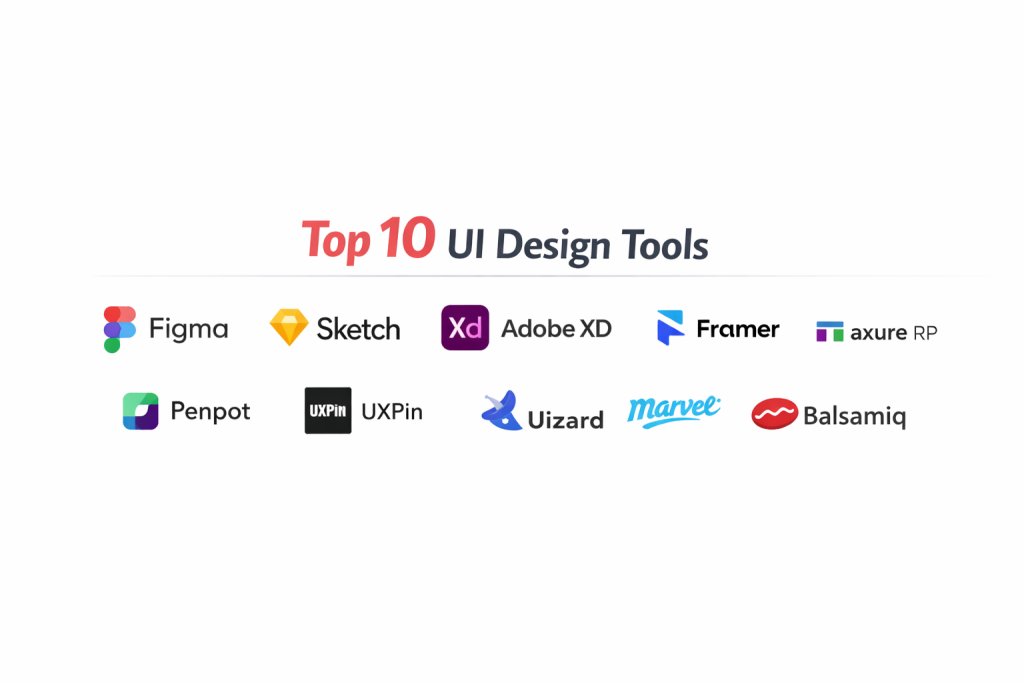
Introduction
User Interface (UI) design tools are the specialized software ecosystems used to craft the visual touchpoints of digital products, ranging from mobile applications to complex enterprise dashboards. These platforms allow designers to build high-fidelity layouts using vector-based geometry, ensuring that every button, icon, and navigation element remains crisp across varying screen resolutions. Unlike general graphic design software, modern UI tools are built with a focus on “interactivity,” enabling the creation of clickable prototypes that simulate the actual user journey. In the professional world, these tools are no longer just for drawing; they are the central source of truth where design systems are managed, accessibility is audited, and design-to-code handoff occurs.
The strategic importance of these tools lies in their ability to bridge the gap between creative vision and technical execution. Organizations rely on these platforms to establish consistent design languages that reinforce brand identity while optimizing for usability. By utilizing reusable components and global styles, teams can scale their digital presence without introducing “design debt” or visual inconsistencies. For decision-makers, choosing the right UI environment involves evaluating how a tool fits into the existing engineering stack, its capacity for real-time collaboration among distributed teams, and its robustness in maintaining intellectual property security. As digital interfaces become more complex, the role of these tools has expanded to include AI-driven automation and spatial design capabilities for emerging hardware.
Best for: Product design teams, front-end developers, UX researchers, and agencies specializing in mobile and web application development.
Not ideal for: High-end photo manipulation, complex 3D character modeling, or long-form print publishing like magazines and books.
Key Trends in UI Design Tools
The integration of generative AI is currently the most significant shift, with tools now capable of generating entire layouts or suggesting accessibility fixes based on simple text prompts. There is a massive movement toward “design-to-code” automation, where the boundary between the design canvas and the live production environment is becoming nearly invisible. Prototyping has evolved from simple screen-linking to advanced “logic-based” interactions, allowing designers to simulate complex app behaviors like conditional data entry and dynamic variables.
Collaboration has moved beyond mere commenting to “multiplayer” environments where designers, developers, and stakeholders work on the same canvas simultaneously. We are also seeing a surge in specialized features for spatial computing and mixed reality, as designers prepare for a future beyond 2D screens. Accessibility is no longer an afterthought, with built-in contrast checkers and screen-reader simulators becoming standard features in most professional suites. Finally, “open standards” like Universal Scene Description (USD) and advanced SVG support are ensuring that design data remains portable across different platforms.
How We Selected These Tools
Our selection process focused on identifying the most reliable and future-ready platforms currently used in high-stakes production environments. We prioritized software that offers a complete “end-to-end” workflow, encompassing everything from low-fidelity wireframing to high-fidelity handoff. Market adoption was a key metric, as tools with larger ecosystems provide better third-party plugin support and a more accessible talent pool. We also analyzed the frequency of updates and the developer’s focus on enterprise-grade features.
Performance was scrutinized by testing how each tool handles massive design systems with thousands of nested components and variants. We looked for platforms that provide a “single source of truth” for design tokens, ensuring that updates to a brand’s color palette or typography can be pushed across an entire product suite instantly. Security and compliance were non-negotiable criteria, especially for organizations in regulated industries like finance and healthcare. Finally, we assessed the quality of “developer handoff” features, as the efficiency of the design-to-engineering transition directly impacts a project’s speed to market.
1. Figma
Figma is the industry-leading, cloud-based platform that has set the standard for real-time collaborative design. It operates entirely in the browser (with a dedicated desktop app), allowing teams to work together on a single canvas regardless of their operating system. Its “Dev Mode” provides a dedicated space for engineers to inspect designs and grab CSS or React snippets directly from the UI.
Key Features
The platform features an “Auto Layout” system that behaves like CSS Flexbox, making it easy to create responsive components. It includes a robust version history that allows teams to revert to any previous iteration of a design file. Its “Variables” feature enables the management of design tokens for multiple themes, such as light and dark modes. The software also offers advanced prototyping with “Smart Animate” to create fluid transitions between screens. Additionally, its built-in whiteboard, FigJam, facilitates early-stage brainstorming and user flow mapping.
Pros
The “multiplayer” collaboration is the smoothest in the industry, making it perfect for remote teams. It also has a massive community-driven plugin library that adds functionality for almost any specific design need.
Cons
Since it is primarily cloud-based, working without a stable internet connection can be challenging. Some users find the pricing structure for “Dev Mode” seats to be a significant additional expense.
Platforms and Deployment
Web-based (Chrome, Firefox, Safari), Windows, and macOS. It is a SaaS-based deployment.
Security and Compliance
It is SOC 2 Type II, SOC 3, ISO 27001, and GDPR compliant, offering enterprise-grade SSO and advanced administrative controls.
Integrations and Ecosystem
Integrates deeply with Slack, Microsoft Teams, Jira, and Storybook. Its open API allows for custom internal tool development.
Support and Community
Offers a massive public community for sharing files and plugins, backed by 24/7 priority support for enterprise clients.
2. Sketch
Sketch is a dedicated macOS application that played a foundational role in defining the modern UI design workflow. It is highly valued for its performance and its refined approach to vector editing. While it began as a local-only tool, it has evolved to include powerful cloud-sharing and collaboration features while maintaining its “Mac-native” feel.
Key Features
The “Symbols” system in Sketch is incredibly powerful, allowing for complex, nested components that can be updated globally. It offers a “Smart Layout” feature that automatically resizes components based on the content inside them. The software provides an “Infinite Canvas” optimized for creating hundreds of artboards without performance lag. It includes a native workspace for prototyping and a built-in “Handoff” feature for sharing specs with developers. It also supports “Shared Libraries” that keep entire teams synced on the latest design assets.
Pros
The performance is exceptionally fast because it is optimized specifically for macOS hardware. It offers a one-time purchase option for individuals who prefer not to use a subscription model.
Cons
It is strictly limited to macOS, which creates friction in cross-platform teams where developers or stakeholders use Windows. The real-time collaboration is not as seamless as browser-based alternatives.
Platforms and Deployment
macOS only. It uses a hybrid deployment with local design files and cloud-based sharing.
Security and Compliance
Supports secure cloud storage and enterprise-level permission management for shared documents.
Integrations and Ecosystem
Has one of the oldest and most established plugin ecosystems, integrating with tools like Zeplin, InVision, and Abstract.
Support and Community
Maintains a loyal professional community and provides extensive documentation and direct customer support.
3. Adobe XD
Adobe XD is a fast and powerful UI/UX tool that is part of the Creative Cloud ecosystem. It is designed to handle the entire design process, from wireframing to high-fidelity prototyping, with a specific focus on performance and integration with other Adobe applications like Photoshop and Illustrator.
Key Features
The “Repeat Grid” tool allows designers to create lists or galleries by simply dragging the edge of a single element. It features a unique “Voice Prototyping” capability that lets users design and test voice-activated interactions. The “Auto-Animate” feature automatically creates smooth transitions between artboards by detecting differences in layers. It supports “Creative Cloud Libraries” for easy sharing of assets across different Adobe apps. It also includes “Co-editing” features for real-time collaboration on a single document.
Pros
It integrates perfectly with the rest of the Adobe suite, making it the best choice for designers who already rely on Creative Cloud. The software is known for being extremely lightweight and fast, even on older hardware.
Cons
It lacks some of the deep “component property” features found in Figma. Its development has slowed in recent times compared to its main competitors.
Platforms and Deployment
Windows and macOS. It is deployed through the Adobe Creative Cloud desktop application.
Security and Compliance
Adheres to Adobe’s enterprise security standards, including identity management and asset encryption.
Integrations and Ecosystem
Native integration with Photoshop, Illustrator, and After Effects, plus support for a growing list of third-party plugins.
Support and Community
Backed by Adobe’s global support network and a massive library of official tutorials and community forums.
4. Framer
Framer has evolved from a code-heavy prototyping tool into a powerful “design-to-web” platform. It allows designers to create high-fidelity interfaces that can be published directly as live, responsive websites without the need for a separate development phase.
Key Features
The platform uses “Layout” tools that mirror how web browsers work, ensuring that designs are inherently responsive. It features a “CMS” (Content Management System) that allows designers to manage dynamic data like blog posts or product listings directly on the canvas. The animation engine is top-tier, allowing for complex, spring-based physics and scroll-triggered effects. It includes an “AI Site Generator” that can build a full website structure from a text prompt. It also allows for the integration of custom React components for advanced functionality.
Pros
It is the best tool for bridge the gap between design and production, as the final output is a real website. The prototyping capabilities are more realistic than almost any other tool.
Cons
The learning curve is slightly higher due to its proximity to web development concepts. It may be overpowered for teams that only need static mockups for mobile apps.
Platforms and Deployment
Web-based and macOS app. It acts as both a design tool and a hosting platform for live sites.
Security and Compliance
Provides SOC 2 Type II compliance and enterprise-level SSO for its “Teams” and “Enterprise” plans.
Integrations and Ecosystem
Integrates with Figma (for importing designs), Slack, and various marketing tools like HubSpot and Intercom.
Support and Community
Has a very active community on Discord and provides high-quality video lessons through its academy.
5. Axure RP
Axure RP is a specialized tool built for creating highly complex, logic-driven prototypes and detailed documentation. It is often the preferred choice for enterprise UX designers who need to simulate intricate data interactions and conditional workflows that simple “screen-linkers” cannot handle.
Key Features
It features “Dynamic Panels” that allow for multiple states within a single area of a page, such as tabs or carousels. The software supports “Conditional Logic,” enabling prototypes to react differently based on user input or variables. It includes powerful “Widget Libraries” for creating complex forms and data grids. The “Documentation” feature automatically generates functional specifications based on the interactions built into the design. It also offers “Team Projects” with a check-in/check-out system for version control.
Pros
It is the most powerful tool for simulating real app functionality, including form validation and data calculations. It is excellent for “low-fidelity” structural planning and complex information architecture.
Cons
The user interface feels more technical and “legacy” compared to modern tools like Figma. It has a very steep learning curve for designers who are used to purely visual tools.
Platforms and Deployment
Windows and macOS. It is a local installation with cloud-based prototype hosting.
Security and Compliance
Offers “Axure Cloud for Enterprise,” which provides private server options and ISO 27001 compliance.
Integrations and Ecosystem
Integrates with Jira and Confluence for documentation, and has plugins for importing assets from Sketch and Figma.
Support and Community
Provides deep technical documentation and a professional forum focused on advanced UX problem-solving.
6. Penpot
Penpot is the first professional-grade, open-source UI design tool. It is built for teams that value transparency, open standards, and cross-disciplinary collaboration between designers and developers. Because it uses SVG as its native file format, it is highly compatible with web development workflows.
Key Features
The tool features “Flex Layout,” which uses the same logic as CSS Flexbox, allowing designers to build layouts exactly how they will be coded. It is “SVG-native,” meaning that designs are always crisp and easy for developers to inspect. The software includes “Components” and “Design Systems” features that rival paid alternatives. It allows for real-time collaboration on a shared canvas. Being open-source, it can be self-hosted on a company’s own servers for maximum privacy.
Pros
It is completely free to use, making it an excellent choice for startups and non-profits. The self-hosting option is a major benefit for organizations with strict data sovereignty requirements.
Cons
The plugin ecosystem is still growing and is not yet as vast as Figma’s. Some advanced prototyping features are still in development.
Platforms and Deployment
Web-based. It can be used as a SaaS or self-hosted using Docker.
Security and Compliance
Security is as robust as your own infrastructure if self-hosted. The SaaS version follows standard cloud security practices.
Integrations and Ecosystem
Focuses on “Developer-Designer” harmony, with strong support for SVG, CSS, and standard web formats.
Support and Community
Backed by an active open-source community on GitHub and a dedicated user forum.
7. UXPin
UXPin is a “code-based” design tool that allows designers to work with the same components that developers use. By using real code instead of just drawing vectors, it ensures that prototypes behave exactly like the final product, including real data and interactive states.
Key Features
The “Merge” technology allows designers to pull in actual React, Vue, or Angular components from a Git repository. It supports “State” management, so a single component can have multiple interactive appearances (e.g., hover, active, disabled). The software includes built-in “Accessibility” tools like a color blindness simulator and contrast checker. It features “Conditional Interactions” and “Variables” for building high-fidelity logic into prototypes. It also provides a robust “Design Systems” manager to keep all assets in sync.
Pros
It virtually eliminates the “handoff” problem because designers are using the actual production components. It is the best choice for teams that have an established, code-driven design system.
Cons
It is more expensive than many other UI tools. Setting up the “Merge” feature requires initial technical coordination with the engineering team.
Platforms and Deployment
Web-based, Windows, and macOS.
Security and Compliance
SOC 2 Type II compliant and provides enterprise-grade data encryption and access controls.
Integrations and Ecosystem
Deeply integrated with Git, Storybook, and various developer frameworks through its Merge technology.
Support and Community
Offers dedicated account management for enterprise customers and a rich library of webinars on advanced design-to-code workflows.
8. Uizard
Uizard is an “AI-first” design tool specifically created for rapid ideation and prototyping. It is designed to be accessible to product managers, founders, and non-designers, allowing them to turn hand-drawn sketches or simple text prompts into editable digital mockups in minutes.
Key Features
The “Autodesigner” allows users to generate multi-screen prototypes by simply describing their idea in plain English. It features a “Sketch-to-Design” tool that uses AI to convert a photo of a hand-drawn wireframe into a digital UI. The software includes a “Theme Generator” that can extract a design style from a URL or an uploaded image. It provides a drag-and-drop editor with a vast library of pre-built templates. It also supports real-time collaboration for team-based brainstorming.
Pros
It is the fastest tool for moving from a “rough idea” to a “visual mockup.” Its AI features significantly lower the barrier to entry for those without formal design training.
Cons
It lacks the granular vector control needed for professional-level visual polish. It is better for early-stage concepts than for final production-ready designs.
Platforms and Deployment
Web-based.
Security and Compliance
Compliant with GDPR and standard cloud security protocols for data protection.
Integrations and Ecosystem
Focuses on simplicity, with easy export options to images and basic code snippets.
Support and Community
Provides helpful onboarding guides and a growing library of community-shared templates.
9. Marvel
Marvel is a refreshingly simple platform for wireframing, prototyping, and user testing. It is designed to be “all-in-one,” providing everything a team needs to validate a design concept quickly without the complexity of more technical tools.
Key Features
The platform features an intuitive “Design” tool for creating basic mockups directly in the browser. Its “Prototyping” system uses a simple “hotspot” method to link screens together. It includes “User Testing” features that allow you to record users as they interact with your prototype. The “Handoff” tool automatically generates CSS, Swift, and Android XML code for developers. It also features a “Canvas” for collaborative brainstorming and project planning.
Pros
It is incredibly easy to learn; a new user can create a clickable prototype in less than 30 minutes. The integrated user testing is a major advantage for rapid validation.
Cons
It lacks advanced animation and logic features, making it unsuitable for complex high-fidelity prototypes. Its vector tools are very basic compared to Figma or Sketch.
Platforms and Deployment
Web-based, with mobile apps for iOS and Android for testing prototypes.
Security and Compliance
SOC 2 Type II, ISO 27001, and GDPR compliant, making it suitable for professional corporate environments.
Integrations and Ecosystem
Integrates smoothly with Dropbox, Slack, Jira, and Microsoft Teams.
Support and Community
Known for excellent customer service and a very straightforward, easy-to-follow documentation library.
10. Balsamiq
Balsamiq is the gold standard for “low-fidelity” wireframing. It is designed to look like a whiteboard sketch, which intentionally keeps the focus on “structure and usability” rather than colors and pixel-perfect details during the early stages of a project.
Key Features
The software features a “Quick Add” tool that allows users to build layouts using only their keyboard. It includes a massive library of “Sketch-style” UI components like buttons, menus, and forms. Designers can switch between “Sketch” and “Wire” skins depending on the desired level of polish. It supports simple “linking” between wireframes to create basic interactive flows. It also allows for collaborative editing and provides “Alternative Versions” to explore multiple ideas side-by-side.
Pros
It prevents stakeholders from getting distracted by visual aesthetics too early in the process. Its simplicity makes it a favorite for product managers and business analysts.
Cons
It is strictly for wireframing; you cannot create high-fidelity UI or final visual designs within it. It has no “handoff” features for developers.
Platforms and Deployment
Web-based (Balsamiq Cloud), Windows, and macOS (Balsamiq Desktop).
Security and Compliance
Provides secure cloud storage with encrypted data transfers and standard user access controls.
Integrations and Ecosystem
Integrates with Google Drive, Confluence, and Jira to keep wireframes directly within project documentation.
Support and Community
Offers a wealth of educational resources on the “fundamentals of UI structure” and responsive direct support.
Comparison Table
| Tool Name | Best For | Platform(s) Supported | Deployment | Standout Feature | Public Rating |
| 1. Figma | Collaboration | Win, Mac, Web | SaaS | Real-time Multiplayer | 4.9/5 |
| 2. Sketch | Mac Professionals | macOS | Local/Cloud | Native Mac Performance | 4.6/5 |
| 3. Adobe XD | Creative Suite | Win, Mac | Local/SaaS | Auto-Animate & Voice | 4.3/5 |
| 4. Framer | Design-to-Web | Mac, Web | SaaS/Host | High-Fidelity Motion | 4.7/5 |
| 5. Axure RP | Logic & Enterprise | Win, Mac | Local/Cloud | Conditional Logic | 4.5/5 |
| 6. Penpot | Open-Source/Devs | Web | SaaS/Self | Flex Layout & SVG-Native | 4.4/5 |
| 7. UXPin | Code-based Design | Win, Mac, Web | SaaS | Merge Technology | 4.5/5 |
| 8. Uizard | Rapid AI Ideation | Web | SaaS | Autodesigner AI | 4.2/5 |
| 9. Marvel | Simple Prototypes | Web, Mobile | SaaS | Built-in User Testing | 4.1/5 |
| 10. Balsamiq | Lo-Fi Wireframes | Win, Mac, Web | SaaS/Local | Sketch-style UI Kit | 4.8/5 |
Evaluation & Scoring of UI Design Tools
The scoring below is a comparative model intended to help shortlisting. Each criterion is scored from 1–10, then a weighted total from 0–10 is calculated using the weights listed. These are analyst estimates based on typical fit and common workflow requirements, not public ratings.
Weights:
- Core features – 25%
- Ease of use – 15%
- Integrations & ecosystem – 15%
- Security & compliance – 10%
- Performance & reliability – 10%
- Support & community – 10%
- Price / value – 15%
| Tool Name | Core (25%) | Ease (15%) | Integrations (15%) | Security (10%) | Performance (10%) | Support (10%) | Value (15%) | Weighted Total |
| 1. Figma | 10 | 8 | 10 | 10 | 9 | 10 | 9 | 9.45 |
| 2. Sketch | 8 | 9 | 8 | 8 | 10 | 9 | 8 | 8.45 |
| 3. Adobe XD | 7 | 9 | 10 | 9 | 10 | 8 | 7 | 8.25 |
| 4. Framer | 9 | 6 | 7 | 8 | 8 | 9 | 8 | 8.00 |
| 5. Axure RP | 10 | 3 | 7 | 9 | 8 | 8 | 6 | 7.30 |
| 6. Penpot | 8 | 7 | 6 | 10 | 8 | 7 | 10 | 7.95 |
| 7. UXPin | 10 | 5 | 9 | 9 | 8 | 9 | 7 | 8.35 |
| 8. Uizard | 6 | 10 | 5 | 7 | 9 | 7 | 8 | 7.40 |
| 9. Marvel | 5 | 10 | 8 | 9 | 9 | 8 | 8 | 7.85 |
| 10. Balsamiq | 7 | 10 | 7 | 8 | 10 | 9 | 9 | 8.45 |
How to interpret the scores:
- Use the weighted total to shortlist candidates, then validate with a pilot.
- A lower score can mean specialization, not weakness.
- Security and compliance scores reflect controllability and governance fit, because certifications are often not publicly stated.
- Actual outcomes vary with assembly size, team skills, templates, and process maturity.
Which UI Design Tool Is Right for You?
Solo / Freelancer
For individuals, a tool that is free or low-cost while offering a broad range of features is essential. If you use a Mac, the high performance of a native app can be a great asset. If you work across different machines, a browser-based tool ensures you always have access to your projects.
SMB
Small to medium businesses should prioritize collaboration and ease of use. A tool that allows a small team to scale without needing complex server setups or extensive training is ideal. Look for platforms that offer a “pro” version that grows as your team size increases.
Mid-Market
Mid-market companies need to start thinking about “design systems” and consistency across multiple products. Choosing a tool with robust component management and library sharing ensures that your expanding brand remains cohesive.
Enterprise
For enterprise organizations, security and administrative controls are the top priority. You need a platform that offers SSO, detailed audit logs, and the ability to manage permissions for hundreds of users across different departments and regions.
Budget vs Premium
Open-source and free-tier tools provide incredible value for those starting out. However, premium tools often justify their cost through advanced features like “code-merge,” AI automation, and 24/7 dedicated support that can save thousands of dollars in development time.
Feature Depth vs Ease of Use
Some tools are built for “speed of thought,” allowing you to mock up an idea in minutes. Others are built for “precision of execution,” giving you the power to simulate every pixel and logic flow. Your choice depends on whether you are in a rapid “discovery” phase or a detailed “delivery” phase.
Integrations & Scalability
A UI tool is only one part of the product lifecycle. It must integrate with your project management software and your developers’ code repositories. Choose a platform that has a rich API and a strong history of supporting third-party integrations.
Security & Compliance Needs
If you handle sensitive user data or work in a highly regulated industry, ensure your tool meets international security standards like SOC 2 or ISO 27001. Some teams may even require the ability to host the software on their own private servers.
Frequently Asked Questions (FAQs)
1. Do I need to be able to code to use UI design tools?
Most professional tools are designed to be “no-code,” allowing you to create visuals and prototypes visually. However, having a basic understanding of how the web works (like CSS Flexbox) will help you build more realistic and developer-friendly designs.
2. Can I use these tools on a Windows PC?
Yes, almost all the tools on this list are either web-based or have a dedicated Windows application. The only notable exception is Sketch, which remains a macOS exclusive.
3. What is the difference between UI and UX design tools?
UI tools focus on the “visuals” (buttons, colors, fonts), while UX tools focus on the “logic and flow” (user research, wireframing, site maps). Many modern platforms now integrate both sets of features into a single environment.
4. Is Figma still the industry leader?
Yes, its cloud-native architecture and superior collaboration features have made it the primary choice for most professional design teams and major tech companies around the world.
5. Are there any free UI design tools?
Yes, Penpot is a fully free, open-source tool. Additionally, many other platforms like Figma, Framer, and Uizard offer robust “Free” tiers for individuals or small projects.
6. What is “Design Handoff”?
This is the process of passing design files to developers. Modern tools automate this by allowing developers to inspect the design and copy exact CSS values, dimensions, and asset exports directly.
7. Can I work offline with these tools?
Native desktop applications like Sketch and Balsamiq allow for full offline work. Cloud-based tools like Figma have limited offline capabilities and generally require an internet connection for syncing and collaboration.
8. Can I use these tools for photo editing?
While you can do basic cropping and color adjustments, these are “vector” tools. For advanced photo manipulation like retouching or complex compositing, you should still use specialized software like Photoshop.
9. How long does it take to learn these tools?
You can learn the basics of a simple tool in a few hours. However, mastering advanced features like design system management, complex prototyping, and responsive layout logic usually takes several months of practice.
10. Do these tools support 3D design?
Some tools are starting to add “3D transforms” and basic spatial features, but they are primarily for 2D interfaces. For true 3D modeling, specialized software is still the industry standard.
Conclusion
In the modern product development landscape, your choice of UI design tool is a strategic decision that impacts everything from team velocity to the final quality of the user experience. As we have seen, the market has split into specialized niches: some tools excel at rapid AI-driven ideation, while others provide the technical depth required for enterprise-grade design systems and code-integrated workflows. The most successful teams often utilize a hybrid approach, starting with low-fidelity wireframes to solidify structure and then moving to high-fidelity, collaborative environments for final execution. By prioritizing interoperability, performance, and security, you ensure that your design pipeline remains resilient as new technologies like spatial computing and generative AI continue to redefine the boundaries of user interface design.
Finding the right UI tool is much easier now thanks to this simple, clear comparison.