INTRODUCTION
A terminal emulator is a software application that replicates the functionality of a traditional video terminal within a graphical user interface (GUI) environment. It serves as the primary bridge between the user and the operating system’s shell, allowing for the execution of text-based commands, script management, and system administration. In the modern development landscape, the terminal has evolved from a simple text box into a high-performance productivity suite equipped with GPU acceleration, multiplexing capabilities, and AI-driven command assistance.
The importance of a robust terminal emulator cannot be overstated for professionals in software engineering, DevOps, and cybersecurity. These tools provide the necessary environment for managing version control, deploying cloud infrastructure, and navigating remote servers via secure protocols. Modern emulators focus on reducing input latency and improving visual clarity through advanced font rendering and customizable color schemes. As workflows become more complex, the ability to manage multiple sessions, split panes, and automate repetitive tasks through a single interface has become a standard requirement for technical efficiency.
Best for: Developers, systems administrators, network engineers, and power users who require a high-performance command-line interface for local and remote system management.
Not ideal for: Casual users who strictly use graphical applications, or individuals who are uncomfortable with text-based navigation and manual configuration files.
KEY TRENDS IN TERMINAL EMULATORS
The most significant trend in the terminal space is the shift toward GPU acceleration. By offloading text rendering to the graphics processor, modern emulators can handle massive amounts of data—such as long log files—without the lag or “choppiness” associated with older CPU-based rendering. Another major evolution is the integration of Artificial Intelligence. New-generation terminals now offer AI-powered command suggestions, natural language-to-CLI translation, and automated error debugging directly within the input block.
Security and collaboration are also seeing a major push. Terminals are moving beyond being isolated local tools; they now incorporate cloud-synced “drives” for sharing command snippets among teams and support for modern authentication protocols like SSO and SAML for enterprise environments. Furthermore, the rise of “config-as-code” has led to terminals being configured via Lua, JSON, or YAML, allowing developers to sync their entire environment across multiple machines effortlessly. Finally, there is a growing emphasis on native cross-platform support, ensuring that a developer’s terminal experience remains identical whether they are working on Windows, macOS, or Linux.
METHODOLOGY
Our evaluation of the top ten terminal emulators is based on a rigorous analysis of performance metrics, feature sets, and industry adoption. We prioritized rendering speed and input latency, as these factors directly impact the daily user experience. The depth of the “multiplexing” features—the ability to split windows and manage tabs—was a key differentiator in our scoring. We also assessed the quality of the documentation and the vibrancy of the community, which are critical for users who need to troubleshoot complex configurations or find specialized plugins.
Security was evaluated by looking at how each tool handles sensitive data, its support for encrypted connections, and its compliance with enterprise standards like SOC 2 or SSO integration. For open-source tools, we examined the frequency of updates and the responsiveness of maintainers to security vulnerabilities. Finally, we considered the “out-of-the-box” experience versus the ceiling for customization, ensuring that the list includes options for both those who want a simple setup and those who want to build a highly tailored environment.
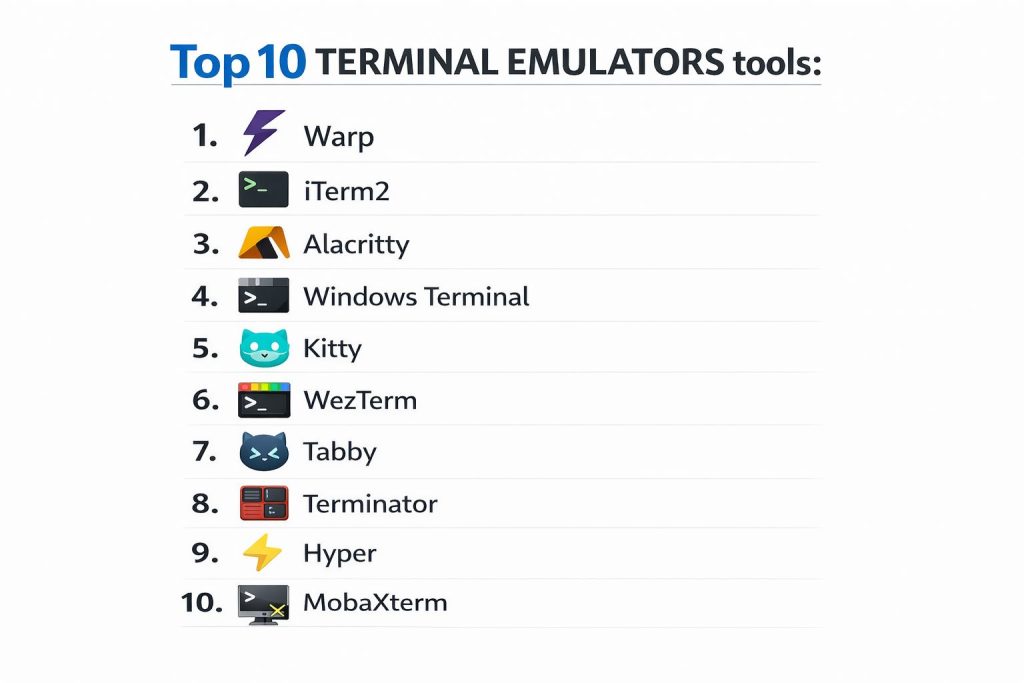
TOP 10 TERMINAL EMULATORS
1. Warp
Warp is a modern, Rust-based terminal that reimagines the command line as a collaborative IDE. Unlike traditional terminals that treat output as a flat text stream, Warp organizes interactions into distinct “blocks,” making it easier to navigate, copy, and share specific command results. It is designed with a “cloud-first” mentality, enabling teams to save and share frequently used workflows.
The standout feature of Warp is its native AI integration, which allows users to search for commands using natural language and receive real-time suggestions. It also includes a modern text editor experience with cursor positioning and selection that feels more like a code editor than a legacy terminal.
Pros:
The AI command search and block-based navigation significantly boost productivity for both beginners and experts. It also offers built-in collaboration features that are unique in this category.
Cons:
Requires a mandatory account login for most features, which may be a dealbreaker for privacy-focused users. It is also more resource-heavy than minimalist alternatives like Alacritty.
Platforms / Deployment:
macOS / Linux (Windows in development)
Cloud-connected Desktop App
Security & Compliance:
SSO/SAML (Team plan), SOC 2 Type II
Zero data retention policy for AI
Integrations & Ecosystem:
Features a “Warp Drive” for sharing workflows and integrates with major shells like Zsh, Bash, and Fish.
Support & Community:
Active Discord community and comprehensive online documentation.
2. iTerm2
For over a decade, iTerm2 has been the gold standard for macOS power users. It is a feature-rich replacement for the default Terminal.app, offering a level of customization that satisfies the most demanding workflows. It is particularly known for its deep integration with tmux and its robust search and autocomplete functions.
Key capabilities include the “Hotkey Window,” which allows the terminal to drop down from the top of the screen at any time, and “Triggers,” which can perform actions based on specific text appearing in the output. It also supports the displaying of images directly in the terminal window.
Pros:
Extremely mature and stable with a massive feature set that covers almost every conceivable power-user need. It remains completely free and open-source.
Cons:
It is strictly limited to macOS, making it unsuitable for users who need a consistent cross-platform environment. The sheer number of settings can be overwhelming for new users.
Platforms / Deployment:
macOS
Local Desktop App
Security & Compliance:
OS-level security, frequent community audits
Not publicly stated (Local app)
Integrations & Ecosystem:
Excellent integration with Shell Integration scripts and native support for Python-based scripting to automate the terminal itself.
Support & Community:
Extensive Wiki and a long-standing community of developers.
3. Alacritty
Alacritty is often cited as the fastest terminal emulator in existence. Written in Rust, it focuses on extreme performance by utilizing the GPU for rendering. It follows a minimalist philosophy, intentionally omitting features like tabs or splits in favor of doing one thing—rendering text—as fast as possible.
The configuration is entirely handled through a YAML or TOML file, making it a favorite for users who manage their system settings via “dotfiles.” Its lack of a GUI configuration menu reflects its target audience of advanced users who prefer the keyboard over the mouse.
Pros:
Unmatched rendering speed and incredibly low input latency. It provides a consistent experience across Windows, macOS, and Linux.
Cons:
Lacks built-in window management (tabs/splits), requiring users to pair it with a multiplexer like tmux or Zellij.
Platforms / Deployment:
Windows / macOS / Linux
Local Desktop App
Security & Compliance:
N/A (Local open-source tool)
Relies on OS security model
Integrations & Ecosystem:
Works seamlessly with any shell or multiplexer; highly portable configuration.
Support & Community:
Robust GitHub community and clear technical documentation for configuration.
4. Windows Terminal
Microsoft’s modern terminal solution has transformed the command-line experience on Windows. It consolidates Command Prompt, PowerShell, and the Windows Subsystem for Linux (WSL) into a single, high-performance interface. It features a GPU-accelerated text rendering engine and support for full-color emojis and ligatures.
A major advantage of Windows Terminal is its profile system, which allows users to create custom environments for different tasks, such as a dedicated SSH profile or a specific theme for web development. It also supports advanced pane splitting and tab management.
Pros:
The best-performing and most integrated terminal for Windows users. It is open-source and receives frequent updates from Microsoft.
Cons:
While highly capable, it is naturally restricted to the Windows ecosystem, lacking the cross-platform flexibility of tools like WezTerm.
Platforms / Deployment:
Windows
Local Desktop App
Security & Compliance:
MFA/SSO (via Windows OS), SOC 2
Enterprise-grade update cycles
Integrations & Ecosystem:
Native integration with WSL, Azure Cloud Shell, and all Windows command-line tools.
Support & Community:
Official Microsoft support channels and an active GitHub repository.
5. Kitty
Kitty is a GPU-accelerated terminal emulator designed for power users who want performance without sacrificing built-in features. Unlike Alacritty, Kitty includes its own window management system, allowing for complex layouts of tabs and panes without external software.
One of its most powerful features is its “Kittens” framework—small programs that extend the terminal’s functionality, such as displaying images, diffing files, or managing unicode characters. It is highly scriptable and can be controlled remotely via a socket.
Pros:
Combines high performance with a rich feature set. The ability to control the terminal through scripts makes it incredibly powerful for automation.
Cons:
Does not support Windows natively (requires WSL/Cygwin). The configuration can be complex due to the sheer volume of available commands.
Platforms / Deployment:
macOS / Linux
Local Desktop App
Security & Compliance:
N/A (Local open-source tool)
Community-driven security audits
Integrations & Ecosystem:
Supports a unique graphics protocol for displaying high-quality images and has a deep plugin system.
Support & Community:
Detailed documentation and an active user base on GitHub.
6. WezTerm
WezTerm is a powerful, cross-platform terminal emulator and multiplexer written in Rust. It distinguishes itself by using Lua for its configuration, allowing users to write actual code to define how their terminal behaves. This makes it perhaps the most flexible terminal on this list.
It supports multiple rendering backends, including Vulkan and DirectX, ensuring high performance on any hardware. It also features a built-in SSH client and the ability to record terminal sessions natively.
Pros:
True cross-platform consistency with an incredibly powerful configuration model. Built-in multiplexing means you don’t need tmux to manage your workspace.
Cons:
The Lua-based configuration can be intimidating for those who just want a “plug and play” experience.
Platforms / Deployment:
Windows / macOS / Linux
Local Desktop App
Security & Compliance:
Built-in SSH uses modern encryption
N/A (Local app)
Integrations & Ecosystem:
Integrates with the iTerm2 image protocol and supports a wide array of font features and ligatures.
Support & Community:
Active community on Matrix and GitHub; excellent documentation for Lua scripting.
7. Tabby
Tabby (formerly Terminus) is a highly customizable terminal emulator designed for the modern era. Built on web technologies, it offers a level of visual polish and ease of use that is often missing from more traditional tools. It includes a built-in SSH client with a connection manager, making it a favorite for sysadmins.
Tabby features an integrated SFTP client, allowing users to transfer files to remote servers directly through the terminal interface. It also supports a vast array of plugins for theming and extended functionality.
Pros:
The most user-friendly interface on the list with excellent SSH management. It works perfectly across all major operating systems.
Cons:
Being Electron-based, it consumes more memory and has slightly higher latency than GPU-accelerated native terminals like Alacritty.
Platforms / Deployment:
Windows / macOS / Linux
Desktop / Web-portable
Security & Compliance:
Encrypted vault for secrets/passwords
Not publicly stated
Integrations & Ecosystem:
Large plugin marketplace for themes and productivity tools; excellent support for serial connections.
Support & Community:
Very active GitHub and community-contributed plugins.
8. Terminator
Terminator is a classic choice for Linux users who need to manage multiple sessions simultaneously. Its primary focus is the “grid” layout, allowing users to split their terminal into as many rows and columns as they desire with simple drag-and-drop functionality.
While it doesn’t feature the GPU acceleration of newer tools, its stability and intuitive window management have kept it relevant for years. It is particularly useful for system administrators who need to monitor several logs or servers on a single screen.
Pros:
Incredibly intuitive grid-based window management. It is lightweight and works on almost any Linux distribution with minimal setup.
Cons:
Lacks modern features like GPU acceleration and sophisticated font rendering found in newer competitors. Development has been slower in recent years.
Platforms / Deployment:
Linux
Local Desktop App
Security & Compliance:
N/A (Local open-source tool)
Standard Linux security model
Integrations & Ecosystem:
Standard GNOME/KDE integration; supports multiple profiles and custom keybindings.
Support & Community:
Long-standing community support and inclusion in most Linux package repositories.
9. Hyper
Hyper is a terminal built entirely on web standards (HTML/CSS/JS). Its core philosophy is extensibility; almost every aspect of the terminal can be modified using JavaScript plugins. This makes it the most “hackable” terminal for web developers.
While it may not be the fastest, it is arguably the most beautiful, with a vast library of community-created themes. It supports tabs and splits natively and provides a consistent experience across all platforms.
Pros:
Infinite customization for those familiar with web technologies. It has a very modern aesthetic and a straightforward configuration process.
Cons:
Performance is lower compared to native Rust or C++ terminals. High resource usage can be an issue on older hardware.
Platforms / Deployment:
Windows / macOS / Linux
Local Desktop App
Security & Compliance:
N/A (Local open-source tool)
Community audits
Integrations & Ecosystem:
A massive ecosystem of NPM-based plugins and themes that can be installed with a single command.
Support & Community:
Very active community of web developers and a large GitHub presence.
10. MobaXterm
MobaXterm is an “all-in-one” workstation for Windows users, specifically designed for network administrators. It combines a terminal with an X11 server, an SSH client, an SFTP browser, and multiple other network tools into a single application.
It is unique on this list because it is a commercial product with a free “Home” edition. It features “Multi-execution,” which allows you to type the same command into multiple terminal windows simultaneously—a vital feature for managing clusters of servers.
Pros:
The most comprehensive tool for remote server management on Windows. The portable edition makes it easy to use on different machines without installation.
Cons:
The interface is cluttered compared to modern minimalist terminals. The professional version requires a paid license for full features.
Platforms / Deployment:
Windows
Local / Portable EXE
Security & Compliance:
MFA support for SFTP, Master password protection
SOC 2 (Company level)
Integrations & Ecosystem:
Includes a built-in X server for running GUI applications from remote Linux servers on a Windows desktop.
Support & Community:
Professional technical support for paid users and detailed documentation.
COMPARISON TABLE
| Tool Name | Best For | Platform(s) Supported | Deployment | Standout Feature | Public Rating |
| 1. Warp | Collaborative Teams | macOS, Linux | Cloud-Hybrid | AI Command Search | 4.8/5 |
| 2. iTerm2 | macOS Power Users | macOS | Local | Hotkey Dropdown | 4.7/5 |
| 3. Alacritty | Performance Purists | Win, macOS, Linux | Local | GPU Rendering | 4.6/5 |
| 4. Windows Terminal | Windows Developers | Windows | Local | Multi-shell Profiles | 4.7/5 |
| 5. Kitty | Scriptable Power Users | macOS, Linux | Local | Kittens Framework | 4.5/5 |
| 6. WezTerm | Config-as-Code Users | Win, macOS, Linux | Local | Lua Configuration | 4.6/5 |
| 7. Tabby | SSH & Sysadmins | Win, macOS, Linux | Local/Web | Built-in SFTP | 4.4/5 |
| 8. Terminator | Linux Grid Layouts | Linux | Local | Drag-and-Drop Splits | 4.3/5 |
| 9. Hyper | Web Developers | Win, macOS, Linux | Local | JS Plugin System | 4.2/5 |
| 10. MobaXterm | Network Admins | Windows | Local/Portable | Multi-Exec Mode | 4.5/5 |
EVALUATION & SCORING OF TERMINAL EMULATORS
The scoring below is a comparative model intended to help shortlisting. Each criterion is scored from 1–10, then a weighted total from 0–10 is calculated using the weights listed. These are analyst estimates based on typical fit and common workflow requirements, not public ratings.
Weights:
- Core features – 25%
- Ease of use – 15%
- Integrations & ecosystem – 15%
- Security & compliance – 10%
- Performance & reliability – 10%
- Support & community – 10%
- Price / value – 15%
| Tool Name | Core (25%) | Ease (15%) | Integrations (15%) | Security (10%) | Performance (10%) | Support (10%) | Value (15%) | Weighted Total |
| 1. Warp | 9 | 10 | 9 | 9 | 8 | 9 | 8 | 8.85 |
| 2. iTerm2 | 10 | 7 | 8 | 7 | 8 | 9 | 10 | 8.65 |
| 3. Alacritty | 7 | 5 | 7 | 6 | 10 | 8 | 10 | 7.60 |
| 4. Windows Terminal | 9 | 9 | 10 | 9 | 9 | 8 | 10 | 9.15 |
| 5. Kitty | 9 | 6 | 9 | 7 | 10 | 8 | 10 | 8.70 |
| 6. WezTerm | 9 | 5 | 9 | 7 | 10 | 8 | 10 | 8.40 |
| 7. Tabby | 8 | 9 | 8 | 8 | 6 | 8 | 10 | 8.15 |
| 8. Terminator | 7 | 8 | 7 | 6 | 6 | 7 | 10 | 7.20 |
| 9. Hyper | 7 | 9 | 10 | 6 | 5 | 8 | 10 | 7.80 |
| 10. MobaXterm | 10 | 7 | 10 | 8 | 7 | 9 | 7 | 8.45 |
How to interpret the scores:
- Actual outcomes vary with assembly size, team skills, templates, and process maturity.
- Use the weighted total to shortlist candidates, then validate with a pilot.
- A lower score can mean specialization, not weakness.
- Security and compliance scores reflect controllability and governance fit, because certifications are often not publicly stated.
WHICH TERMINAL EMULATOR TOOL IS RIGHT FOR YOU?
Solo / Freelancer
For individual developers, Warp is a fantastic choice if you want AI-assisted productivity and a modern UI. If you prefer a more traditional, stable, and highly customizable environment on macOS, iTerm2 remains unbeatable.
SMB
Small businesses that use a mix of operating systems should look at WezTerm or Tabby. WezTerm provides a consistent technical environment for engineers, while Tabby is easier to onboard for those who need to manage multiple SSH connections without a steep learning curve.
Mid-Market
Windows Terminal is the standard for any mid-sized organization operating on a Microsoft stack. Its ability to handle PowerShell, WSL, and Azure Cloud Shell seamlessly makes it an essential tool for mixed-environment development.
Enterprise
For large organizations, Warp‘s team-based features and SOC 2 compliance offer the security and collaboration tools required for modern software teams. MobaXterm is a solid choice for enterprise network teams on Windows who need a managed, all-in-one professional tool.
Budget vs Premium
Blender and Alacritty are the gold standards for high-performance, free software. MobaXterm and Warp offer premium tiers that provide additional support and collaboration features for a subscription fee.
Feature Depth vs Ease of Use
iTerm2 and Kitty offer incredible feature depth but require time to master. Tabby and Windows Terminal prioritize a clean user experience and ease of use out of the box.
Integrations & Scalability
Windows Terminal and Warp lead in integrations, whether it’s native OS tools or cloud-synced team workflows.
Security & Compliance Needs
Enterprises with high security requirements should prioritize Warp (for its SOC 2 compliance and SSO) or MobaXterm (for its specialized secure connection management).
FREQUENTLY ASKED QUESTIONS (FAQS)
Why should I use a third-party terminal instead of the default?
Third-party terminals offer superior performance (GPU acceleration), better window management (splits and tabs), and productivity features like AI assistance that defaults lack.
Is GPU acceleration really necessary for a terminal?
While not strictly necessary for simple commands, it significantly reduces lag when scrolling through large files or high-output logs, preventing the interface from freezing.
Can I use my existing shell (Zsh/Bash) with these terminals?
Yes, all of these emulators act as a host for your shell. Your configurations (like Oh My Zsh) will carry over to any terminal you choose.
Which terminal is the fastest?
Alacritty is widely considered the fastest in terms of pure rendering and input latency, followed closely by Kitty and WezTerm.
Is it safe to store passwords in a terminal like Tabby or MobaXterm?
These tools use encrypted vaults to store credentials, but it is always recommended to use SSH keys or a dedicated password manager for maximum security.
What is a terminal multiplexer?
A multiplexer (like tmux) allows you to split your screen and keep sessions running even if you disconnect. Some terminals (Kitty, WezTerm) have this functionality built-in.
Do I need to know a programming language to configure these?
Most use simple text files (YAML/JSON). Only WezTerm requires basic Lua knowledge for advanced configurations, though simple templates are available.
Can I display images in the terminal?
Yes, terminals like iTerm2, Kitty, and WezTerm support specific graphics protocols that allow for the display of high-resolution images.
Are Electron-based terminals like Hyper and Tabby too slow?
They have slightly higher latency and memory usage, but for 90% of users, the performance is perfectly acceptable and the ease of use is a fair trade-off.
How do I sync my terminal settings between computers?
For most of these tools, you can simply copy your configuration file (e.g., .alacritty.toml or wezterm.lua). Warp handles this via cloud syncing for its users.
CONCLUSION
Choosing the right terminal emulator is a foundational decision that directly affects your daily efficiency and comfort as a developer or administrator. Whether you prioritize the blazing-fast performance of a GPU-accelerated tool like Alacritty, the feature-rich maturity of iTerm2, or the modern AI capabilities of Warp, the current market offers a solution for every workflow. As the industry moves toward more collaborative and cloud-integrated environments, the terminal is evolving from a lonely command line into a powerful, team-oriented workstation. We recommend starting with a tool that matches your primary operating system and gradually exploring the advanced configuration options to tailor the experience to your specific needs.