Introduction
Screen capture tools are software applications that allow users to take screenshots or record videos of their computer screens. These tools are essential for professionals, educators, content creators, and anyone who needs to quickly capture and share visual content.
Screen capture tools have evolved to include AI-driven features, advanced annotation options, and greater integration with collaborative platforms. Whether you’re creating tutorials, sharing product demos, or simply capturing an image for reference, these tools are designed to make screen capturing faster, more efficient, and feature-rich.
Real-World Use Cases:
- Tutorial Creation: Educators use screen capture tools to create video tutorials and lessons.
- Bug Reporting: Developers and QA teams capture screenshots and videos to report bugs and provide feedback.
- Product Demonstrations: Marketers use screen captures to showcase product features and how-to guides.
- Customer Support: Customer support teams capture images and videos to resolve customer issues.
What Buyers Should Evaluate:
- Key Features: What capturing options (screen recording, screenshots, annotations) are included?
- Ease of Use: How simple is it to capture content and share it?
- Performance & Reliability: Does it run smoothly without crashing or slowing down the system?
- Security & Compliance: Does it offer necessary data protection, especially for sensitive content?
- Integration with Other Tools: How well does it integrate with collaboration and storage platforms?
- Support & Community: Availability of documentation, tutorials, and active user support.
Best for: Content creators, educators, developers, marketers, and customer support teams.
Not ideal for: Casual users with minimal screen capture needs or those looking for basic functionalities.
Key Trends in Screen Capture Tools
- AI-Powered Features: AI tools for auto-capturing content, smart annotations, and intelligent image editing.
- Real-Time Collaboration: Integration with cloud-based collaboration tools like Google Drive and Slack.
- Cross-Platform Support: Support for a wider range of devices and operating systems, including mobile platforms.
- Advanced Editing Tools: Built-in editing features such as image annotation, cropping, and text additions.
- Cloud Storage Integration: Seamless saving and sharing of captures to cloud storage services.
- GIF and Animated Capture: Support for GIF creation and animation-based captures for short clips.
- Mobile Capture: Increased focus on mobile screen capture tools for on-the-go content creation.
- Privacy and Security Features: More attention to data encryption and secure sharing options.
- Customizable Shortcuts: Ability to set up keyboard shortcuts for faster captures.
- Subscription-Based Pricing: Many tools are shifting to subscription models for continuous updates and support.
How We Selected These Tools (Methodology)
We selected the “Top 10” screen capture tools based on the following criteria:
- Market Adoption: Tools with high adoption rates and widespread use among professionals.
- Feature Completeness: Tools that offer comprehensive screen capturing features such as annotations, editing, and sharing options.
- Reliability & Performance: Tools that perform well without lag or crashing during usage.
- Security Posture: Tools with strong security features, including encryption and privacy controls.
- Integration Ecosystem: Tools that work seamlessly with other platforms like cloud storage and messaging services.
- Customer Fit Across Segments: Tools suitable for a wide range of users, from individuals to enterprises.
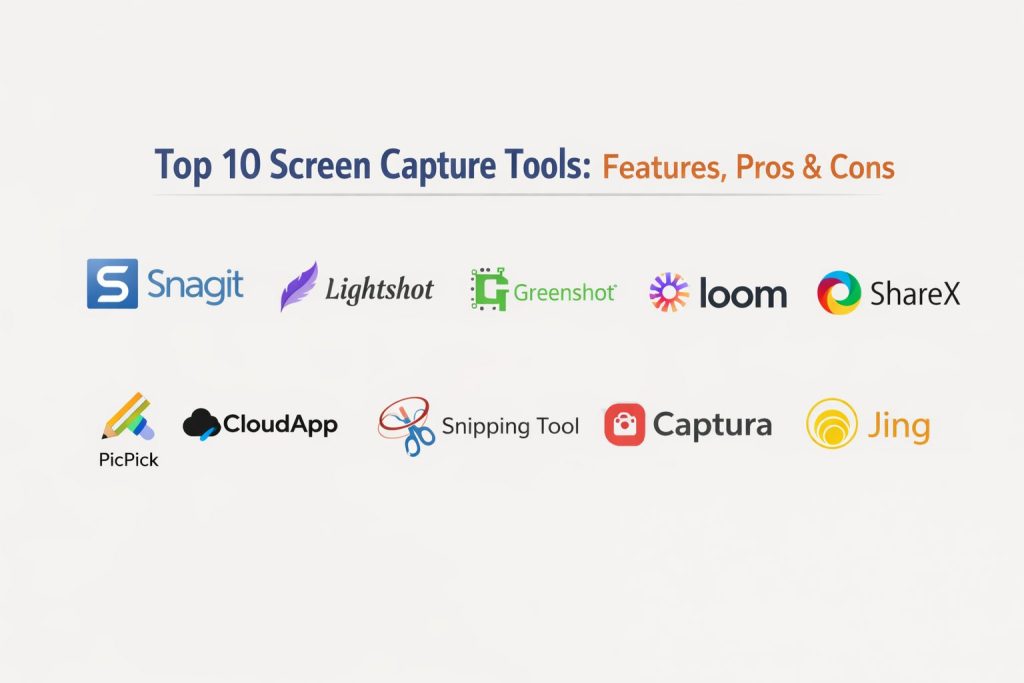
Top 10 Screen Capture Tools
1 — Snagit
Snagit is a powerful screen capture tool designed for professionals, offering advanced editing and annotation features.
Key Features
- Captures both images and videos.
- Advanced editing and annotation tools.
- Ability to capture scrolling windows.
- Supports GIF creation.
- Extensive sharing options.
Pros
- Easy to use and intuitive interface.
- Powerful editing and customization features.
Cons
- Paid subscription with no free version.
- Limited support for advanced video editing.
Platforms / Deployment
- Windows / macOS
- Hybrid
Security & Compliance
- Not publicly stated.
Integrations & Ecosystem
- Integrates with Google Drive, OneDrive, Slack, and other cloud platforms.
- Supports export to various file formats.
Support & Community
- Comprehensive support with extensive documentation and tutorials.
- Active user community and forums.
2 — Lightshot
Lightshot is a free and simple screen capture tool that offers quick screenshot functionality and basic editing options.
Key Features
- Simple screenshot capturing.
- Basic editing tools (highlighting, text addition).
- One-click sharing options.
- Cloud storage for screenshots.
Pros
- Fast and easy to use.
- Free version available.
Cons
- Limited advanced features compared to paid tools.
- Editing options are basic.
Platforms / Deployment
- Windows / macOS
- Cloud
Security & Compliance
- Not publicly stated.
Integrations & Ecosystem
- Integrates with cloud storage for sharing screenshots.
- Supports multiple formats for saving captures.
Support & Community
- Basic documentation and user forums available.
- Community-driven support.
3 — Greenshot
Greenshot is a lightweight, open-source screen capture tool with built-in editing features.
Key Features
- Captures full screen, region, or window.
- Inbuilt editing and annotation tools.
- Export to multiple file formats.
- Supports OCR (Optical Character Recognition).
Pros
- Free and open-source.
- Lightweight and fast.
Cons
- Lacks advanced video capturing features.
- Limited integration options.
Platforms / Deployment
- Windows
- Hybrid
Security & Compliance
- Not publicly stated.
Integrations & Ecosystem
- Supports export to file storage systems and various formats.
- Limited integrations with cloud platforms.
Support & Community
- Active open-source community.
- Documentation available on the official website.
4 — Loom
Loom is a video screen capture tool that allows users to create video messages and tutorials quickly.
Key Features
- Records screen, webcam, and audio simultaneously.
- Instant sharing via links.
- Real-time collaboration with team members.
- Cloud storage for recorded videos.
Pros
- Simple and easy-to-use interface.
- Great for quick video communication.
Cons
- Limited editing features.
- Free version has limitations on video length.
Platforms / Deployment
- Web / Windows / macOS
- Cloud
Security & Compliance
- Not publicly stated.
Integrations & Ecosystem
- Integrates with Slack, Google Drive, and other collaboration tools.
- Supports video export to MP4.
Support & Community
- Strong user base and community forums.
- Responsive support team available.
5 — ShareX
ShareX is a powerful open-source screen capture tool with advanced functionality and editing options.
Key Features
- Screen capture, video recording, and GIF creation.
- Built-in editing and annotation tools.
- Customizable hotkeys.
- Supports over 80 file formats.
Pros
- Free and open-source.
- Highly customizable with extensive features.
Cons
- Complex interface for beginners.
- Advanced features can be overwhelming.
Platforms / Deployment
- Windows
- Hybrid
Security & Compliance
- Not publicly stated.
Integrations & Ecosystem
- Supports integrations with cloud services like Dropbox and Google Drive.
- Customizable workflow for advanced users.
Support & Community
- Active open-source community.
- Comprehensive documentation available.
6 — PicPick
PicPick is a versatile screen capture tool for both personal and professional use with editing and annotation features.
Key Features
- Full-screen, window, and region captures.
- Inbuilt image editor with annotations.
- Capture scrolling windows.
- Color picker and pixel ruler.
Pros
- Easy-to-use interface.
- Great set of editing tools.
Cons
- Free version available with limited features.
- Paid version required for full functionality.
Platforms / Deployment
- Windows
- Hybrid
Security & Compliance
- Not publicly stated.
Integrations & Ecosystem
- Integrates with cloud storage options for sharing.
- Supports export to various file formats.
Support & Community
- Active user base and community forums.
- Documentation available online.
7 — CloudApp
CloudApp is a screen capture tool designed for creating GIFs, images, and video recordings, with a focus on team collaboration.
Key Features
- Screen recording, GIF creation, and image capture.
- Cloud storage for quick sharing.
- Real-time collaboration on captured content.
- Built-in editing features.
Pros
- Fast capture and sharing.
- Great for team collaboration.
Cons
- Limited features in free version.
- Paid plans needed for full functionality.
Platforms / Deployment
- Web / Windows / macOS
- Cloud
Security & Compliance
- Not publicly stated.
Integrations & Ecosystem
- Integrates with Slack, Google Drive, and other tools.
- Instant sharing via links.
Support & Community
- Active support and documentation available.
- Team support with higher-tier plans.
8 — Snipping Tool (Windows)
The native Snipping Tool on Windows allows users to quickly capture screenshots with basic editing options.
Key Features
- Capture freeform, rectangular, window, or full-screen shots.
- Basic image editing features like cropping and annotations.
- Quick sharing via email or saving to file.
Pros
- Free and built-in on Windows.
- Simple and easy-to-use.
Cons
- Limited features compared to other tools.
- Lacks advanced screen recording options.
Platforms / Deployment
- Windows
- Self-hosted
Security & Compliance
- Not publicly stated.
Integrations & Ecosystem
- Limited integrations with other tools.
- Supports saving in common file formats.
Support & Community
- Built-in help resources and support from Microsoft.
9 — Captura
Captura is a free, open-source screen capture tool for Windows with advanced recording and editing features.
Key Features
- Records screen and audio in multiple formats.
- Captures video, images, and GIFs.
- Customizable hotkeys for faster use.
- In-built video editing features.
Pros
- Free and open-source.
- Supports high-quality screen recording.
Cons
- Limited user interface compared to premium options.
- Lacks cloud integration for easy sharing.
Platforms / Deployment
- Windows
- Self-hosted
Security & Compliance
- Not publicly stated.
Integrations & Ecosystem
- Limited integrations with cloud storage services.
Support & Community
- Active open-source community.
- Documentation available on the official site.
10 — Jing
Jing is a simple screen capture tool for quick image and video capture, now integrated with TechSmith tools.
Key Features
- Simple screen capture and video recording.
- Basic editing and annotation tools.
- Instant sharing via the cloud.
- Easy-to-use interface.
Pros
- Free and easy for beginners.
- Quick sharing via links.
Cons
- Lacks advanced features compared to Snagit.
- Limited editing options.
Platforms / Deployment
- Windows / macOS
- Cloud
Security & Compliance
- Not publicly stated.
Integrations & Ecosystem
- Integrates with TechSmith tools like Snagit.
- Quick sharing to cloud storage.
Support & Community
- Basic support via TechSmith’s help resources.
Comparison Table (Top 10)
| Tool Name | Best For | Platform(s) Supported | Deployment | Standout Feature | Public Rating |
|---|---|---|---|---|---|
| Snagit | Professionals | Windows / macOS | Hybrid | Advanced editing features | N/A |
| Lightshot | Quick captures | Web / Windows / macOS | Cloud | Simple and fast screenshots | N/A |
| Greenshot | Open-source | Windows | Hybrid | OCR capabilities | N/A |
| Loom | Video messages | Web / Windows / macOS | Cloud | Video screen recording | N/A |
| ShareX | Power users | Windows | Hybrid | Extensive capture options | N/A |
| PicPick | Casual users | Windows | Hybrid | Easy-to-use editor | N/A |
| CloudApp | Teams | Web / Windows / macOS | Cloud | Real-time collaboration | N/A |
| Snipping Tool | Windows users | Windows | Self-hosted | Simple capture | N/A |
| Captura | Free users | Windows | Self-hosted | Screen recording options | N/A |
| Jing | Beginners | Windows / macOS | Cloud | Instant sharing | N/A |
Evaluation & Scoring of 3D Animation Software
| Tool Name | Core (25%) | Ease (15%) | Integrations (15%) | Security (10%) | Performance (10%) | Support (10%) | Value (15%) | Weighted Total (0–10) |
|---|---|---|---|---|---|---|---|---|
| Snagit | 9 | 8 | 8 | 8 | 9 | 8 | 7 | 8.1 |
| Lightshot | 7 | 9 | 7 | 6 | 7 | 8 | 9 | 7.7 |
| Greenshot | 8 | 7 | 6 | 7 | 8 | 8 | 9 | 7.8 |
| Loom | 8 | 9 | 8 | 7 | 8 | 9 | 8 | 8.1 |
| ShareX | 9 | 6 | 8 | 6 | 9 | 8 | 7 | 7.9 |
| PicPick | 7 | 9 | 7 | 6 | 7 | 9 | 8 | 7.8 |
| CloudApp | 8 | 8 | 9 | 7 | 8 | 8 | 8 | 8.1 |
| Snipping Tool | 6 | 10 | 5 | 6 | 6 | 6 | 8 | 7.1 |
| Captura | 7 | 7 | 6 | 7 | 8 | 7 | 7 | 7.4 |
| Jing | 6 | 8 | 5 | 5 | 6 | 7 | 6 | 6.3 |
Interpreting the scores: These scores reflect the relative performance of each tool based on the weighted criteria. A higher score indicates better overall performance in key areas.
Which Screen Capture Tool Is Right for You?
Solo / Freelancer
- Lightshot: Best for quick and simple screen captures.
- Jing: Ideal for short video recordings and sharing.
SMB
- Snagit: Great for small businesses needing advanced features.
- ShareX: Best for free and highly customizable options.
Mid-Market
- Loom: Best for team collaboration and quick video sharing.
- CloudApp: Ideal for teams looking for seamless integration with cloud platforms.
Enterprise
- Snagit: Suitable for large teams requiring detailed editing and high-quality captures.
- Loom: Best for enterprises needing real-time video communication and collaboration.
Budget vs Premium
- Lightshot / Greenshot: Best for budget-conscious users.
- Snagit / Loom: Best for premium features and collaboration.
Feature Depth vs Ease of Use
- Snagit / Loom: Best for feature-rich experiences.
- Lightshot / Jing: Best for ease of use and simplicity.
Integrations & Scalability
- CloudApp / Loom: Ideal for teams needing strong integrations.
- Snagit / ShareX: Best for scalability and customization.
Security & Compliance Needs
- Snagit: Best for enterprises needing strong security.
- Greenshot: More suitable for personal or small-scale use.
Frequently Asked Questions (FAQs)
What is the cost of screen capture tools?
The cost varies, with free tools like Lightshot and Greenshot available, while others like Snagit and Loom offer subscription-based pricing.
Can I record videos with screen capture tools?
Yes, many screen capture tools such as Loom, ShareX, and Snagit allow for video recording in addition to screenshot capture.
Are screen capture tools available for macOS and Windows?
Yes, most screen capture tools like Snagit, Loom, and PicPick are available for both macOS and Windows.
How do I capture scrolling windows?
Tools like Snagit and ShareX allow you to capture scrolling windows for long web pages or documents.
What is the best screen capture tool for professional use?
Snagit and Loom are best for professional use, offering advanced features like editing, annotations, and video recording.
Can I share my captures instantly?
Yes, tools like CloudApp and Loom offer instant sharing of your captures via links.
Is there a free screen capture tool available?
Yes, tools like Lightshot and Greenshot offer free versions with essential screen capture features.
What is the best tool for team collaboration?
Loom and CloudApp are great for team collaboration, offering real-time sharing and cloud storage integration.
How do I annotate my screen captures?
Tools like Snagit, Loom, and PicPick provide built-in annotation tools for adding text, arrows, and shapes.
Can I capture GIFs with screen capture tools?
Yes, tools like ShareX and Snagit support GIF creation for short animations.
Conclusion
Choosing the right screen capture tool depends on your specific needs, whether it’s for personal use, team collaboration, or professional content creation. Start by evaluating the features that matter most to you, such as ease of use, integration with other tools, and the ability to share your captures quickly.