Introduction
Remote access software lets you securely connect to another computer or device over the internet or a private network. It helps IT teams support users, helps employees work from anywhere, and enables admins to troubleshoot systems without being physically present. In modern workplaces, remote access is not just a convenience—it is often a core operational requirement because teams are distributed, systems are hybrid, and downtime costs real money.
Real-world use cases:
- IT helpdesk troubleshooting for employees and customers
- Remote work access to office desktops and applications
- Managing servers and endpoints across locations
- Supporting partners and vendors with controlled access
- Remote training, demos, and guided sessions
What buyers should evaluate:
- Connection reliability and performance under weak networks
- Security controls (MFA, access policies, audit logs, device trust)
- Role-based access and admin governance
- Unattended access and endpoint management features
- Cross-platform support and ease of deployment
- Session recording and compliance-friendly controls
- Integrations with ITSM, identity, and ticketing workflows
- Scalability for many technicians and many endpoints
- Support quality, documentation, and onboarding
- Cost predictability across teams and devices
Mandatory guidance
Best for: IT support teams, MSPs, internal helpdesks, remote-first companies, system admins, and operations teams that need fast troubleshooting, controlled access, and consistent remote workflows across many devices.
Not ideal for: teams that only need occasional screen sharing for meetings, environments where remote access is prohibited by policy, or organizations that require highly specialized privileged access controls that basic remote tools may not provide.
Key Trends in Remote Access Software
- Stronger focus on zero-trust access patterns: verifying users, devices, and context before sessions start.
- Growing use of conditional access and policy-based approvals for privileged sessions.
- More demand for session auditing, recordings, and evidence-friendly logs for compliance.
- Increasing emphasis on device posture and trust, not just usernames and passwords.
- Shift toward unified remote support + endpoint management for higher operational efficiency.
- Better performance optimization for high-latency and low-bandwidth networks.
- More granular controls for file transfer, clipboard, printing, and peripheral access to reduce data risk.
- Expansion of browser-based support experiences to reduce installation friction (capabilities vary).
- Adoption of automation and scripts during sessions to speed fixes and reduce manual steps.
- Greater scrutiny of vendor security posture and breach readiness, even when details are not publicly stated.
How We Selected These Tools
- Prioritized tools with strong adoption across IT support and remote work scenarios.
- Included a mix of SMB-friendly and enterprise-grade options.
- Considered reliability and performance as first-class requirements for real-world use.
- Looked for practical security controls such as MFA, access approvals, and audit trails where commonly available.
- Considered integrations with common IT operations workflows and service desks.
- Balanced list across unattended remote access, helpdesk support, and managed support use cases.
- Included tools with strong ecosystem maturity, training availability, and community knowledge.
- Avoided claiming certifications and ratings unless clearly known; used “Not publicly stated” or “N/A” when uncertain.
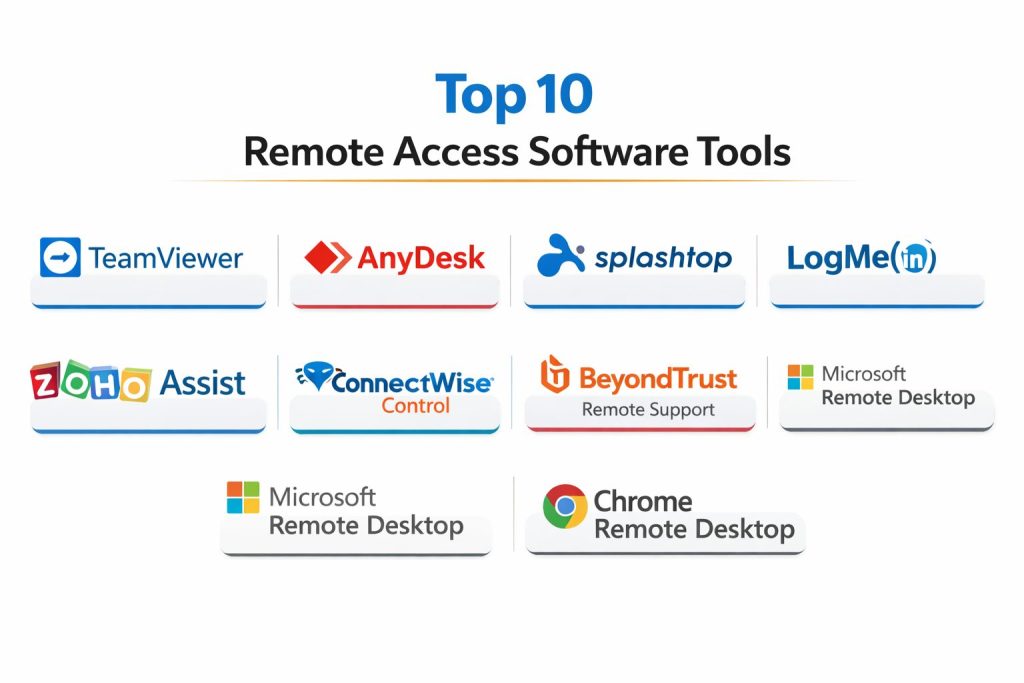
Top 10 Remote Access Software Tools
1 — TeamViewer
eamViewer is a well-known remote access and remote support platform used by IT teams and businesses for remote troubleshooting and device access. It’s often selected for broad device support and practical support workflows.
Key Features
- Remote control for attended and unattended sessions
- Device grouping and management workflows (capabilities vary by plan)
- File transfer and remote printing features (policy dependent)
- Multi-platform support for common endpoint types
- Session management features for helpdesk-style operations
- Remote support tools designed for fast troubleshooting
- Options for session logging and admin controls (varies)
Pros
- Widely used with strong cross-platform reach
- Practical for both helpdesk and remote work use cases
- Mature product with established operational patterns
Cons
- Costs can increase depending on usage model and team size
- Governance depth varies by plan and configuration
- Some organizations prefer stricter enterprise control models
Platforms / Deployment
Windows / macOS / Linux / iOS / Android
Cloud / Hybrid (varies)
Security & Compliance
Not publicly stated
Integrations & Ecosystem
Commonly used in IT support workflows and can fit into ticketing and operational processes depending on setup.
- IT support workflows and service desk integration patterns (varies)
- APIs and automation options (varies)
- Device management add-ons (varies)
- Authentication and access workflows (environment dependent)
- Ecosystem of integrations and extensions (varies)
Support & Community
Large user base and many learning resources. Support experience varies by subscription tier and region.
2 — AnyDesk
AnyDesk is a lightweight remote access tool known for performance and quick setup. It is often used by teams that need fast, responsive connections and simple deployment.
Key Features
- Remote desktop access with performance-focused connection handling
- Attended and unattended access workflows
- File transfer and clipboard features (policy dependent)
- Address book and device organization features (varies)
- Permission controls for sessions (configuration dependent)
- Session logging and administration features (varies)
- Practical for quick remote support and daily remote work
Pros
- Strong responsiveness in many network conditions
- Easy to deploy and simple for end users
- Good fit for SMBs needing fast remote access
Cons
- Enterprise governance requirements may need careful configuration
- Feature depth varies by plan
- Advanced integrations may be limited compared to larger suites
Platforms / Deployment
Windows / macOS / Linux / iOS / Android
Cloud / Hybrid (varies)
Security & Compliance
Not publicly stated
Integrations & Ecosystem
Often used as a direct remote access tool and can integrate into IT processes depending on environment.
- Permission profiles and policy patterns (varies)
- APIs or automation options (varies)
- Operational workflow integration (environment dependent)
- Device organization and address book workflows (varies)
- Common pairing with helpdesk processes and runbooks
Support & Community
Active user community and practical documentation. Support depends on licensing tier and region.
3 — Splashtop
Splashtop is used for remote access and IT support with a focus on reliability, ease of use, and practical management features. It is common in organizations that want simple remote access plus admin controls.
Key Features
- Remote access for users and IT support teams
- Unattended access for managed endpoints
- Admin features for user/device management (varies)
- File transfer, remote printing, and session controls (policy dependent)
- Multi-platform endpoint support for common devices
- Options for security controls and session policies (varies)
- Practical licensing options for different team models (varies)
Pros
- Easy to deploy and user-friendly for non-technical users
- Strong fit for hybrid work and helpdesk support
- Good balance of features and usability for many teams
Cons
- Advanced enterprise controls may vary by edition
- Integrations and automation depth can depend on plan
- Complex environments may need extra governance work
Platforms / Deployment
Windows / macOS / iOS / Android (Linux support varies by offering)
Cloud / Hybrid (varies)
Security & Compliance
Not publicly stated
Integrations & Ecosystem
Often used in IT support environments and can be aligned with service workflows.
- Admin policy and device management patterns (varies)
- Integration patterns with support processes (environment dependent)
- Authentication and access control workflows (varies)
- Reporting and session control options (varies)
- Common pairing with helpdesk operations
Support & Community
Good documentation and onboarding materials. Support options vary by plan, with stronger options typically for business tiers.
4 — LogMeIn
LogMeIn is a remote access and support solution used for accessing devices and providing helpdesk support. It is commonly chosen by organizations that want established remote workflows and centralized management.
Key Features
- Remote access for unattended and attended scenarios
- Centralized device management and user access control (varies)
- File transfer and remote printing features (policy dependent)
- Session management workflows for support teams
- Admin controls for multi-user environments (varies)
- Reporting and session activity tracking (varies)
- Practical for remote work access to office machines
Pros
- Mature platform with established remote support workflows
- Centralized management for teams supporting multiple endpoints
- Useful for organizations standardizing remote access processes
Cons
- Pricing can be a concern for some SMBs
- Feature sets vary across product lines and plans
- Some environments may prefer more modern policy models
Platforms / Deployment
Windows / macOS (mobile support varies by offering)
Cloud / Hybrid (varies)
Security & Compliance
Not publicly stated
Integrations & Ecosystem
Often aligned with IT support operations and can integrate into workflows depending on environment.
- User and device management workflows (varies)
- Authentication options (varies)
- Operational reporting patterns (varies)
- Integration with support processes (environment dependent)
- Admin policy controls for teams (varies)
Support & Community
Documentation is available; support quality depends on plan. Community resources exist but may be less creator-driven than some newer tools.
5 — RemotePC
RemotePC is designed for remote access to computers for individuals and businesses. It’s often chosen for straightforward remote access needs with simple setup and predictable functionality.
Key Features
- Remote desktop access for personal and business use
- Unattended access for always-on endpoints
- File transfer and session tools (policy dependent)
- Simple user and device management workflows (varies)
- Multi-device support for common platforms
- Practical for small teams needing reliable remote access
- Basic controls for session permissions (varies)
Pros
- Simple and practical for small teams
- Good for straightforward remote access workflows
- Easy onboarding for basic use cases
Cons
- May not match enterprise governance depth requirements
- Integrations and advanced automation may be limited
- Feature depth varies by plan and usage model
Platforms / Deployment
Windows / macOS / iOS / Android (Linux support varies)
Cloud / Hybrid (varies)
Security & Compliance
Not publicly stated
Integrations & Ecosystem
Often used in simpler environments and fits into operational routines rather than deep integrations.
- Basic admin and device management patterns (varies)
- Authentication and access workflows (varies)
- File transfer and permission policy patterns (varies)
- Operational usage aligned to small-team workflows
- Common pairing with standard helpdesk practices
Support & Community
Support is available depending on plan. Documentation is generally straightforward and aligned to SMB needs.
6 — Zoho Assist
Zoho Assist is a remote support tool commonly used by IT teams and support desks to troubleshoot users and manage unattended access. It is often chosen by teams already using broader business suites.
Key Features
- Remote support sessions for helpdesk and customer support
- Unattended access for managed devices
- Session scheduling and support workflows (varies)
- File transfer and chat features (policy dependent)
- Technician roles and team management controls (varies)
- Reporting and session history features (varies)
- Works well for support workflows with repeatable processes
Pros
- Practical for helpdesk-style support operations
- Good fit for teams that want structured technician workflows
- Often easy for end users to join and receive support
Cons
- Advanced enterprise controls depend on plan and setup
- Integrations are strongest within certain ecosystems
- Complex governance needs may require higher tiers
Platforms / Deployment
Web / Windows / macOS / Linux (varies) / iOS / Android
Cloud / Hybrid (varies)
Security & Compliance
Not publicly stated
Integrations & Ecosystem
Often fits well into structured support workflows and can be aligned with ticketing practices depending on setup.
- Technician workflows and role patterns (varies)
- APIs and automation options (varies)
- Integration patterns with business suite tools (varies)
- Reporting and session tracking workflows (varies)
- Support process alignment with standard runbooks
Support & Community
Documentation is practical and onboarding is generally smooth. Support depends on subscription tier and region.
7 — ConnectWise Control
ConnectWise Control is widely used by MSPs and IT teams for remote support and unattended access. It is often selected for technician-focused workflows and support team management.
Key Features
- Remote support sessions with technician controls
- Unattended access for managed endpoints
- Team-based management for multiple technicians (varies)
- Session controls, permissions, and operational workflows
- Deployment options and customization patterns (varies)
- Useful for MSP-style support operations and ticket-driven work
- Reporting and session management features (varies)
Pros
- Strong fit for IT service providers and support teams
- Technician workflows are built for operational efficiency
- Flexible deployment approaches in many environments
Cons
- Configuration and governance require planning for large teams
- Feature depth varies by edition and deployment model
- Some organizations prefer simpler end-user experiences
Platforms / Deployment
Windows / macOS / Linux
Cloud / Self-hosted / Hybrid (varies)
Security & Compliance
Not publicly stated
Integrations & Ecosystem
Often used in MSP ecosystems and can integrate into broader support operations workflows.
- Integrations with support and ticketing operations (varies)
- APIs and automation patterns (varies)
- Role and permission workflows (varies)
- Deployment customization options (varies)
- Common use in managed services environments
Support & Community
Strong MSP community presence. Support depends on plan and deployment choice, with many best practices shared in practitioner groups.
8 — BeyondTrust Remote Support
BeyondTrust Remote Support is an enterprise-grade remote support tool designed for controlled, audited remote sessions. It is commonly used where governance, approvals, and privileged access expectations are higher.
Key Features
- Controlled remote support sessions with policy enforcement
- Role-based access controls and governance workflows (varies)
- Session recording and auditing patterns (features vary)
- Approval workflows for privileged sessions (environment dependent)
- Integrations with enterprise identity and security tooling (varies)
- Support for regulated environments with strong oversight needs
- Tools for reducing credential exposure (workflow dependent)
Pros
- Strong fit for security-sensitive and regulated environments
- Better governance and auditing patterns than basic remote tools
- Useful for enterprise support teams with strict controls
Cons
- More complex to implement and manage than lightweight tools
- Costs may be higher than SMB-focused options
- Best value appears when governance requirements are real and enforced
Platforms / Deployment
Windows / macOS / Linux (varies)
Cloud / Self-hosted / Hybrid (varies)
Security & Compliance
Not publicly stated
Integrations & Ecosystem
Often integrated into enterprise security and IT operations stacks for controlled access.
- Identity and access integration patterns (varies)
- Ticketing and approval workflows (environment dependent)
- Audit and reporting integrations (varies)
- Privileged access operations alignment (workflow dependent)
- Security tooling integration patterns (varies)
Support & Community
Enterprise support is typically strong. Community is more enterprise/security focused rather than hobbyist-driven.
9 — Microsoft Remote Desktop
Microsoft Remote Desktop is commonly used for connecting to Windows systems, especially in corporate environments where Windows and remote sessions are part of standard operations. It is often used for admin tasks and remote access to desktops or servers.
Key Features
- Remote desktop sessions to Windows machines (environment dependent)
- Practical for internal IT admin access workflows
- Works well within Windows-centric identity and network setups
- Supports remote work access to office PCs and servers
- Often used with VPN or controlled network access (architecture dependent)
- Suitable for basic remote desktop needs without extra tooling
- Common in enterprise environments with Windows infrastructure
Pros
- Familiar for Windows-based organizations
- Useful for admin workflows and internal remote sessions
- Can be cost-effective depending on existing environment
Cons
- Limited cross-platform depth compared to full remote support suites
- Governance and support tooling may require additional solutions
- Best for controlled networks; internet-first workflows may need other tools
Platforms / Deployment
Windows / macOS / iOS / Android
Self-hosted (local desktop) / Hybrid (depends on environment)
Security & Compliance
Not publicly stated
Integrations & Ecosystem
Often part of a broader Microsoft infrastructure and operational environment.
- Windows identity and policy alignment (environment dependent)
- Works with enterprise network controls (architecture dependent)
- Monitoring and governance via separate tooling (varies)
- Fits well in Windows admin runbooks
- Common pairing with VPN and endpoint policies
Support & Community
Large user base and abundant documentation. Enterprise support depends on organization agreements and environment design.
10 — Chrome Remote Desktop
Chrome Remote Desktop provides a simple way to access devices remotely using a browser-linked approach. It is commonly used for lightweight remote access where simplicity is more important than advanced IT governance.
Key Features
- Simple remote access workflow for basic needs
- Works well for quick access to personal or small-team devices
- Lightweight setup compared to full IT support suites
- Practical for occasional remote access scenarios
- Multi-platform access patterns (capability varies)
- Basic session controls compared to enterprise tools
- Useful for users who want simplicity and speed
Pros
- Very easy to set up and use
- Good for lightweight remote access needs
- Practical for individuals and small teams
Cons
- Limited enterprise governance features
- Not ideal for regulated environments needing detailed audit controls
- Fewer advanced support workflows than dedicated IT support platforms
Platforms / Deployment
Web / Windows / macOS / Linux
Cloud / Hybrid (varies)
Security & Compliance
Not publicly stated
Integrations & Ecosystem
Primarily designed for simple remote access rather than deep IT integrations, but can fit into basic operational routines.
- Basic browser-based access patterns
- Limited workflow automation compared to full suites
- Works alongside general IT practices rather than replacing them
- Suitable for small-scale support routines
- Complements other tools when simplicity is the goal
Support & Community
Simple documentation and broad user familiarity. Support is generally more self-serve than enterprise-grade offerings.
Comparison Table
| Tool Name | Best For | Platform(s) Supported | Deployment | Standout Feature | Public Rating |
|---|---|---|---|---|---|
| TeamViewer | Broad remote access and remote support | Windows / macOS / Linux / iOS / Android | Cloud / Hybrid (varies) | Widely used cross-platform support | N/A |
| AnyDesk | Fast, lightweight remote access | Windows / macOS / Linux / iOS / Android | Cloud / Hybrid (varies) | Responsive performance in many networks | N/A |
| Splashtop | User-friendly remote access for teams | Windows / macOS / iOS / Android | Cloud / Hybrid (varies) | Balanced usability and admin controls | N/A |
| LogMeIn | Centralized remote access for organizations | Windows / macOS | Cloud / Hybrid (varies) | Mature remote access workflows | N/A |
| RemotePC | Simple remote access for SMBs | Windows / macOS / iOS / Android | Cloud / Hybrid (varies) | Straightforward setup and access | N/A |
| Zoho Assist | Helpdesk remote support workflows | Web / Windows / macOS / iOS / Android | Cloud / Hybrid (varies) | Technician-friendly support sessions | N/A |
| ConnectWise Control | MSP and technician-driven remote support | Windows / macOS / Linux | Cloud / Self-hosted / Hybrid (varies) | Strong MSP-style workflows | N/A |
| BeyondTrust Remote Support | Enterprise controlled remote support | Windows / macOS / Linux (varies) | Cloud / Self-hosted / Hybrid (varies) | Governance and auditing focus | N/A |
| Microsoft Remote Desktop | Windows-centric remote desktop sessions | Windows / macOS / iOS / Android | Self-hosted / Hybrid (varies) | Familiar Windows remote access model | N/A |
| Chrome Remote Desktop | Lightweight remote access | Web / Windows / macOS / Linux | Cloud / Hybrid (varies) | Very simple browser-linked access | N/A |
Evaluation & Scoring of Remote Access Software
Weights:
- Core features – 25%
- Ease of use – 15%
- Integrations & ecosystem – 15%
- Security & compliance – 10%
- Performance & reliability – 10%
- Support & community – 10%
- Price / value – 15%
| Tool Name | Core (25%) | Ease (15%) | Integrations (15%) | Security (10%) | Performance (10%) | Support (10%) | Value (15%) | Weighted Total (0–10) |
|---|---|---|---|---|---|---|---|---|
| TeamViewer | 8.5 | 8.0 | 8.0 | 6.5 | 8.0 | 8.0 | 6.5 | 7.85 |
| AnyDesk | 7.8 | 8.5 | 7.0 | 6.0 | 8.5 | 7.0 | 7.5 | 7.63 |
| Splashtop | 7.8 | 8.5 | 7.2 | 6.0 | 8.0 | 7.5 | 7.5 | 7.66 |
| LogMeIn | 7.8 | 8.0 | 7.0 | 6.5 | 7.8 | 7.5 | 6.0 | 7.28 |
| RemotePC | 7.0 | 8.2 | 6.5 | 6.0 | 7.5 | 7.0 | 8.0 | 7.25 |
| Zoho Assist | 7.5 | 8.2 | 7.5 | 6.0 | 7.5 | 7.5 | 7.8 | 7.60 |
| ConnectWise Control | 8.0 | 7.5 | 8.2 | 6.5 | 8.0 | 7.8 | 6.8 | 7.72 |
| BeyondTrust Remote Support | 8.5 | 7.0 | 8.0 | 7.5 | 8.0 | 7.8 | 5.8 | 7.52 |
| Microsoft Remote Desktop | 7.2 | 7.8 | 7.0 | 6.5 | 7.8 | 7.5 | 8.5 | 7.51 |
| Chrome Remote Desktop | 6.5 | 9.0 | 6.0 | 6.0 | 7.0 | 6.8 | 9.0 | 7.20 |
How to use the scores:
- Use the totals to shortlist, then validate with a pilot on your real endpoints and networks.
- If security oversight is strict, prioritize higher governance capability over ease of setup.
- If support teams are large, integrations and role controls matter more than simple UI.
- If users are non-technical, prioritize ease, quick joining, and predictable session setup.
- Similar scores mean you should compare deployment friction and policy controls, not marketing features.
Which Tool Is Right for You?
Solo / Freelancer
- Chrome Remote Desktop is a simple choice for lightweight remote access with minimal setup.
- AnyDesk can be better if you want stronger daily performance and more controls for routine work.
- Microsoft Remote Desktop is practical when your work is Windows-centric and you operate on controlled networks.
SMB
- Splashtop offers a strong balance of usability and admin controls for small IT teams.
- RemotePC is practical when you want straightforward remote access without heavy complexity.
- Zoho Assist fits well for SMB helpdesks that need structured technician workflows and repeatable support sessions.
Mid-Market
- TeamViewer is commonly used when broad device coverage and mature workflows matter.
- ConnectWise Control is strong for support teams and MSP-style operations with technician depth.
- BeyondTrust Remote Support is valuable when governance, auditing, and approval controls are required.
- Consider aligning remote access policies with identity and ticketing workflows to reduce risk and improve accountability.
Enterprise
- BeyondTrust Remote Support is often selected when privileged access oversight and auditability are important.
- TeamViewer can work well when organizations need broad endpoint coverage across diverse device types.
- ConnectWise Control is useful for large technician teams that need structured workflows and operational consistency.
- Enterprises should standardize session policies, restrict risky features like unmanaged file transfer, and enforce strict logging ownership.
Budget vs Premium
- Budget-friendly options like Chrome Remote Desktop and RemotePC can work for basic needs and small teams.
- Premium tools like BeyondTrust Remote Support are worth it when compliance expectations and audit requirements are real.
- Mid-tier tools like Splashtop, Zoho Assist, and AnyDesk often provide the best balance for growing teams.
Feature Depth vs Ease of Use
- If ease of onboarding matters most, Splashtop and Chrome Remote Desktop are often simpler for end users.
- If you need richer support workflows, Zoho Assist, TeamViewer, and ConnectWise Control are usually stronger.
- If you need governance controls and approvals, BeyondTrust Remote Support is often more suitable.
Integrations & Scalability
- ConnectWise Control fits MSP workflows and technician scaling patterns well.
- Zoho Assist is a practical choice if your broader operations already align with structured support workflows.
- TeamViewer often works in diverse environments where standardization across device types is required.
- Integrations should be tested with ticketing, identity, and logging workflows before large rollout.
Security & Compliance Needs
Remote access increases risk if not governed properly. Even when compliance details are not publicly stated, strong operational controls can help:
- Enforce MFA, role-based access, and device trust where available
- Limit file transfer, clipboard, and remote printing based on policy
- Require approvals for privileged sessions and record sessions where needed
- Keep logs, session history, and ownership rules clear to support investigations
Frequently Asked Questions
What is the difference between remote access and remote support?
Remote access typically means connecting to your own machines for work, often unattended. Remote support focuses on helping someone else, usually with session controls, technician roles, and helpdesk workflows.
Is unattended access safe to use?
It can be safe if you apply strong controls like MFA, device authorization, role limits, and session logging. Risk rises when shared accounts, weak passwords, and unmanaged endpoints are allowed.
Do these tools work well on poor internet connections?
Some tools optimize better than others, but performance depends on network quality and device resources. You should pilot in your worst-case conditions to see real responsiveness and stability.
Should I allow file transfer and clipboard sharing?
Only if your policy allows it and you can control it by role and context. Many organizations restrict these features to reduce accidental data leakage and to align with governance requirements.
How do I choose a tool for an IT helpdesk?
Look for technician roles, session management, audit trails, and easy user join flows. Tools like Zoho Assist, TeamViewer, and ConnectWise Control often fit helpdesk workflows better than lightweight personal tools.
What should enterprises require for privileged remote sessions?
Enterprises should require MFA, role-based permissions, approvals for sensitive systems, logging, and session recording when appropriate. They should also restrict powerful features unless the session context truly requires them.
How hard is deployment across many endpoints?
It depends on how the tool handles installers, device grouping, and admin control. A pilot should include mass deployment and policy enforcement tests so you know the operational effort before rollout.
Can remote access tools replace VPN?
Sometimes they can reduce reliance on VPN for remote desktop access, but they do not replace network-level controls in every scenario. Many organizations use both depending on app access patterns and security design.
How do I reduce support time per ticket using remote access?
Standardize session checklists, use scripts or automation where possible, and enforce consistent permissions. A tool alone will not reduce ticket time unless your team builds repeatable workflows and ownership rules.
What is a good way to evaluate remote access tools quickly?
Shortlist two or three tools, test connection stability, onboarding friction, governance controls, and session logging. Validate with real devices, real networks, and real support scenarios before committing.
Conclusion
Remote access software can either become a secure productivity layer or a major risk, depending on how you deploy and govern it. The best choice depends on your use case: lightweight personal access, helpdesk support, MSP workflows, or enterprise-controlled sessions. Tools like TeamViewer and Splashtop often suit broad business needs, while AnyDesk can shine for responsiveness and simplicity. ConnectWise Control is commonly aligned with technician-heavy operations, and BeyondTrust Remote Support is better when approvals, auditing, and oversight are required. Before choosing, shortlist two or three tools and run a pilot using your real networks, real endpoints, and real policies. Validate session reliability, role controls, logging, and user experience so the final rollout improves support outcomes without increasing security exposure.