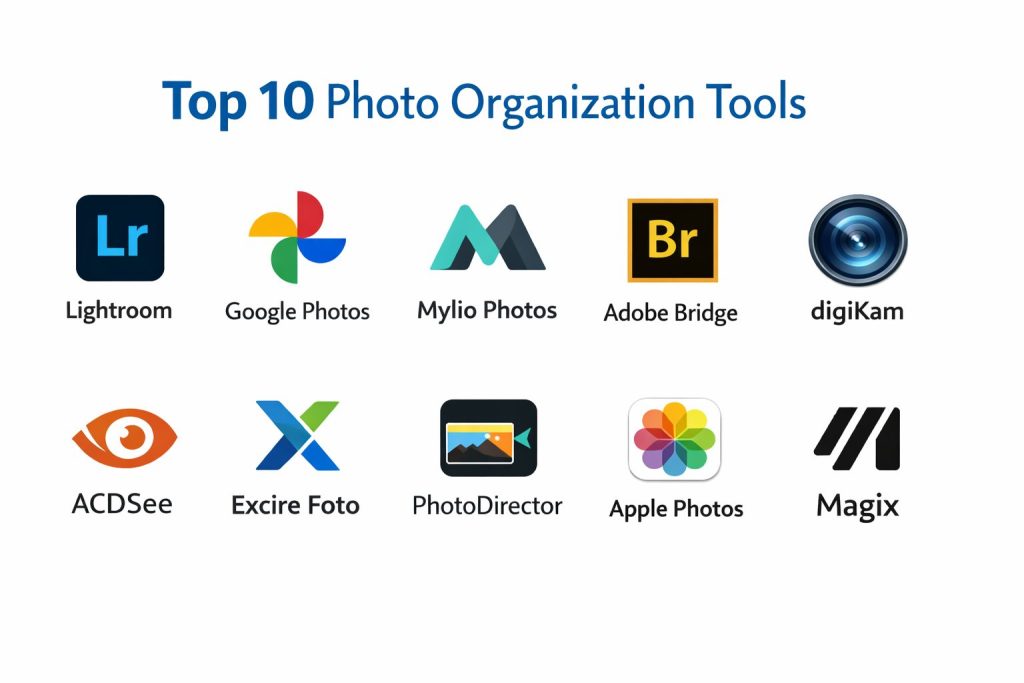
Introduction
Photo organization software is the fundamental architecture for managing the exponential growth of digital visual data, providing the logic and structure necessary to navigate vast libraries of imagery. These platforms move beyond simple file storage by implementing sophisticated metadata management, non-destructive indexing, and high-performance database engines that allow for the instantaneous retrieval of specific assets among hundreds of thousands of files. In a professional context, these tools are indispensable for maintaining a clean “source of truth” in creative pipelines, ensuring that original high-resolution data remains untouched while versions and edits are tracked through sidecar files or internal catalogs.
The necessity of professional-grade organization stems from the transition of photography from a purely creative pursuit to a data-heavy asset management challenge. Modern organizations require seamless integration between capture and delivery, where the ability to quickly cull, tag, and categorize images directly impacts the bottom line and project timelines. High-quality organization tools provide advanced filtering based on technical parameters such as focal length, exposure settings, or camera serial numbers, alongside conceptual organization through AI-driven content recognition. For teams and individuals, the choice of an organizational tool determines the long-term accessibility of their visual history and the scalability of their creative output.
Best for: Professional photographers, digital asset managers, marketing agencies, and high-volume hobbyists who need robust culling, keywording, and advanced database management for large-scale image libraries.
Not ideal for: Casual users who only take occasional snapshots and prefer simple cloud backups without the need for manual categorization or technical metadata control. If the goal is basic storage without a need for complex searchability, standard operating system folders may suffice.
Key Trends in Photo Organization Software
The integration of on-device artificial intelligence has revolutionized how we categorize images, with modern tools now capable of recognizing specific objects, locations, and even emotional expressions without sending data to external servers. Real-time assisted culling is another significant shift, where algorithms analyze groups of similar photos to identify the sharpest frame or the one with the best lighting, significantly reducing manual review time. There is also a move toward hybrid workflows that combine the speed of local processing with the accessibility of cloud-based synchronization across multiple mobile and desktop devices.
Metadata standards are evolving to support more complex data types, including spatial information and generative AI provenance tags that track the history of an image’s modifications. We are also seeing a rise in “no-import” cataloging, where software can index and manage files directly on a hard drive or network-attached storage without moving or duplicating the original media. Privacy-focused organization is becoming a major selling point, with developers offering tools that provide the benefits of intelligent search while keeping all biometric and location data strictly within the user’s local hardware environment.
How We Selected These Tools
Our selection process focused on identifying platforms that offer the best balance of technical reliability, database speed, and user interface efficiency. We prioritized software that supports industry-standard metadata formats like XMP and IPTC, ensuring that the work put into organizing today remains compatible with different tools in the future. Market longevity and developer reputation were also key factors, as the security of a long-term photo archive depends on the continued support and updates of the underlying software.
We evaluated the performance of each tool when handling massive datasets, specifically looking for those that maintain high responsiveness when browsing catalogs exceeding one hundred thousand images. Security features were scrutinized to verify that user privacy and data integrity are maintained during both local storage and cloud syncing processes. Finally, we assessed the breadth of the integration ecosystem, selecting tools that play well with professional editing suites and hardware-based storage solutions to provide a cohesive end-to-end workflow for diverse user types.
1. Adobe Lightroom Classic
Adobe Lightroom Classic remains the industry standard for professional digital asset management, offering a deep, catalog-based system designed for high-volume workflows. It excels at managing large libraries across multiple drives while providing professional-grade culling and rating tools.
Key Features
The software utilizes a robust cataloging system that keeps track of image locations, metadata, and non-destructive edits without altering original files. It features assisted culling powered by AI to identify best shots in a burst. Advanced filtering allows users to search by any technical parameter, including lens type or ISO. It also supports face recognition and map-based organization for travel photography. The integrated mobile ecosystem allows for synchronized collections across devices for on-the-go review and tagging.
Pros
It offers the most complete set of organizational features and is the benchmark for professional metadata standards. The integration with the broader Creative Cloud ecosystem is seamless for deep editing.
Cons
It requires a recurring subscription and can be resource-intensive on older hardware. The catalog-based workflow can be confusing for beginners who prefer a simple folder structure.
Platforms and Deployment
Windows and macOS. Primarily local installation with cloud-syncing capabilities for specific collections.
Security and Compliance
Features enterprise-grade account security and multi-factor authentication through Adobe Creative Cloud. It adheres to global data privacy standards for cloud-synced content.
Integrations and Ecosystem
Integrates perfectly with Photoshop and Bridge, and supports an extensive library of third-party plugins for specialized tasks like duplicate detection or AI keywording.
Support and Community
Extensive official support is available alongside a massive global community of professionals and an endless library of educational resources.
2. Google Photos
Google Photos is the leading cloud-native platform for automated organization, leveraging advanced machine learning to make massive personal libraries easily searchable. It is designed for users who want the software to handle the heavy lifting of categorization.
Key Features
The platform automatically identifies people, pets, places, and objects, allowing for natural language searches like “beach vacation” or “family dinner.” It features manual and automatic photo stacking to group similar shots and reduce library clutter. The system generates automatic memories and curated albums based on time and location data. It provides a seamless cross-platform experience with instant backup from mobile devices. The search functionality is arguably the most advanced in the consumer market, requiring almost no manual tagging from the user.
Pros
The search capability is incredibly fast and intuitive, making it easy to find specific memories without manual work. It provides excellent value for users who want a set-it-and-forget-it backup solution.
Cons
Privacy concerns exist due to the cloud-based nature of the analysis. It offers very limited control over technical metadata compared to professional desktop tools.
Platforms and Deployment
Web-based, Android, and iOS. It is a cloud-native service with local app interfaces for mobile.
Security and Compliance
Uses industry-standard encryption and Google’s robust account security infrastructure, including Advanced Protection Program options.
Integrations and Ecosystem
Integrates deeply with the Android ecosystem and Google Drive, and offers APIs for various printing and third-party backup services.
Support and Community
Supported by comprehensive online help centers and a vast user base that contributes to troubleshooting forums.
3. Mylio Photos
Mylio Photos is a privacy-focused organizer that creates a local network between all your devices, allowing you to manage a massive library without relying on the cloud. It is built for speed and works entirely offline.
Key Features
The software creates a peer-to-peer sync between computers, tablets, and phones to keep the entire library updated across all hardware. It includes a “LifeCalendar” that provides a chronological view of your history and uses on-device AI for face and object recognition. It features a specialized DeClutter tool to help identify and remove poor-quality shots. The “Vault” system allows users to turn external hard drives into secure backup points. It also includes a SafeShare feature that strips sensitive metadata before images are posted online.
Pros
It offers total privacy as no data is ever sent to the cloud. It is exceptionally fast even when managing libraries with hundreds of thousands of images on mobile devices.
Cons
Setting up the initial sync between multiple devices can be complex. The interface has a unique logic that requires some time to master compared to traditional file browsers.
Platforms and Deployment
Windows, macOS, Android, and iOS. It is a decentralized, local-first application.
Security and Compliance
Prioritizes data sovereignty with end-to-end local encryption. It is ideal for users who need to comply with strict privacy regulations.
Integrations and Ecosystem
Integrates with major external storage brands and provides easy export paths to professional editing software.
Support and Community
Offers a dedicated support team and a growing community of users focused on privacy and long-term digital archiving.
4. Adobe Bridge
Adobe Bridge is a powerful, free-to-use digital asset manager that acts as a visual gateway to your files. Unlike Lightroom, it does not use a central catalog, allowing you to browse and manage files directly on your drives.
Key Features
The tool provides a comprehensive interface for viewing almost any file type, including RAW images and high-resolution videos, without a dedicated import process. It excels at batch operations, such as renaming thousands of files or applying metadata templates simultaneously. It features a powerful “Filter” panel to sort images by technical specs or custom labels. Users can create collections to group related items without moving the physical files. It also serves as the primary hub for managing shared metadata across different Adobe applications.
Pros
The software is completely free and does not require a paid subscription. It provides a fast, non-destructive way to browse directories without the overhead of a database.
Cons
It lacks the specialized photo editing and non-destructive “develop” modules found in Lightroom. It can be slower at generating thumbnails for massive folders compared to catalog-based tools.
Platforms and Deployment
Windows and macOS. It is a standalone desktop application.
Security and Compliance
Managed through Adobe ID security protocols, offering a safe environment for managing professional creative assets.
Integrations and Ecosystem
Deeply integrated with the entire Adobe Creative Cloud, serving as the connective tissue between Photoshop, InDesign, and Premiere Pro.
Support and Community
Benefit from the extensive documentation provided by Adobe and a large professional user base that uses it as a daily production utility.
5. digiKam
digiKam is a high-end, open-source digital asset manager that offers features comparable to expensive professional suites. It is designed for users who want total control over their metadata and database structure.
Key Features
The software can handle libraries of over 100,000 images with ease using a variety of local or remote database backends. It features advanced facial recognition and AI-driven auto-tagging for content identification. Its metadata management is exhaustive, supporting Exif, IPTC, and XMP with deep editing capabilities. It includes a sophisticated geolocation editor that places images on an interactive map. The batch queue manager allows for complex processing tasks, such as format conversion and renaming, to be performed in the background.
Pros
It is completely free and open-source, providing professional features without a subscription cost. It offers unparalleled flexibility in how and where your photo database is stored.
Cons
The interface is very dense and can be overwhelming for casual users. Some advanced features require a high degree of technical knowledge to configure properly.
Platforms and Deployment
Windows, macOS, and Linux. It is a local installation that can connect to network-based databases.
Security and Compliance
Because it is open-source and local-first, it offers maximum transparency and data control, which is highly valued in security-conscious environments.
Integrations and Ecosystem
Supports a vast range of plugins and integrates well with other open-source creative tools and various cloud storage providers for export.
Support and Community
Maintained by a dedicated developer community with over two decades of history, offering comprehensive online manuals and mailing lists.
6. ACDSee Photo Studio
ACDSee Photo Studio is a high-performance organizer known for its extreme speed and “Media Mode” which provides a lightning-fast way to browse and manage massive amounts of content without importing.
Key Features
The software features an advanced Activity Manager that uses multi-threading to handle imports and batch exports in the background. It includes AI-powered facial recognition and a dedicated “People Mode” for organizing subjects. Its “Quick Search” and “Advanced Search” tools allow for complex queries using AND/OR logic across multiple metadata fields. The tool includes specialized video metadata support, making it a versatile choice for mixed-media collections. It also features a “Home Page” that provides quick access to recent projects and tutorials.
Pros
The application is widely regarded as one of the fastest file browsers in the market. It offers a perpetual license option, which is preferred by users avoiding subscription models.
Cons
The most advanced features are restricted to the “Ultimate” version, which is the most expensive. The interface can feel a bit traditional compared to modern, minimalist designs.
Platforms and Deployment
Windows only (dedicated Mac versions exist but with different feature sets). It is a local desktop installation.
Security and Compliance
Features secure database management and adheres to standard enterprise software security protocols for license and data handling.
Integrations and Ecosystem
Offers mobile syncing tools and integrates with various cloud services, while also supporting a wide array of RAW camera formats.
Support and Community
Provides professional technical support, online workshops, and a long-standing community of power users.
7. Excire Foto
Excire Foto is a specialized organizer that uses powerful AI models to automatically tag and find photos based on their content, aesthetic quality, and technical characteristics.
Key Features
The AI-driven search engine allows users to find images by searching for specific objects, colors, or emotions. It features an “Aesthetic Search” that can identify your best shots based on composition and technical quality. The software performs all AI analysis locally on your computer, ensuring total privacy. It includes an AI-assisted culling tool that groups similar photos and auto-rejects blurry or poor-quality shots. Its interface is designed to be a streamlined gateway for finding the right asset quickly within a massive archive.
Pros
The automatic tagging and content-based search are incredibly accurate and save hours of manual labor. It respects user privacy by keeping all biometric and content data local.
Cons
It is primarily focused on search and organization, so it lacks the deep editing suites found in all-in-one platforms. It works best as a companion to other tools.
Platforms and Deployment
Windows and macOS. It is a local desktop application.
Security and Compliance
Fully GDPR-compliant with 100% local processing, making it one of the most secure choices for professional and personal archives.
Integrations and Ecosystem
Designed to integrate seamlessly with Lightroom Classic as a plugin or work as a standalone bridge to other professional applications.
Support and Community
Offers dedicated customer support and a focused group of users who value automated, AI-driven asset management.
8. CyberLink PhotoDirector
CyberLink PhotoDirector is a consumer-friendly tool that bridges the gap between simple organization and creative editing, offering a wide array of AI-powered management features.
Key Features
The tool features AI-based face recognition and object detection for quick categorization of people and things. It includes a specialized “Quick Actions” and “Batch Editing” module that suggests the best tools for improving groups of photos. It provides a clean, module-based interface that separates management from creative tasks. The software supports advanced AI-driven culling to help users select the best frames from a series. It also includes integrated stock photo access for professional design projects.
Pros
The software is very easy to use and provides a “pro-level consumer” experience that is less intimidating than specialized enterprise tools. It offers excellent value with a combination of organization and creative effects.
Cons
It is less robust than Lightroom or digiKam for managing extremely complex professional metadata. Some advanced features are only available in the subscription-based “365” version.
Platforms and Deployment
Windows and macOS. It is a local installation with cloud-integrated features.
Security and Compliance
Includes standard secure account management and data protection for its integrated cloud storage and mobile sync features.
Integrations and Ecosystem
Part of the broader CyberLink creative suite, offering easy workflows between photo, video, and audio editing tools.
Support and Community
Provides priority customer support for subscribers and an active community forum with plenty of tutorials and creative assets.
9. Apple Photos
Apple Photos is the deeply integrated organizational tool for the Apple ecosystem, utilizing “Apple Intelligence” to provide a seamless, high-performance experience across all devices.
Key Features
The platform features a “Liquid Glass” interface that intelligently groups photos into “Library” and “Collections.” It uses advanced on-device AI for natural language searches like “Cat in the garden” or “Paris trip.” It features automatic photo stacking and a “Memories” view that curates significant life events. The software supports spatial photo and video management for immersive viewing. It provides a completely unified experience where edits and organizational changes on an iPhone are instantly reflected on a Mac.
Pros
The integration within the Apple hardware ecosystem is unparalleled, providing the smoothest multi-device experience. The AI-driven search is fast, private, and very intuitive.
Cons
It is locked into the Apple ecosystem, making it unsuitable for Windows or Linux users. It provides limited control over manual database structure compared to professional desktop apps.
Platforms and Deployment
macOS, iOS, and iPadOS. It is a system-level application with deep iCloud integration.
Security and Compliance
Leverages Apple’s industry-leading privacy standards, performing most AI analysis on-device and using end-to-end encryption for iCloud syncing.
Integrations and Ecosystem
Deeply woven into every part of the Apple software suite, from Messages to professional tools like Final Cut Pro.
Support and Community
Backed by Apple’s global retail and online support infrastructure, with a massive community of users and extensive documentation.
10. Magix Photo Manager
Magix Photo Manager is a practical, straightforward tool designed for efficient basic management and organization of large image collections.
Key Features
The software features a clean user interface that prioritizes ease of use for beginners. It includes a batch processor for updating metadata and renaming multiple files at once. The “Auto Sorting” feature can categorize images based on their themes or capture dates. It provides tools for identifying and eliminating duplicate images to save storage space. It also includes basic optimization tools for saturation and brightness, as well as a feature for creating and presenting slideshows.
Pros
It is very accessible for users who find professional suites too complex. It provides a solid range of basic organizational tools for no or low cost.
Cons
The interface can feel a bit dated compared to more modern AI-driven platforms. It lacks advanced features like deep facial recognition or complex SQL database support.
Platforms and Deployment
Windows only. It is a local desktop application.
Security and Compliance
Managed through standard software licensing and local data security practices, suitable for home and small business use.
Integrations and Ecosystem
Works well as a standalone manager for local drives and integrates with common cloud services for importing and exporting files.
Support and Community
Offers standard customer support and a user base that shares tips via community forums and G2 reviews.
Comparison Table
| Tool Name | Best For | Platform(s) Supported | Deployment | Standout Feature | Public Rating |
| 1. Adobe Lightroom | Professional Workflow | Win, Mac, Mobile | Hybrid | Advanced Cataloging | 4.8/5 |
| 2. Google Photos | AI-Search/Consumer | Web, Android, iOS | Cloud | Natural Language Search | 4.7/5 |
| 3. Mylio Photos | Privacy/Local Sync | Win, Mac, Mobile | P2P Local | Peer-to-Peer Sync | 4.6/5 |
| 4. Adobe Bridge | Non-Import Browsing | Win, Mac | Local | Free Asset Management | 4.5/5 |
| 5. digiKam | Open Source/Power User | Win, Mac, Linux | Local | SQL Database Support | 4.7/5 |
| 6. ACDSee Photo Studio | High-Speed Browsing | Windows | Local | Activity Manager Speed | 4.4/5 |
| 7. Excire Foto | AI Content Tagging | Win, Mac | Local | Aesthetic AI Search | 4.6/5 |
| 8. PhotoDirector | Consumer AI Editing | Win, Mac | Local | AI Quick Actions | 4.3/5 |
| 9. Apple Photos | Apple Ecosystem | Mac, iOS | Hybrid | Apple Intelligence | 4.7/5 |
| 10. Magix Photo Manager | Basic Organization | Windows | Local | Easy Batch Sorting | 4.1/5 |
Evaluation & Scoring of Photo Organization Software
The scoring below is a comparative model intended to help shortlisting. Each criterion is scored from 1–10, then a weighted total from 0–10 is calculated using the weights listed. These are analyst estimates based on typical fit and common workflow requirements, not public ratings.
Weights:
- Core features – 25%
- Ease of use – 15%
- Integrations & ecosystem – 15%
- Security & compliance – 10%
- Performance & reliability – 10%
- Support & community – 10%
- Price / value – 15%
| Tool Name | Core (25%) | Ease (15%) | Integrations (15%) | Security (10%) | Performance (10%) | Support (10%) | Value (15%) | Weighted Total |
| 1. Lightroom | 10 | 6 | 10 | 9 | 8 | 10 | 7 | 8.65 |
| 2. Google Photos | 8 | 10 | 9 | 7 | 9 | 9 | 10 | 8.70 |
| 3. Mylio Photos | 9 | 7 | 8 | 10 | 10 | 8 | 8 | 8.65 |
| 4. Adobe Bridge | 8 | 8 | 10 | 9 | 7 | 9 | 10 | 8.70 |
| 5. digiKam | 10 | 4 | 8 | 10 | 9 | 8 | 10 | 8.50 |
| 6. ACDSee | 9 | 7 | 8 | 8 | 10 | 9 | 8 | 8.55 |
| 7. Excire Foto | 9 | 8 | 7 | 10 | 9 | 7 | 8 | 8.40 |
| 8. PhotoDirector | 7 | 9 | 8 | 8 | 8 | 8 | 8 | 7.85 |
| 9. Apple Photos | 8 | 10 | 10 | 9 | 9 | 9 | 9 | 9.05 |
| 10. Magix | 6 | 9 | 6 | 7 | 7 | 7 | 9 | 7.00 |
How to interpret the scores:
- Use the weighted total to shortlist candidates, then validate with a pilot.
- A lower score can mean specialization, not weakness.
- Security and compliance scores reflect controllability and governance fit, because certifications are often not publicly stated.
- Actual outcomes vary with assembly size, team skills, templates, and process maturity.
Which Photo Organization Tool Is Right for You?
Solo / Freelancer
For individuals managing their own brand, a tool that offers both speed and deep metadata control is vital. You need a system that allows for quick client deliveries and long-term searchability without a massive learning curve.
SMB
Small businesses should prioritize tools that integrate with their existing creative suites and offer cost-effective licensing. A platform that allows for basic multi-user collaboration or easy data transfer is a major plus.
Mid-Market
Mid-market companies often need a balance between professional asset management and automated AI features. Tools that can handle larger catalogs while providing secure, local processing are often the best fit.
Enterprise
Enterprise users require the highest levels of security, centralized management, and the ability to integrate with corporate-wide digital asset management strategies. Robust support and compliance certifications are non-negotiable at this level.
Budget vs Premium
Users on a budget can find excellent open-source or free alternatives that match the performance of paid software. Premium tools, however, often offer more polished interfaces and dedicated professional support that can save time in the long run.
Feature Depth vs Ease of Use
If you enjoy tinkering with technical details, a feature-deep tool is rewarding. If you just want to find your photos quickly, an AI-driven, user-friendly tool will be more effective for your workflow.
Integrations & Scalability
Your organizational tool should grow with you. Choose a platform that plays well with different hard drives, cloud services, and editing programs to ensure your library doesn’t become a “data island.”
Security & Compliance Needs
Consider where your data is stored and who has access to it. If privacy is your top concern, local-first tools are superior to cloud-based solutions, even if they require more manual management of backups.
Frequently Asked Questions (FAQs)
1. What is the difference between a catalog and a browser?
A catalog stores image data in a central database, allowing for fast searches even when drives are offline. A browser looks directly at your folders, which is simpler but can be slower for large searches.
2. Does organizing photos take up extra storage space?
Most organizational tools use “sidecar” files or small databases that take up very little space. However, if you choose to sync your entire library to the cloud, you will need to pay for that storage.
3. Can I move my library from one tool to another?
Yes, as long as you use standard metadata like XMP or IPTC. Most professional tools can read the tags and ratings created in another program, though some proprietary features may not transfer.
4. How does AI tagging work?
AI tagging uses machine learning models to analyze the pixels in your photos. It identifies patterns that correspond to known objects or faces and automatically applies a hidden keyword to the file.
5. Is it safe to store all my photos in one tool?
The software is just a way to view your data; your photos stay on your hard drive or in the cloud. As long as you have a solid backup strategy, using a management tool is very safe.
6. What is non-destructive editing?
Non-destructive editing means the software never changes the original pixels of your photo. Instead, it saves a list of “instructions” that are applied whenever you view or export the image.
7. Should I organize my photos by date or by subject?
A hybrid approach is usually best. Use folders for dates to keep a physical order on your drive, and use tags or collections in your software to group photos by subject or project.
8. Can these tools find and delete duplicate photos?
Many professional and specialized organizers include duplicate detection tools that scan for identical files or visually similar images to help you clean up your storage.
9. Do these tools work with RAW files?
Most professional-grade organizers have extensive support for RAW files from almost every major camera manufacturer, allowing you to view and tag them just like JPEGs.
10. What happens if I stop paying for my subscription?
It depends on the tool. For some, you may lose access to the software entirely. For others, like Lightroom, you can still open the catalog and export your organized files, but you lose the editing features.
Conclusion
In the modern digital landscape, the value of a visual archive is directly tied to its accessibility and organization. Choosing the right photo management tool is not merely about finding a place to store files, but about implementing a system that preserves the integrity of your data while providing the intelligence to navigate it efficiently. Whether you prioritize the automated convenience of cloud-based AI or the absolute privacy and technical control of local, open-source databases, the ideal platform is one that scales with your growth. By investing in a robust organizational framework today, you ensure that your creative assets remain a functional resource rather than a cluttered digital graveyard, allowing you to focus on the art of creation rather than the burden of administration.