Introduction
A code editor is the main workspace where developers write, read, and refactor code. The best editors do much more than basic text editing: they understand syntax, help you navigate large projects, highlight errors early, run linters and formatters, connect to version control, and integrate debugging and testing into one smooth workflow. For individuals, this can mean fewer mistakes and faster delivery. For teams, it improves consistency, reduces onboarding time, and helps enforce coding standards.
Common use cases include building web apps, scripting and automation, backend services, mobile development, data workflows, and infrastructure configuration. When choosing a code editor, evaluate language support, extensions or plugins, debugging experience, Git workflow, performance on large repositories, refactoring tools, remote development options, customization, collaboration fit, and total cost.
Best for: developers, DevOps engineers, data engineers, students, and teams that build and maintain software products.
Not ideal for: people who only need quick notes or very light text edits, or teams that already rely on a single locked enterprise IDE workflow and do not want editor variation.
Key Trends in Code Editors
- More AI-assisted coding features through plugins and integrated assistants
- Stronger expectation for remote development workflows and container-based dev setups
- Wider adoption of language-server based tooling for consistent autocomplete and diagnostics
- More emphasis on fast startup, low memory usage, and stable performance on big repos
- Standardization around code formatting and linting to reduce review friction
- Increasing need for secure development practices in editor workflows (secrets scanning, safer extensions)
How We Selected These Tools (Methodology)
- Chosen based on broad adoption and long-term credibility across developer communities
- Prioritized strong language support, debugging, and refactoring capabilities
- Considered performance and reliability for daily professional use
- Included tools that cover different styles: lightweight editors, full IDEs, and keyboard-first tools
- Evaluated ecosystem depth: extensions, plugins, and integration patterns
- Considered learning curve, documentation quality, and community strength
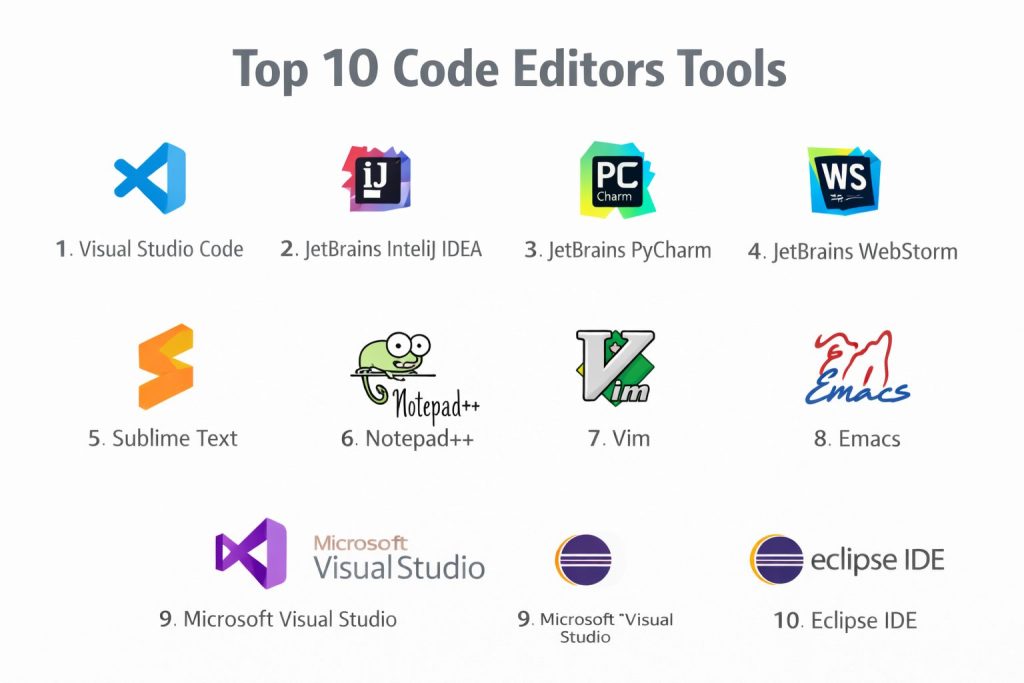
Top 10 Code Editors Tools
1 — Visual Studio Code
Visual Studio Code is a widely used editor that balances ease of use with powerful extensions. It works well for web, scripting, backend, and multi-language projects where you want a flexible setup without locking into one stack.
Key Features
- Extension marketplace for languages, linters, and workflows
- Built-in Git integration for common version control actions
- Strong debugging support through extensions
- Workspace settings for team-level consistency
- Remote development workflows via extensions (Varies / N/A)
Pros
- Excellent plugin ecosystem for most languages
- Good balance of usability and power for mixed teams
Cons
- Complex setups can become extension-heavy
- Performance varies depending on extensions and project size
Platforms / Deployment
Windows / macOS / Linux
Self-hosted
Security & Compliance
Not publicly stated
Integrations & Ecosystem
VS Code is often used as a “hub editor” connected to many tools through extensions and language servers.
- Git providers and issue workflows via extensions
- Linters, formatters, and test runners via extensions
- Language Server Protocol tooling patterns (Varies / N/A)
Support & Community
Very strong community, broad documentation, and a large extension ecosystem. Support varies by distribution and organization policies.
2 — JetBrains IntelliJ IDEA
IntelliJ IDEA is a full IDE known for deep code intelligence and refactoring. It is especially strong for large codebases where navigation, static analysis, and consistent project structure matter.
Key Features
- Advanced code navigation and refactoring tools
- Strong project model for complex applications
- Integrated debugging and testing workflows
- Built-in inspections and code quality guidance
- Plugin ecosystem for additional languages and tools
Pros
- Excellent refactoring and code understanding for large projects
- Strong productivity features for professional development
Cons
- Can feel heavy for small scripts or quick edits
- Licensing cost may be a consideration for some teams
Platforms / Deployment
Windows / macOS / Linux
Self-hosted
Security & Compliance
Not publicly stated
Integrations & Ecosystem
IntelliJ commonly connects to build tools, test frameworks, and team workflows through plugins and IDE integrations.
- Build and dependency workflow integrations (Varies / N/A)
- VCS integrations and code review patterns (Varies / N/A)
- Plugin extensions for language and framework support
Support & Community
Strong vendor documentation and broad community usage. Support tiers vary by plan.
3 — JetBrains PyCharm
PyCharm is tailored for Python development with a strong focus on productivity, debugging, and project organization. It fits well for application development, scripting, and data-related Python workflows.
Key Features
- Python-focused code intelligence and inspections
- Debugger and test runner integration for Python
- Project environment workflow support (Varies / N/A)
- Refactoring tools for maintainable Python code
- Plugin support for broader workflows
Pros
- Great Python experience for professional codebases
- Strong debugging and project organization features
Cons
- Heavier than lightweight editors for quick scripts
- Some advanced features vary by edition and setup
Platforms / Deployment
Windows / macOS / Linux
Self-hosted
Security & Compliance
Not publicly stated
Integrations & Ecosystem
PyCharm integrates well with Python tooling and typical team workflows when configured consistently.
- Formatting, linting, and testing tools (Varies / N/A)
- Git-based workflows and branching patterns
- Plugins for framework and environment support
Support & Community
Strong documentation and an active user base. Support varies by plan.
4 — JetBrains WebStorm
WebStorm is built for JavaScript and TypeScript workflows with strong code intelligence and refactoring. It works well for front-end teams that need consistent tooling across large codebases.
Key Features
- JavaScript and TypeScript code intelligence
- Refactoring tools for maintainable front-end code
- Built-in debugging workflows (Varies / N/A)
- Project and dependency navigation support
- Plugin ecosystem for extra tooling
Pros
- Strong refactoring and navigation for web projects
- Helpful structure for large front-end repositories
Cons
- Heavier than basic editors for quick edits
- Licensing cost may be a factor
Platforms / Deployment
Windows / macOS / Linux
Self-hosted
Security & Compliance
Not publicly stated
Integrations & Ecosystem
WebStorm fits well with modern web workflows and can be aligned with team standards.
- Formatters and linters integration patterns (Varies / N/A)
- Git workflows and code review processes (Varies / N/A)
- Plugins for frameworks and tooling
Support & Community
Strong vendor documentation and a large web developer community. Support varies by plan.
5 — Sublime Text
Sublime Text is a fast, lightweight editor favored for responsiveness and simplicity. It suits developers who want speed, keyboard-driven workflows, and a clean editing experience.
Key Features
- Very fast startup and responsive editing
- Powerful multi-cursor editing and selection tools
- Customizable keybindings and workflows
- Package ecosystem for language support (Varies / N/A)
- Clean UI focused on editing efficiency
Pros
- Excellent performance for everyday editing
- Simple and clean experience with strong shortcuts
Cons
- Advanced IDE-like features often require packages
- Some workflows need extra configuration to match full IDEs
Platforms / Deployment
Windows / macOS / Linux
Self-hosted
Security & Compliance
Not publicly stated
Integrations & Ecosystem
Sublime is typically extended via packages and external toolchains rather than built-in enterprise features.
- Language support via packages (Varies / N/A)
- Formatting and linting integrations via packages (Varies / N/A)
- Git workflows via plugins or external tools (Varies / N/A)
Support & Community
Healthy community and many packages available. Official support details vary.
6 — Notepad++
Notepad++ is a lightweight editor commonly used for quick edits, scripts, configuration files, and log viewing. It is popular for its speed and simplicity on Windows.
Key Features
- Fast lightweight editing for many file types
- Tabbed editing and file comparison patterns (Varies / N/A)
- Syntax highlighting for many languages
- Macro and basic automation features
- Plugin support for extra capabilities (Varies / N/A)
Pros
- Very simple and quick for everyday text and code edits
- Low overhead and easy to adopt
Cons
- Not a full IDE replacement for large projects
- Advanced refactoring and debugging are limited
Platforms / Deployment
Windows
Self-hosted
Security & Compliance
Not publicly stated
Integrations & Ecosystem
Notepad++ is usually used as a quick editor rather than a deep pipeline tool.
- Plugins for added features (Varies / N/A)
- Works alongside external compilers and tools (Varies / N/A)
- Useful for config and scripting edits in ops workflows
Support & Community
Strong community usage and abundant guides. Support is community-driven.
7 — Vim
Vim is a keyboard-first editor known for speed and efficiency once mastered. It is widely used for server-side editing, fast code navigation, and highly customized developer workflows.
Key Features
- Modal editing for efficient keyboard-driven work
- Powerful search, replace, and navigation commands
- Highly customizable configuration and plugins
- Works well over remote sessions
- Strong scripting and automation potential (Varies / N/A)
Pros
- Extremely fast editing once learned
- Strong fit for remote and terminal-based workflows
Cons
- Steep learning curve for new users
- Plugin setup can be complex without a standard baseline
Platforms / Deployment
Windows / macOS / Linux
Self-hosted
Security & Compliance
Not publicly stated
Integrations & Ecosystem
Vim can be extended into a full development environment, but consistency depends on team configuration.
- Language server integrations via plugins (Varies / N/A)
- Git workflows via plugins (Varies / N/A)
- Formatter and linter integrations via plugins (Varies / N/A)
Support & Community
Very strong community, lots of guides, and long-term stability. Support is primarily community-driven.
8 — Emacs
Emacs is a highly extensible editor often used as a full productivity environment. It appeals to developers who want deep customization and consistent keyboard workflows across tasks.
Key Features
- Deep customization and extensibility
- Strong text editing and project navigation capabilities
- Package ecosystem for language support (Varies / N/A)
- Integrated workflows for many developer tasks (Varies / N/A)
- Keyboard-centric productivity features
Pros
- Extremely customizable and powerful for advanced users
- Can unify many workflows inside one environment
Cons
- Learning curve is high for most beginners
- Setup can vary widely across users and teams
Platforms / Deployment
Windows / macOS / Linux
Self-hosted
Security & Compliance
Not publicly stated
Integrations & Ecosystem
Emacs can integrate with development tools through packages, but outcomes depend on configuration discipline.
- Language support via packages (Varies / N/A)
- Git integration via packages (Varies / N/A)
- Linting and formatting via packages (Varies / N/A)
Support & Community
Large, long-standing community with extensive documentation and tutorials.
9 — Microsoft Visual Studio
Microsoft Visual Studio is a full IDE commonly used for Windows-focused development and enterprise application workflows. It suits teams that want integrated tooling for building, debugging, and testing within one environment.
Key Features
- Deep debugging and diagnostic tooling
- Strong project templates and structured workflows
- Integrated build and test tooling patterns (Varies / N/A)
- Rich language tooling depending on project type (Varies / N/A)
- Extension ecosystem for added capabilities
Pros
- Excellent debugging experience for many enterprise workflows
- Strong integrated tooling for large application development
Cons
- Heavier than general-purpose editors for simple tasks
- Best fit is often tied to specific stacks and workflows
Platforms / Deployment
Windows
Self-hosted
Security & Compliance
Not publicly stated
Integrations & Ecosystem
Visual Studio typically integrates with enterprise development pipelines and tooling environments.
- Source control and CI workflow integrations (Varies / N/A)
- Extensions for frameworks and tooling (Varies / N/A)
- Debugging and profiling toolchain integrations (Varies / N/A)
Support & Community
Large enterprise user base, extensive documentation, and many training resources. Support varies by plan.
10 — Eclipse IDE
Eclipse IDE is a long-standing IDE used for a variety of languages and enterprise development workflows. It remains common in environments that value plugins and established project structures.
Key Features
- Plugin-based architecture with broad extensibility
- Strong project organization for large codebases
- Debugging and development tooling patterns (Varies / N/A)
- Supports multiple languages through plugins (Varies / N/A)
- Works well in structured enterprise workflows
Pros
- Flexible plugin ecosystem for different stacks
- Suitable for teams with established Eclipse-based workflows
Cons
- Can require tuning for performance and usability
- Plugin selection and setup can be inconsistent across teams
Platforms / Deployment
Windows / macOS / Linux
Self-hosted
Security & Compliance
Not publicly stated
Integrations & Ecosystem
Eclipse is often used in environments where plugins define most of the workflow experience.
- Language tooling via plugins (Varies / N/A)
- Build and dependency tool integrations (Varies / N/A)
- VCS integrations via plugins (Varies / N/A)
Support & Community
Strong historical community and many resources. Support varies by distribution and enterprise usage.
Comparison Table
| Tool Name | Best For | Platform(s) Supported | Deployment | Standout Feature | Public Rating |
|---|---|---|---|---|---|
| Visual Studio Code | Multi-language dev, flexible teams | Windows / macOS / Linux | Self-hosted | Extension ecosystem | N/A |
| JetBrains IntelliJ IDEA | Large projects and deep refactoring | Windows / macOS / Linux | Self-hosted | Code intelligence | N/A |
| JetBrains PyCharm | Professional Python development | Windows / macOS / Linux | Self-hosted | Python tooling depth | N/A |
| JetBrains WebStorm | JavaScript and TypeScript teams | Windows / macOS / Linux | Self-hosted | Web refactoring | N/A |
| Sublime Text | Fast editing and lightweight workflows | Windows / macOS / Linux | Self-hosted | Performance | N/A |
| Notepad++ | Quick edits and scripts on Windows | Windows | Self-hosted | Simplicity | N/A |
| Vim | Keyboard-first and remote workflows | Windows / macOS / Linux | Self-hosted | Modal editing speed | N/A |
| Emacs | Deep customization and power users | Windows / macOS / Linux | Self-hosted | Extensibility | N/A |
| Microsoft Visual Studio | Integrated enterprise development | Windows | Self-hosted | Debugging tools | N/A |
| Eclipse IDE | Plugin-based enterprise workflows | Windows / macOS / Linux | Self-hosted | Plugin architecture | N/A |
Evaluation & Scoring of Code Editors
This scoring model is a comparative framework to help you shortlist tools. It does not represent public ratings. A higher weighted total typically means broader fit across more scenarios, not a universal winner. If your environment is highly specialized, adjust the weights to match your priorities. Use the table to narrow down options, then validate by running a short pilot in your real repo with your real toolchain.
Weights used
Core features 25%
Ease of use 15%
Integrations and ecosystem 15%
Security and compliance 10%
Performance and reliability 10%
Support and community 10%
Price and value 15%
| Tool Name | Core (25%) | Ease (15%) | Integrations (15%) | Security (10%) | Performance (10%) | Support (10%) | Value (15%) | Weighted Total (0–10) |
|---|---|---|---|---|---|---|---|---|
| Visual Studio Code | 9 | 9 | 10 | 6 | 8 | 9 | 10 | 8.9 |
| JetBrains IntelliJ IDEA | 10 | 8 | 9 | 6 | 8 | 8 | 7 | 8.3 |
| JetBrains PyCharm | 9 | 8 | 8 | 6 | 8 | 8 | 7 | 7.9 |
| JetBrains WebStorm | 9 | 8 | 8 | 6 | 8 | 8 | 7 | 7.9 |
| Microsoft Visual Studio | 10 | 7 | 9 | 6 | 8 | 8 | 6 | 8.0 |
| Sublime Text | 7 | 8 | 7 | 4 | 9 | 6 | 8 | 7.1 |
| Vim | 7 | 4 | 7 | 4 | 9 | 9 | 10 | 7.1 |
| Eclipse IDE | 8 | 6 | 7 | 5 | 7 | 7 | 8 | 7.1 |
| Emacs | 7 | 4 | 8 | 4 | 7 | 8 | 9 | 6.8 |
| Notepad++ | 5 | 8 | 5 | 4 | 8 | 7 | 10 | 6.6 |
Which Code Editor Tool Is Right for You?
Solo / Freelancer
If you want a flexible editor that works across many languages with minimal friction, Visual Studio Code is usually the simplest starting point. If you value speed and a lightweight feel, Sublime Text is strong for daily editing. If you prefer a keyboard-first workflow and often work on servers, Vim can be extremely efficient once learned.
SMB
Small teams often benefit from standardizing a default setup. Visual Studio Code can be the shared baseline because extensions allow each developer to tailor language workflows while keeping team settings consistent. If your team builds complex applications and wants refactoring depth, JetBrains IntelliJ IDEA can reduce long-term maintenance cost by catching issues earlier.
Mid-Market
For bigger repos and more structured development, JetBrains IDEs tend to shine because code understanding and refactoring are built into the core experience. PyCharm is a practical choice for Python-heavy teams, and WebStorm fits web teams that want consistent TypeScript and front-end tooling. Visual Studio Code remains a strong secondary editor for quick tasks.
Enterprise
Enterprises often prioritize consistency, onboarding, and predictable debugging. Microsoft Visual Studio is a strong choice when you need integrated tooling and deep diagnostics. IntelliJ IDEA is often chosen when codebase navigation and refactoring at scale are critical. Eclipse IDE fits organizations that already have established plugin-driven workflows.
Budget vs Premium
Budget-focused teams often standardize on Visual Studio Code, paired with linters and formatters. Premium IDEs justify their cost when refactoring, code insight, and debugging features measurably reduce development time and defects.
Feature Depth vs Ease of Use
If you want an easy start with strong extensibility, Visual Studio Code is a safe choice. If you want deep refactoring and strong project intelligence, JetBrains IntelliJ IDEA is typically stronger. If you want extreme efficiency at the keyboard and work often in terminals, Vim or Emacs can be the best long-term productivity path.
Integrations & Scalability
If your workflow relies on many tools, prioritize an editor with a strong extension ecosystem and predictable configuration. Visual Studio Code is strong for this. JetBrains IDEs are strong where tooling is integrated and consistent. For plugin-driven setups, Eclipse IDE can work well if your organization standardizes plugin choices and configurations.
Security & Compliance Needs
Many code editors are local applications, so security depends heavily on your environment: device controls, access policies, and extension governance. If compliance requirements are strict, consider controlling extension installs, using managed development machines, and standardizing secrets handling, because tool-level compliance claims are often not publicly stated.
Frequently Asked Questions (FAQs)
1. How do I choose between a lightweight editor and a full IDE
Lightweight editors are great for speed and flexibility, while full IDEs often provide deeper refactoring and project intelligence. Choose an IDE if your codebase is large and you need strong navigation and debugging.
2. What matters most for team consistency
A shared formatter, a shared linter configuration, and a stable set of editor settings. This reduces review friction and makes onboarding much easier.
3. Are extensions safe to use
It depends on your governance. Many details are not publicly stated per extension. For professional teams, it helps to approve a standard extension list and avoid installing random plugins.
4. Which tool is best for Python development
JetBrains PyCharm is tailored for Python workflows, while Visual Studio Code works well with the right extensions. The best choice depends on how much refactoring and debugging depth you need.
5. Which tool is best for web development
Visual Studio Code is widely used for web workflows due to extensions, and JetBrains WebStorm is strong when you want built-in refactoring and deeper project intelligence.
6. How do I evaluate performance before standardizing
Open your largest repository, run common searches, refactors, and builds, and test startup time and memory use. Also test debugging and test-running on real services.
7. What are common mistakes teams make with code editors
Over-customizing without documentation, skipping shared formatting rules, and failing to standardize extensions. Another common mistake is ignoring onboarding and editor setup time.
8. Can I switch editors later without major cost
Yes, but productivity may dip during retraining. Standardizing on shared tools like formatters and linters reduces switching friction.
9. What editor works best for remote server editing
Vim is a popular choice for terminal-based workflows, and Visual Studio Code can support remote workflows through extensions depending on your environment.
10. Do I need one editor for everything
Not always. Many developers use one main editor for most work and a secondary lightweight editor for quick edits. The key is keeping team standards consistent.
Conclusion
The best code editor depends on your workflow, team size, and how complex your projects are. Visual Studio Code is a strong default for many teams because it balances usability with a powerful extension ecosystem. JetBrains IntelliJ IDEA, PyCharm, and WebStorm are excellent when you need deeper code understanding and refactoring to manage large, long-lived codebases. Sublime Text, Notepad++, Vim, and Emacs suit developers who value speed, simplicity, or keyboard-first efficiency. Microsoft Visual Studio is a strong choice for integrated enterprise workflows, while Eclipse IDE fits plugin-driven environments. Shortlist two or three tools, test them in your real repository, and validate debugging, formatting, Git flow, and onboarding effort before standardizing.