Introduction
Interactive whiteboards have undergone a radical transformation, moving from simple touch-sensitive surfaces to sophisticated all-in-one computing hubs. These devices now integrate high-resolution 4K displays with advanced sensory technology, allowing for seamless digital ink, gesture recognition, and real-time collaboration. In the current educational environment, the interactive flat panel has become the primary interface for hybrid learning, enabling teachers to bridge the gap between physical and remote participants through unified software ecosystems.
The integration of these tools into modern pedagogy is driven by the need for more active student participation. By allowing multiple learners to interact with digital objects simultaneously, these platforms cater to visual, auditory, and kinesthetic learning styles. Organizations evaluating these tools must prioritize factors such as touch latency, the robustness of the built-in operating system, and the security of cloud-based asset management. Furthermore, the total cost of ownership is now measured not just by the initial hardware price, but by the longevity of the software support and the ease of centralized device management.
Best for: K-12 school districts, higher education lecture halls, corporate training centers, and collaborative research environments requiring high-precision digital annotation and multi-device mirroring.
Not ideal for: Classrooms without stable electricity, environments where a static display is sufficient, or use cases involving purely analog teaching methods where digital distraction is a primary concern.
Key Trends in Classroom Interactive Whiteboards
The shift toward Android EDLA-certified displays is a major trend, providing teachers with secure, native access to the Google Play Store and Workspace directly on the board. We are also seeing the rapid adoption of AI-assisted tools that can transcribe lectures in real-time, generate automated lesson summaries, and even provide handwriting-to-text conversion for better readability. Optical bonding technology is now a standard, reducing the gap between the glass and the LCD to make the writing experience feel as natural as pen on paper.
Sustainability has also become a focal point, with newer models incorporating energy-efficient LED panels and automatic sleep sensors to reduce power consumption. Centralized Remote Management (MDM) has evolved, allowing IT administrators to update firmware, push emergency alerts, and monitor hardware health across an entire campus from a single dashboard. Finally, the move toward “BYOM” (Bring Your Own Meeting) allows educators to connect their personal laptops via a single USB-C cable to take full control of the board’s camera, mic, and touch capabilities instantly.
How We Selected These Tools
The selection process for these top interactive boards involved a strict evaluation of hardware reliability and software ecosystem depth. We prioritized brands that offer a comprehensive suite of education-first applications, ensuring that the hardware is supported by a library of ready-made lesson content. Touch accuracy and simultaneous touch points were heavily weighted, as these are critical for collaborative group work where multiple students use the screen at once.
We also scrutinized the connectivity options, looking for platforms that support cross-OS compatibility with Windows, Chrome, and macOS devices. Security was a non-negotiable factor, with a preference for tools that offer encrypted cloud storage and secure user profile switching via NFC. Finally, we looked at the physical durability and eye-care certifications, ensuring that these displays are suitable for long hours of classroom use and can withstand the rigors of a high-traffic student environment.
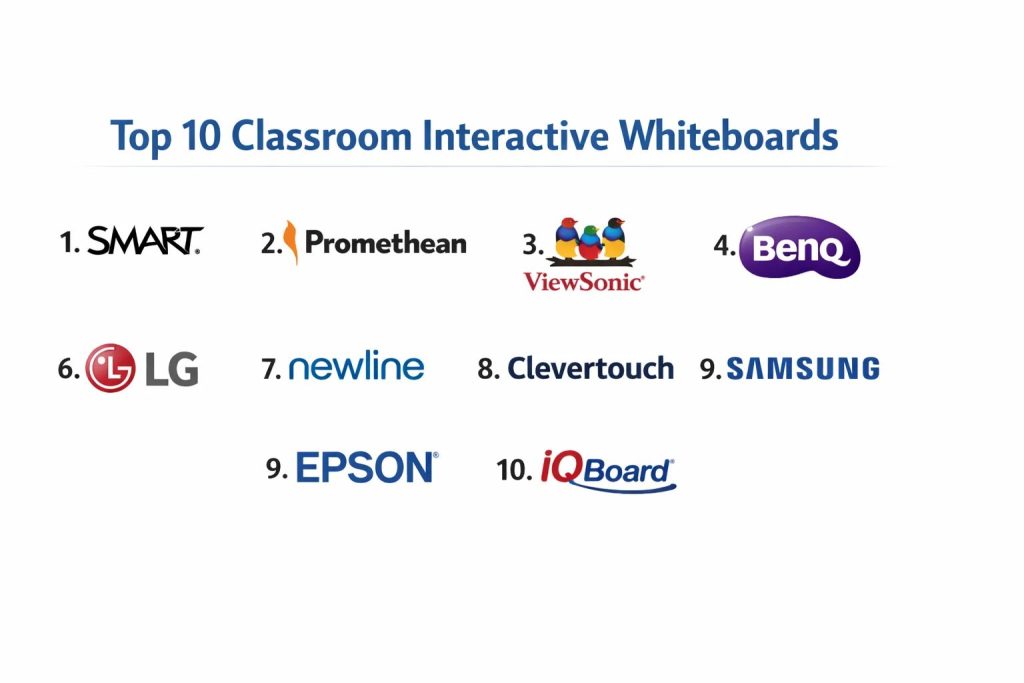
1. SMART Board RX Series
The SMART Board remains the industry pioneer, known for its highly intuitive “iQ” technology that allows teachers to switch between tools without manual menu navigation. The RX series is designed for maximum longevity and ease of use, featuring unique tool-differentiation technology where the board automatically knows if you are using a pen, a finger, or your palm to erase.
Key Features
It offers up to 40 points of simultaneous touch, making it ideal for large group activities. The integrated iQ system provides a built-in whiteboard, web browser, and wireless screen sharing without needing an external PC. It features secure NFC sign-in, allowing teachers to access their personalized settings and cloud files with a simple tap. The board also includes specialized sensors for environmental monitoring, such as temperature and humidity, to ensure a comfortable learning space.
Pros
The software ecosystem is the most mature in the market, with a massive library of pre-made lessons. The hardware is exceptionally durable and built to last in high-use settings.
Cons
It carries one of the highest price points in the industry. Some advanced features require a subscription to the full software suite after the initial period.
Platforms and Deployment
Windows, Android, and macOS. Deployed as a standalone panel with optional OPS PC modules.
Security and Compliance
Full GDPR compliance and secure user profiles with encrypted cloud integration for Google and Microsoft.
Integrations and Ecosystem
Native integration with Google Workspace and Microsoft 365. It syncs perfectly with SMART Notebook software for advanced lesson planning.
Support and Community
Extensive global support network with dedicated training portals and a massive community of certified educators.
2. Promethean ActivPanel 9
Promethean focuses on a “teacher-first” design, emphasizing ease of movement and accessibility. The ActivPanel 9 introduces a refined user interface that simplifies common tasks, allowing educators to focus on instruction rather than troubleshooting technology.
Key Features
It utilizes Vellum touch technology to provide a highly responsive and accurate writing experience. The panel includes a customizable “Locker” where teachers can keep their most-used apps and files secure but easily accessible. It supports roaming profiles, meaning a teacher can sign into any ActivPanel in a school and find their exact setup waiting for them. The hardware features front-facing ports for easy connectivity and a built-in array of microphones for clear audio during hybrid lessons.
Pros
The “ActivInspire” software remains a favorite for creating highly interactive and gamified lessons. It offers excellent security features for managing data across multiple users.
Cons
The interface can feel slightly more restrictive compared to open Android systems. Initial setup and calibration can sometimes be more time-consuming.
Platforms and Deployment
Windows, Android, and macOS. Local installation with centralized cloud management.
Security and Compliance
Highly secure user authentication and enterprise-grade data encryption protocols.
Integrations and Ecosystem
Deeply integrated with the Promethean cloud ecosystem and compatible with all major classroom hardware.
Support and Community
Strong professional development resources and an active forum for sharing lesson ideas.
3. ViewSonic ViewBoard IFP51
ViewSonic has gained significant market share by offering a perfect balance between high-end features and cost-effectiveness. The IFP51 series is specifically built for the Google ecosystem, making it a top choice for schools that already rely on Chromebooks and Google Classroom.
Key Features
This board is Android EDLA-certified, providing official access to the Google Play Store directly on the panel. It features a high-performance octa-core processor that ensures smooth operation of multiple apps at once. The “myViewBoard” software provides a powerful cloud-based whiteboarding environment that allows for real-time collaboration between student devices and the main display. It also includes flicker-free and low blue light technology to protect the eyes of both teachers and students.
Pros
It offers one of the best value-for-money propositions in the 4K interactive market. The Google certification simplifies the workflow for IT admins and teachers alike.
Cons
The built-in audio system, while clear, may lack the depth of more premium specialized soundbars. The plastic bezel design feels slightly less premium than some competitors.
Platforms and Deployment
Android and Windows. Easy deployment through the ViewSonic Manager cloud tool.
Security and Compliance
Features Google Play Protect and multi-factor authentication for secure teacher logins.
Integrations and Ecosystem
Seamlessly connects with Google Drive, OneDrive, and Dropbox for instant file access.
Support and Community
Excellent online documentation and a growing community of educators utilizing the myViewBoard platform.
4. BenQ Board Pro RP04
BenQ differentiates itself through a heavy focus on classroom health and eye care. The RP04 series features germ-resistant screens and advanced air quality sensors, positioning it as a tool that cares for the physical well-being of the classroom environment.
Key Features
The screen is coated with a TÜV-certified antimicrobial layer that helps prevent the spread of germs in shared environments. It includes built-in ionizers and CO2 sensors that alert teachers when it’s time to ventilate the room. The “EZWrite 6” software allows for live whiteboarding that can be shared across different locations for remote collaboration. It also features a built-in NFC reader for instant teacher profile switching and secure access to personal cloud storage.
Pros
Industry-leading health and safety features make it a standout for K-12 environments. The writing experience is very smooth with high-precision stylus support.
Cons
The focus on health features can make the hardware slightly more expensive than basic models. Some users find the specialized software has a moderate learning curve.
Platforms and Deployment
Android and Windows. Hybrid deployment with strong remote management capabilities.
Security and Compliance
Highly secure NFC-based login and encrypted cloud data paths.
Integrations and Ecosystem
Integrates well with major LMS platforms and offers specialized tools for STEM subjects.
Support and Community
Comprehensive technical support and a wealth of health-focused educational resources.
5. Samsung WAD Series
Samsung has leveraged its display manufacturing expertise to create a professional-grade interactive panel that excels in visual clarity and reliability. The WAD series is their latest Google EDLA-certified offering, combining a familiar Android interface with powerful hardware.
Key Features
It features a brilliant 4K UHD display with 400 nits of brightness, ensuring visibility even in bright classrooms. The “Samsung VXT” cloud management system allows for centralized control of content and device settings across a whole campus. It supports 3-in-1 USB-C connectivity, providing 65W charging, data transfer, and touch feedback through a single cable. The board also includes an AI-assisted tool for handwriting recognition that helps clean up messy notes for better student retention.
Pros
The hardware reliability and screen quality are among the best in the world. The familiar Android 13/14 interface reduces the training time for new users.
Cons
Samsung’s own education software suite is not as deep as SMART or Promethean. It is primarily a hardware-focused solution that relies on third-party apps for content.
Platforms and Deployment
Android, Windows, and Tizen. Local and cloud deployment options.
Security and Compliance
Enterprise-grade security through Samsung Knox and Google Play Protect.
Integrations and Ecosystem
Deeply integrated with the Google education suite and Samsung’s own device ecosystem.
Support and Community
World-class global hardware support and a vast network of authorized service providers.
6. LG CreateBoard
LG focuses on creating a high-performance, distraction-free environment for teaching. The CreateBoard series is known for its responsive touch and clean design, making it a reliable choice for institutions that want a straightforward, powerful tool without unnecessary gimmicks.
Key Features
The board supports up to 40 simultaneous touch points and 10 points of writing, allowing multiple students to work together smoothly. It includes a built-in “Screen Share Pro” tool that allows up to nine student screens to be displayed on the board at once. The hardware features a front-facing soundbar and a magnetic stylus holder for easy access. It also provides a “Secure Mode” that restricts access to unauthorized apps and websites, keeping students focused on the lesson.
Pros
The touch latency is impressively low, providing an almost instant writing response. The industrial design is sleek and fits well in modern classroom settings.
Cons
The built-in software suite is relatively basic compared to education-focused giants. It lacks some of the specialized health or environmental sensors found in other brands.
Platforms and Deployment
Android and Windows. Primarily local installation with web-based management.
Security and Compliance
Strong local device security and compliance with international data privacy standards.
Integrations and Ecosystem
Compatible with all major wireless casting protocols like AirPlay, Chromecast, and Miracast.
Support and Community
Reliable commercial-grade support with a focus on long-term hardware durability.
7. Newline Elara
Newline is a leader in “non-proprietary” interactive solutions, meaning they build their boards to work with the tools you already use rather than forcing you into a specific software ecosystem. The Elara is their premium all-in-one solution for higher education and professional training.
Key Features
It features high-quality optical bonding and a 4K camera with an integrated microphone array for superior video conferencing. The “Newline Engage” software offers a versatile whiteboarding tool that includes specialized widgets for math, science, and brainstorming. It supports 100W USB-C charging, enough to power even the most demanding laptops while they are connected to the board. The panel also includes a blue light filter and a physical privacy cover for the camera.
Pros
The lack of a mandatory software subscription makes it a very flexible and budget-friendly long-term choice. The hardware is highly versatile for both teaching and administrative meetings.
Cons
Because it is less focused on a specific ecosystem, teachers may need to spend more time finding and organizing their own digital resources.
Platforms and Deployment
Windows, Android, and macOS. Local installation with optional cloud management tools.
Security and Compliance
Features advanced user profile management and is designed to fit into secure enterprise networks.
Integrations and Ecosystem
Excellent compatibility with Microsoft Teams, Zoom, and all major third-party education software.
Support and Community
Very responsive technical support and a wealth of “how-to” videos for independent learning.
8. Clevertouch Impact Max 2
Clevertouch is highly regarded for providing a complete “turn-key” solution that includes hardware, software, and management for a single price. The Impact Max 2 is designed to be a durable and feature-rich centerpiece for any K-12 classroom.
Key Features
It comes pre-loaded with “Cleverstore,” an app store curated specifically for education that contains hundreds of free, ad-free apps. The “Lynx Whiteboard” software allows teachers to create complex lessons with embedded videos and interactive 3D models. It features “CleverShare,” which allows for bidirectional touch control between the board and a student’s mobile device. The hardware also includes antibacterial glass and high-quality front-facing speakers for an immersive audio experience.
Pros
The “no subscription” model means you get all current and future software updates for free. The centralized management tool (MDM) is one of the most powerful for school IT departments.
Cons
The brand has a slightly smaller presence in some regions, which can affect the availability of local on-site service.
Platforms and Deployment
Android and Windows. Highly scalable cloud-based deployment.
Security and Compliance
GDPR-compliant with secure cloud lockers and encrypted user data paths.
Integrations and Ecosystem
Works seamlessly with Microsoft 365, Google Workspace, and various school communication systems.
Support and Community
Strong community-driven support and a dedicated training academy for teachers.
9. Epson BrightLink 770Fi
Epson provides a unique alternative to flat panels by using interactive ultra-short-throw projection technology. This is an ideal solution for schools that want a much larger interactive surface than a standard screen can provide, without the weight and fragility of a giant glass panel.
Key Features
It can create an interactive workspace of up to 100 inches, which is significantly larger than most flat panels. The system uses a laser light source that lasts for thousands of hours with zero maintenance. It supports both pen and finger touch interactivity, allowing students to engage directly with the projected image. Because it is a projector, it eliminates the glare and reflections that can sometimes be an issue with glass screens. It also features a built-in split-screen function for comparing different sources side-by-side.
Pros
It is the most cost-effective way to get a massive interactive surface. It is much easier to install on walls that cannot support the weight of a 200lb flat panel.
Cons
The image quality, while excellent, can be affected by very bright ambient light. It requires a perfectly flat wall or a special whiteboard surface to work accurately.
Platforms and Deployment
Windows and macOS. Local installation.
Security and Compliance
Standard network security features and password protection for settings.
Integrations and Ecosystem
Works well with all standard computer-based education software and document cameras.
Support and Community
Backed by Epson’s massive global service network and decades of experience in classroom technology.
10. IQBoard IQTouch QA1400 Pro
IQBoard is known for its high-performance hardware and its deep integration with AV control systems. The QA1400 Pro is a flagship model that focuses on providing a cutting-edge experience for university lecture halls and high-tech corporate environments.
Key Features
It runs on the latest Android 14 OS, providing the fastest and most secure environment for modern apps. The board features an integrated 4K AI camera that can automatically track the speaker and frame the whiteboard content during video calls. It supports high-speed Wi-Fi 6 for lag-free streaming of 4K content and large file transfers. The “IQClass One” software provides a comprehensive set of tools for creating interactive polls, quizzes, and collaborative documents during a live session.
Pros
The hardware specifications are among the highest in the category, offering incredible speed and responsiveness. It is designed to work as a central hub for campus-wide AV management.
Cons
The brand is more focused on high-end institutional use, which may make it overkill for simple primary school needs.
Platforms and Deployment
Android and Windows (Dual OS). Enterprise-level cloud management.
Security and Compliance
Features robust encryption and is designed for high-security corporate and government use.
Integrations and Ecosystem
Deeply integrated with the Q-NEX platform for total campus automation and device control.
Support and Community
Highly technical support team and a focus on enterprise-level service contracts.
Comparison Table
| Tool Name | Best For | Platform(s) Supported | Deployment | Standout Feature | Public Rating |
| 1. SMART Board | K-12 Collaboration | Win, Mac, Android | Hybrid | Tool Differentiation | 4.7/5 |
| 2. Promethean | Teacher-Led Lessons | Win, Mac, Android | Local | ActivInspire Software | 4.6/5 |
| 3. ViewSonic | Google Ecosystem | Win, Android | Cloud | EDLA Certification | 4.8/5 |
| 4. BenQ Board | Health & Wellness | Win, Android | Hybrid | Germ-Resistant Screen | 4.5/5 |
| 5. Samsung WAD | Display Quality | Android, Windows | Cloud | VXT Management | 4.4/5 |
| 6. LG CreateBoard | Responsive Touch | Win, Android | Local | Screen Share Pro | 4.3/5 |
| 7. Newline Elara | Higher Education | Win, Mac, Android | Local | 100W USB-C Power | 4.5/5 |
| 8. Clevertouch | All-Inclusive | Win, Android | Cloud | MDM & Free Apps | 4.7/5 |
| 9. Epson BrightLink | Large Formats | Win, Mac | Local | 100″ Projection | 4.2/5 |
| 10. IQBoard Pro | Institutional AV | Win, Android | Cloud | AI Speaker Tracking | 4.6/5 |
Evaluation & Scoring of Interactive Whiteboards
The scoring below is a comparative model intended to help shortlisting. Each criterion is scored from 1–10, then a weighted total from 0–10 is calculated using the weights listed. These are analyst estimates based on typical fit and common workflow requirements, not public ratings.
Weights:
- Core features – 25%
- Ease of use – 15%
- Integrations & ecosystem – 15%
- Security & compliance – 10%
- Performance & reliability – 10%
- Support & community – 10%
- Price / value – 15%
| Tool Name | Core (25%) | Ease (15%) | Integrations (15%) | Security (10%) | Performance (10%) | Support (10%) | Value (15%) | Weighted Total |
| 1. SMART | 10 | 9 | 10 | 9 | 9 | 10 | 6 | 9.00 |
| 2. Promethean | 9 | 8 | 9 | 8 | 8 | 9 | 7 | 8.35 |
| 3. ViewSonic | 8 | 10 | 10 | 9 | 9 | 9 | 9 | 9.10 |
| 4. BenQ | 9 | 7 | 8 | 8 | 8 | 9 | 7 | 8.10 |
| 5. Samsung | 10 | 8 | 8 | 8 | 10 | 9 | 7 | 8.55 |
| 6. LG | 8 | 9 | 7 | 7 | 9 | 8 | 8 | 8.00 |
| 7. Newline | 8 | 8 | 9 | 8 | 8 | 9 | 8 | 8.25 |
| 8. Clevertouch | 9 | 9 | 9 | 9 | 8 | 9 | 9 | 8.95 |
| 9. Epson | 7 | 8 | 7 | 7 | 7 | 9 | 10 | 7.65 |
| 10. IQBoard | 9 | 7 | 9 | 9 | 10 | 8 | 7 | 8.35 |
How to interpret the scores:
- Use the weighted total to shortlist candidates, then validate with a pilot.
- A lower score can mean specialization, not weakness.
- Security and compliance scores reflect controllability and governance fit, because certifications are often not publicly stated.
- Actual outcomes vary with assembly size, team skills, templates, and process maturity.
Which Classroom Interactive Whiteboard Is Right for You?
Solo Educators & Small Schools
For independent teachers or small private schools, cost and ease of maintenance are the deciding factors. Platforms like ViewSonic or Clevertouch offer the best “out-of-the-box” experience with plenty of free educational content, reducing the need for an internal IT team to build lessons.
SMB & Coaching Centers
Mid-sized coaching centers that need to impress parents and students with modern technology should look toward the Samsung or LG models. These provide premium display quality and professional aesthetics that signal a commitment to high-end learning infrastructure.
Mid-Market Institutions
Large school districts with hundreds of classrooms require a balance of features and management. SMART and Promethean are the top choices here, as their management tools allow for efficient oversight of a vast hardware fleet across many different locations.
Enterprise & Higher Ed
University lecture halls and corporate training rooms need high-performance tools that can handle video conferencing and complex data sharing. IQBoard and Newline provide the technical specifications and connectivity required for these high-stakes environments.
Budget vs Premium
If the primary goal is a large interactive surface on a tight budget, the Epson projector system is unbeatable. For those who want the absolute best in software and longevity, the premium SMART Board RX series remains the industry benchmark.
Feature Depth vs Ease of Use
Teachers who are tech-savvy will appreciate the procedural power of SMART and Promethean. However, for a staff that wants a familiar, tablet-like experience with zero learning curve, the Android-native ViewSonic boards are generally the preferred option.
Integrations & Scalability
Scale is only possible if the boards can be managed remotely. Boards with strong MDM (Mobile Device Management) features, such as Clevertouch and ViewSonic, are essential for schools planning to grow their digital footprint over the next several years.
Security & Compliance Needs
In regions with strict data privacy laws, choosing a brand with clear security certifications is vital. Google EDLA-certified boards like the Samsung and ViewSonic models provide the peace of mind that student data is protected by global security standards.
Frequently Asked Questions (FAQs)
1. Do interactive whiteboards require a connected computer?
Most modern panels feature a built-in Android operating system that allows for whiteboarding and web browsing without any external device. However, for more complex software, an integrated OPS PC or a connected laptop is often used.
2. How long do these displays typically last?
Professional interactive flat panels are rated for approximately 50,000 to 60,000 hours of use. In a typical classroom setting, this translates to roughly 10 to 15 years of service before the backlight begins to dim significantly.
3. Is 4K resolution necessary for a classroom?
Yes, 4K has become the standard. The high pixel density ensures that text is crisp and readable from the back of the room, and it allows for much better detail when viewing scientific diagrams or high-resolution images.
4. Can students use their own devices with the board?
Almost all top-tier boards support wireless screen mirroring from Chromebooks, iPads, and laptops. This allows students to share their work with the class instantly without needing to physically plug in any cables.
5. What is the difference between an IR and a Capacitive touch screen?
Infrared (IR) touch is the most common in classrooms because it is durable and works with any object. Capacitive touch is more like a smartphone screen, offering slightly better precision and a sleeker look, but it is often more expensive.
6. Do I need special markers for these boards?
Most interactive flat panels use a “passive” stylus, which is essentially a plastic pen with no battery. In an emergency, many boards will even respond to a finger or any other non-sharp object.
7. How do I clean the screen safely?
You should use a dry, soft microfiber cloth to remove dust. For tougher smudges, a small amount of screen-safe cleaner can be applied to the cloth first—never spray liquid directly onto the panel as it can seep into the electronics.
8. Is it possible to record lessons on the board?
Yes, most modern interactive boards have a built-in screen recording feature. This allows teachers to capture the entire lesson, including their voice and annotations, and share it as a video file for students who were absent.
9. Do these boards work if the internet goes down?
The core functions like whiteboarding, drawing, and local file playback will work perfectly without internet. However, cloud-based features like Google Drive access or web browsing will require a stable connection.
10. Can these boards be moved between rooms?
While many are wall-mounted, they can also be placed on heavy-duty mobile stands. This allows schools to share high-end technology between different departments or move the board to a central hall for special presentations.
Conclusion
Selecting the right interactive whiteboard is a critical investment that defines the digital infrastructure of a modern educational institution. The transition from passive displays to interactive hubs has empowered educators to create dynamic, data-driven environments that significantly improve student engagement and retention. While hardware specifications like 4K resolution and touch accuracy are essential, the true value lies in the software ecosystem and the security of the platform. A well-chosen board should not only simplify the teacher’s daily tasks through automation and cloud integration but also remain a scalable, secure asset that adapts to the evolving needs of the classroom over the next decade. As institutions move toward hybrid and AI-enhanced models, prioritizing interoperability and long-term support will ensure that your technology serves as a bridge, rather than a barrier, to effective learning.