Introduction
Archiving tools help you compress, package, and extract files so they are easier to store, share, and back up. In simple terms, they turn many files into one smaller bundle (like ZIP, RAR, TAR), and they also unpack those bundles when you need the original files again. These tools matter now because teams handle bigger files, faster transfers, frequent backups, and cross-platform collaboration. Whether you are sending project folders, moving logs, storing builds, or preparing releases, archiving is a daily workflow that saves time and avoids file mess.
Common real-world use cases:
- Sharing large project folders with clients or teams
- Backing up documents, photos, and work files
- Packaging application builds and release artifacts
- Compressing logs and server exports for storage
- Extracting archives received from vendors or customers
What buyers should evaluate before choosing:
- Supported formats for creating and extracting archives
- Compression speed vs compression ratio
- Encryption and password protection options
- File splitting and recovery options
- Cross-platform compatibility and usability
- Integration with file manager / command line workflows
- Reliability with large archives and many small files
- Batch operations and automation support
- Update frequency and community trust
- License fit for personal vs business use
Mandatory guidance
Best for: IT teams, developers, QA teams, system administrators, students, office users, and anyone who frequently shares folders or stores backups—across Windows, macOS, and Linux.
Not ideal for: users who only compress files once in a while and are fine with built-in OS tools, or teams that need full backup/versioning systems instead of simple file compression and packaging.
Key Trends in Archiving Tools
- More focus on fast modern compression for large datasets and CI/CD artifacts
- Growing adoption of zstd due to strong speed-to-size balance in many workflows
- Increasing use of CLI-first pipelines for automation, repeatability, and server tasks
- More expectation for strong encryption and safer password practices
- Higher demand for cross-platform behavior so teams can exchange archives smoothly
- Bigger files and more media content pushing tools to improve large archive stability
- More user demand for clean UX that reduces mistakes when extracting or overwriting files
- Compression seen as part of DevOps and data pipelines, not only desktop utilities
- Storage cost awareness pushing teams to optimize ratio without slowing builds
- Preference for tools that support both GUI convenience and CLI automation
How We Selected These Tools
- Selected widely used tools with strong reputation across desktop and technical users
- Included a balance of Windows, macOS, Linux, and cross-platform options
- Covered both GUI-focused tools and command-line standards used in servers
- Prioritized reliability with common formats like ZIP, RAR, 7z, TAR-based formats
- Considered encryption options, usability, and stability with large archives
- Included modern compression choices and ecosystem relevance for current workflows
- Looked at community strength and practical support availability
- Avoided claiming compliance certifications or ratings without certainty
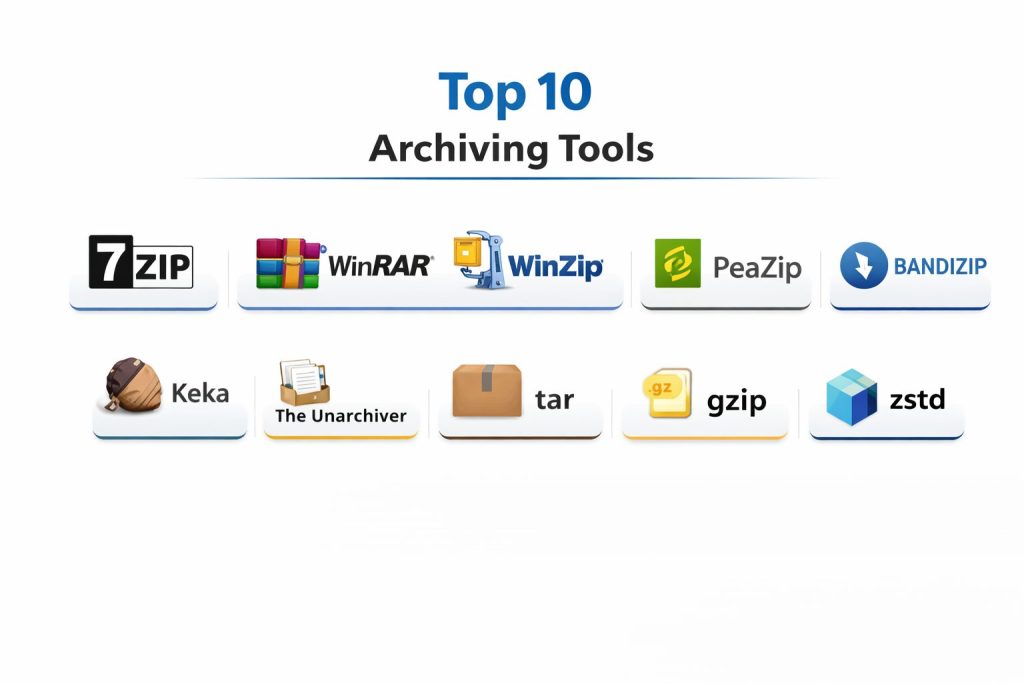
Top 10 Archiving Tools
1 — 7-Zip
7-Zip is a popular archiving tool known for strong compression with the 7z format and broad support for extracting many archive types. It is commonly used by IT users and general users who want reliable compression and simple workflows.
Key Features
- Creates and extracts common formats including ZIP and 7z
- Strong compression options and adjustable levels
- AES encryption support for supported formats
- Solid performance for large archives and batch operations
- File manager integration for everyday workflows
- Supports splitting archives into parts for easier sharing
- Works well for both casual and power users
Pros
- Excellent compression capability for many use cases
- Lightweight and dependable for daily work
- Good choice when you want a simple, proven tool
Cons
- Interface can feel basic compared to premium tools
- Some advanced workflows require learning format differences
- Recovery features vary by archive type
Platforms / Deployment
Windows (GUI), Linux (via packages), macOS (via ports or alternatives)
Self-hosted (local desktop)
Security & Compliance
Encryption supported (format-dependent); other compliance details not publicly stated
Integrations & Ecosystem
Works well for basic file manager workflows and scripting-based automation when paired with command-line usage.
- Context-menu integration (Windows)
- Command-line usage available
- Supports automation in scripts (workflow-dependent)
- Good compatibility for common sharing formats
- Widely used in IT support routines
Support & Community
Large user base and plenty of community guidance. Professional support is not typically packaged as enterprise-grade.
2 — WinRAR
WinRAR is a well-known archiving tool that creates and extracts RAR and ZIP archives and is widely used for handling archives from many sources. It’s often chosen for its familiarity and features like multi-part archives.
Key Features
- Creates RAR and ZIP archives and extracts many formats
- Archive splitting into multiple volumes for sharing
- Password protection and encryption options (format-dependent)
- Repair capability for certain archive scenarios (feature-dependent)
- Solid GUI workflow for compress/extract tasks
- Compression profiles for repeatable settings
- Handles large archives and big file sets reliably
Pros
- Strong for RAR workflows and multi-part packaging
- Familiar tool that many users already know
- Practical features for file sharing and packaging tasks
Cons
- Licensing cost for business use can be a factor
- Compression choices may require user knowledge for best results
- Some features are format-specific and not universal
Platforms / Deployment
Windows (primary), macOS / Linux (limited or workflow-dependent)
Self-hosted (local desktop)
Security & Compliance
Encryption supported (format-dependent); compliance not publicly stated
Integrations & Ecosystem
Commonly used in Windows environments with straightforward file manager integration.
- Context-menu integration (Windows)
- Supports scripted workflows in some setups
- Strong compatibility with RAR-based sharing
- Often used for distributing large files in parts
- Works well in mixed user environments
Support & Community
Large global user base and plenty of tutorials. Support depends on licensing and vendor channels.
3 — WinZip
WinZip is a mainstream archiving tool focused on user-friendly compression and sharing workflows. It’s often used by office users who want simple ZIP workflows with extra convenience features.
Key Features
- Easy ZIP creation and extraction workflows
- Encryption options for protected archives (format-dependent)
- Integration with file manager workflows for quick use
- Batch compression and extraction support
- Friendly UI for non-technical users
- Sharing-oriented workflows (feature-dependent)
- Handles common archive needs efficiently
Pros
- Simple and approachable for everyday office use
- Good for users who want minimal learning curve
- Practical for frequent ZIP-based sharing
Cons
- Premium pricing can be a drawback
- Advanced format coverage may be less central than in specialist tools
- Some features vary by edition and configuration
Platforms / Deployment
Windows / macOS
Self-hosted (local desktop)
Security & Compliance
Not publicly stated
Integrations & Ecosystem
Designed to fit typical desktop workflows and common sharing scenarios.
- File manager integration
- Batch operations for repetitive tasks
- Works well for ZIP-first environments
- Convenience features aimed at business users
- Workflow extensions vary by edition
Support & Community
Commercial support available with licensing; community is broad among general users.
4 — PeaZip
PeaZip is a flexible archiving tool with a clean interface and broad format support. It’s often chosen by users who want a free, feature-rich alternative with strong usability.
Key Features
- Supports many archive formats for extract and create (format-dependent)
- Clear UI with security-focused options (workflow dependent)
- Encryption and password management features (format-dependent)
- Batch operations for compress/extract
- File manager integration options
- Useful tools for archive inspection and management
- Cross-platform availability in many setups
Pros
- Good balance of usability and features
- Broad format handling for everyday work
- Strong alternative when you want flexibility without complexity
Cons
- Performance depends on format and settings chosen
- Some integrations vary by operating system
- Advanced features may need configuration to use well
Platforms / Deployment
Windows / Linux
Self-hosted (local desktop)
Security & Compliance
Not publicly stated
Integrations & Ecosystem
Useful for users who handle many formats and need consistent archive management.
- Context-menu integration (varies)
- Batch workflows for operations
- Handles mixed archive collections well
- Helpful archive inspection features
- Scripted automation varies by environment
Support & Community
Active user community and documentation. Support is primarily community-driven.
5 — Bandizip
Bandizip is a fast archiving tool known for a smooth interface and efficient compression/extraction workflows. It’s popular among Windows users who want speed and convenience.
Key Features
- Fast extraction and compression performance (workflow dependent)
- Supports common formats for create/extract
- Clear UI for frequent archive tasks
- Password protection options (format-dependent)
- Multi-core support in some workflows (feature-dependent)
- Drag-and-drop handling for easier use
- Helpful archive preview and management features (varies)
Pros
- Quick and user-friendly for daily operations
- Good choice for users who extract many archives frequently
- Clean workflow that reduces mistakes
Cons
- Some advanced needs may require a different tool
- Feature availability varies by version/edition
- Business licensing terms may apply depending on use
Platforms / Deployment
Windows
Self-hosted (local desktop)
Security & Compliance
Not publicly stated
Integrations & Ecosystem
Fits well into Windows desktop workflows for frequent compress/extract use.
- Explorer integration
- Drag-and-drop and quick actions
- Handles common sharing formats well
- Batch extraction support
- Convenience features vary by edition
Support & Community
Moderate community presence with vendor support options depending on license/edition.
6 — Keka
Keka is a macOS-focused archiving tool that provides a simple interface for compression and extraction. It’s popular among Mac users who want more format options than the default tools.
Key Features
- macOS-friendly interface and smooth workflows
- Supports multiple archive formats (format-dependent)
- Password protection options (format-dependent)
- Drag-and-drop compression and extraction
- Batch operations for repetitive tasks
- Lightweight tool with strong daily usability
- Useful for both casual and power users on macOS
Pros
- Very convenient for Mac-centric workflows
- Simple UI that stays out of the way
- Great for frequent archive handling on macOS
Cons
- macOS-only limits cross-platform standardization
- Format feature depth varies by configuration
- Enterprise support posture not always clear
Platforms / Deployment
macOS
Self-hosted (local desktop)
Security & Compliance
Not publicly stated
Integrations & Ecosystem
Built for Mac workflows where simple, fast archiving matters.
- Finder integration
- Drag-and-drop archive actions
- Supports common formats for sharing
- Lightweight daily utility behavior
- Workflow consistency depends on format use
Support & Community
Good community presence among Mac users and simple documentation. Support varies by distribution channel.
7 — The Unarchiver
The Unarchiver is a macOS utility focused mainly on extracting archives. It’s often used when users receive many different archive formats and need a reliable extractor.
Key Features
- Strong extraction support for many archive formats (format-dependent)
- Lightweight and simple user experience
- Useful for handling archives from different sources
- Integrates with typical macOS extraction workflows
- Minimizes friction for non-technical users
- Reliable for common extraction tasks
- Good companion tool even when another tool creates archives
Pros
- Simple and fast for extraction-heavy needs
- Useful when you regularly receive mixed archive formats
- Low learning curve and smooth everyday usage
Cons
- Focused more on extraction than full archiving creation workflows
- Advanced compression features are not the main strength
- Enterprise controls are not typically a focus
Platforms / Deployment
macOS
Self-hosted (local desktop)
Security & Compliance
Not publicly stated
Integrations & Ecosystem
Works best as an extraction utility in Mac-based workflows.
- Finder-based extraction workflows
- Supports many received archive types
- Complements other tools for archive creation
- Simple handling for daily use
- Limited automation compared to CLI tools
Support & Community
Strong popularity among Mac users with plenty of guidance. Support is generally community-focused.
8 — tar
tar is a standard command-line tool used to package files into a single archive, commonly used in Linux and Unix-like systems. It is a backbone tool for backups, releases, and system administration tasks.
Key Features
- Packages multiple files/directories into a single archive
- Works well for backups and release artifact packaging
- Supports streaming workflows for pipelines (workflow-dependent)
- Commonly paired with compression tools like gzip or zstd
- Reliable for large directory structures and server workflows
- Fits automation and scripting patterns naturally
- Strong compatibility across Linux environments
Pros
- Excellent for automation and server workflows
- Very stable and widely available
- Works well in pipelines with other compression tools
Cons
- Command-line usage can be difficult for non-technical users
- No native GUI in standard workflows
- Encryption is not the core feature without additional tools
Platforms / Deployment
Linux / macOS (commonly available); Windows (via environments)
Self-hosted (local system)
Security & Compliance
Not publicly stated
Integrations & Ecosystem
tar is often used as part of build, backup, and release pipelines.
- Shell scripts and automation pipelines
- CI/CD artifact packaging workflows
- Works with gzip and zstd for compression
- Common in container and system packaging routines
- Fits well with versioned release processes
Support & Community
Very strong community knowledge because it’s a long-standing standard. Support depends on OS distribution and enterprise platforms.
9 — gzip
gzip is a widely used compression tool, often paired with tar for creating compressed archives like tar.gz. It is common in Linux workflows and is a default choice for compressing logs and transfer files.
Key Features
- Fast compression for many everyday server and desktop workflows
- Common standard for tar-based compressed archives
- Great for compressing logs and large text-based exports
- Integrates easily into scripts and automation pipelines
- Reliable behavior across platforms and tools
- Supports streaming compression patterns
- Widely compatible for sharing in tech environments
Pros
- Very common and compatible across many systems
- Easy to automate and integrate into scripts
- Practical for log compression and artifact storage
Cons
- Compression ratio may not match newer algorithms in some cases
- Not a GUI-first tool for general users
- Encryption not a built-in focus
Platforms / Deployment
Linux / macOS (commonly available); Windows (via environments)
Self-hosted (local system)
Security & Compliance
Not publicly stated
Integrations & Ecosystem
Frequently used in pipelines and system workflows.
- Works with tar archives (tar.gz)
- Log rotation and archival workflows
- CI/CD artifact compression
- Shell scripting and batch automation
- Common system utility support
Support & Community
Very strong ecosystem support due to long-term standard status. Guidance is widely available across Linux communities.
10 — zstd
zstd is a modern compression algorithm and tool designed to deliver strong speed with competitive compression. It is increasingly used in modern pipelines where time-to-compress matters as much as file size.
Key Features
- Excellent speed-to-compression balance for many workloads
- Adjustable compression levels for tuning performance vs size
- Useful for large datasets and build artifacts
- Works well in automation pipelines and server workflows
- Growing ecosystem adoption in modern systems (varies)
- Supports fast decompression for quick restore and builds
- Practical for teams optimizing CI and storage cost
Pros
- Very fast decompression and strong overall performance
- Great choice when build speed and restore speed matter
- Useful for modern archiving pipelines and large artifact workflows
Cons
- Not always included by default on every system
- Less familiar to non-technical users
- GUI tooling may be limited compared to classic desktop archivers
Platforms / Deployment
Linux / macOS / Windows (availability varies by environment)
Self-hosted (local system)
Security & Compliance
Not publicly stated
Integrations & Ecosystem
zstd is commonly used where teams optimize pipelines for speed and predictable performance.
- Works with tar for tar.zst workflows
- Build artifact compression in CI pipelines
- Storage optimization for large data movement
- Automation and scripting workflows
- Increasing OS and tooling ecosystem support (varies)
Support & Community
Strong technical adoption and growing community. Support depends on OS packages and enterprise environments.
Comparison Table
| Tool Name | Best For | Platform(s) Supported | Deployment | Standout Feature | Public Rating |
|---|---|---|---|---|---|
| 7-Zip | Everyday compression with strong 7z support | Windows / macOS / Linux | Self-hosted | Strong compression and flexibility | N/A |
| WinRAR | RAR workflows and multi-part archives | Windows | Self-hosted | Multi-part packaging and repair options | N/A |
| WinZip | Easy ZIP workflows for office users | Windows / macOS | Self-hosted | Simple UI and business-friendly workflows | N/A |
| PeaZip | Multi-format archiving with clean UI | Windows / Linux | Self-hosted | Broad format handling | N/A |
| Bandizip | Fast daily compress/extract on Windows | Windows | Self-hosted | Speed and usability | N/A |
| Keka | Mac-friendly compression and extraction | macOS | Self-hosted | Simple macOS workflow | N/A |
| The Unarchiver | Extraction of many archive formats on Mac | macOS | Self-hosted | Reliable extraction utility | N/A |
| tar | Packaging for server and automation workflows | Linux / macOS | Self-hosted | Standard packaging for pipelines | N/A |
| gzip | Common compression for tar-based workflows | Linux / macOS | Self-hosted | Wide compatibility | N/A |
| zstd | Modern compression for speed and pipelines | Linux / macOS / Windows (varies) | Self-hosted | Speed-to-size balance | N/A |
Evaluation & Scoring of Archiving Tools
Weights:
- Core features – 25%
- Ease of use – 15%
- Integrations & ecosystem – 15%
- Security & compliance – 10%
- Performance & reliability – 10%
- Support & community – 10%
- Price / value – 15%
| Tool Name | Core (25%) | Ease (15%) | Integrations (15%) | Security (10%) | Performance (10%) | Support (10%) | Value (15%) | Weighted Total (0–10) |
|---|---|---|---|---|---|---|---|---|
| 7-Zip | 8.5 | 8.0 | 8.0 | 6.5 | 8.5 | 8.5 | 10.0 | 8.50 |
| WinRAR | 8.5 | 8.0 | 7.5 | 6.5 | 8.0 | 8.0 | 7.0 | 7.83 |
| WinZip | 7.5 | 8.5 | 7.0 | 6.0 | 7.5 | 7.5 | 6.5 | 7.30 |
| PeaZip | 8.0 | 7.5 | 7.5 | 6.0 | 7.5 | 7.5 | 9.0 | 7.78 |
| Bandizip | 7.5 | 8.5 | 7.0 | 6.0 | 8.0 | 7.0 | 7.5 | 7.48 |
| Keka | 7.0 | 8.5 | 6.5 | 6.0 | 7.5 | 7.0 | 8.0 | 7.28 |
| The Unarchiver | 6.5 | 9.0 | 6.0 | 6.0 | 7.0 | 7.0 | 9.0 | 7.18 |
| tar | 8.0 | 6.5 | 9.0 | 6.0 | 8.5 | 8.0 | 10.0 | 8.05 |
| gzip | 7.5 | 6.5 | 9.0 | 6.0 | 8.0 | 8.0 | 10.0 | 7.90 |
| zstd | 8.0 | 6.5 | 8.5 | 6.0 | 9.0 | 7.5 | 10.0 | 8.05 |
How to use the scores:
- Use the weighted total to shortlist tools, then look at the two most important criteria for your workflow.
- For desktop users, “Ease” and “Core” often matter most.
- For DevOps and IT pipelines, “Integrations” and “Performance” can matter more than UI.
- Treat close scores as a sign to test with real archives and real file sizes.
Which Archiving Tool Is Right for You?
Solo / Freelancer
- Choose 7-Zip if you want a reliable everyday tool with strong compression and simple workflows.
- Choose Keka or The Unarchiver if you work mostly on macOS and want easy archive handling.
- Choose WinRAR if your incoming files are often RAR or multi-part archives and you want a familiar workflow.
SMB
- Standardize on 7-Zip for Windows-heavy teams because it reduces friction and handles most needs reliably.
- Use PeaZip if you want a flexible GUI tool with broad format support across mixed user needs.
- Use tar + gzip or tar + zstd for teams that rely on scripts, servers, and automated packaging.
Mid-Market
- Use tar as the packaging standard for automation, backups, and predictable server workflows.
- Prefer zstd when you need fast compression and fast restores for CI artifacts and larger data movement.
- Keep 7-Zip available for support teams that handle user-submitted archives and mixed formats daily.
Enterprise
- Standardize on CLI tools (tar, gzip, zstd) for automated pipelines and controlled archiving processes.
- Use desktop tools like 7-Zip for operational teams, support desks, and day-to-day file exchange.
- For security-sensitive environments, rely on controlled storage policies and access rules rather than assuming archive tools provide compliance.
Budget vs Premium
- 7-Zip, tar, gzip, zstd offer strong value when you want performance without heavy licensing costs.
- Premium tools like WinRAR or WinZip can be worth it if you need specific workflows, familiar UI, or business-friendly support channels.
Feature Depth vs Ease of Use
- For easiest daily use: WinZip, Bandizip, Keka, The Unarchiver
- For deeper control and automation: tar, gzip, zstd
- For balanced everyday compression: 7-Zip, PeaZip, WinRAR
Integrations & Scalability
- If you automate builds and backups, CLI tools integrate best into scripts and scheduled jobs.
- If you support many users and formats, GUI tools reduce mistakes and speed up extraction and packaging.
- For consistent team sharing, standardize on one or two archive formats and document your rules clearly.
Security & Compliance Needs
- Use encrypted archives only when you understand the format limits and password handling behavior.
- Enforce security through storage controls, access policies, and encryption at rest on shared drives.
- Maintain clean practices: avoid unknown archives, scan files when needed, and keep consistent retention rules.
Frequently Asked Questions
Which archive format should I use for sharing files?
ZIP is the most universally accepted for general sharing. If you need better compression and both sides can support it, 7z can be useful. For Linux-first pipelines, tar-based archives are common and reliable.
Is compression always worth it?
Not always. Already-compressed files like many videos and images may not shrink much. Compression is most valuable for text-heavy files, logs, codebases, documents, and mixed folders with many small files.
What is the difference between packaging and compression?
Packaging combines many files into one archive (common with tar). Compression reduces size (gzip or zstd). Many workflows package first, then compress, because it preserves folder structure cleanly.
How do I archive files for automation and servers?
CLI tools like tar with gzip or zstd are widely used because they are script-friendly and predictable. They work well in scheduled jobs, CI pipelines, and system maintenance routines.
Are password-protected archives safe?
They can help, but safety depends on the encryption method, password strength, and how the password is shared. For sensitive work, combine encrypted archives with secure storage policies and controlled access practices.
Why does extraction sometimes create messy folders?
Archives may store different internal paths depending on how they were created. A good practice is to create a top-level folder before archiving and verify the internal structure once before sharing widely.
What causes “corrupt archive” errors?
Corruption can happen due to incomplete downloads, storage errors, or file transfer interruptions. Re-downloading, verifying file size, or using repair features (if supported) can help.
Which tool is best for the fastest compression in pipelines?
For many modern workflows, zstd is favored because it often offers strong speed while keeping compression effective. The best choice still depends on your data type and compression level.
Can I split archives into parts for easier sharing?
Yes, some desktop tools support splitting into volumes, which helps when email or upload limits exist. Always test extraction of multi-part archives before sending them to others.
How do I reduce the risk of overwriting files when extracting?
Extract into a new empty folder first, then review the contents. This avoids accidental overwrites and makes it easier to delete the extracted files if something looks wrong.
Conclusion
Archiving tools look simple, but the right choice can reduce daily friction and prevent common mistakes like broken uploads, messy folder structures, and slow build pipelines. If you want a dependable everyday desktop tool, 7-Zip and PeaZip cover most needs with strong format support and predictable behavior. For macOS users, Keka and The Unarchiver make archive handling quick and painless. In DevOps and IT automation, tar combined with gzip or zstd gives you repeatable, script-friendly packaging that scales well across servers and CI workflows. The best next step is to pick two tools for your team—one GUI and one CLI—then standardize formats, test extraction rules, and document a simple sharing process.