MOTOSHARE 🚗🏍️
Turning Idle Vehicles into Shared Rides & Earnings
From Idle to Income. From Parked to Purpose.
Earn by Sharing, Ride by Renting.
Where Owners Earn, Riders Move.
Owners Earn. Riders Move. Motoshare Connects.
With Motoshare, every parked vehicle finds a purpose.
Owners earn. Renters ride.
🚀 Everyone wins.
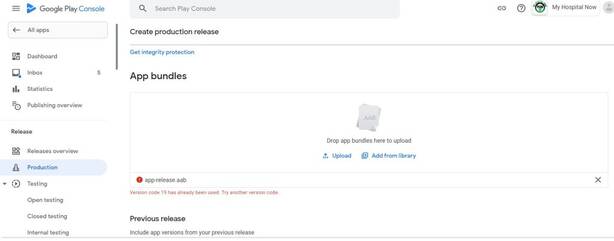
If version code 19 has already been used in your Flutter project, you need to choose a different version code for the next release. The version code is an integer value that is used by Android devices to determine the relative version of an application.
To select a new version code, you typically increment the value from the previous version code. Here are a few suggestions for a new version code:
- If the previous version code was 19, you can increment it to 20.
- If you want to indicate a significant release, you can choose a higher increment, such as 21, 22, and so on.
- Make sure to avoid reusing version codes that have already been used in your project to prevent conflicts and confusion.
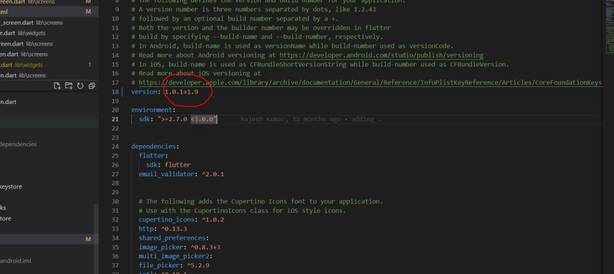
If you are currently using version “1.0.1+1.9” in your Flutter project, it means that you have already used version code 1 and build number 9. In that case, you would need to choose a different version code and build number for the next release.
For example, you could consider using version code 2 and build number 10 for the next version. The updated version would then be “1.0.2+2.10”.
Remember to update the version code and build number in your project’s pubspec.yaml file or any other relevant configuration files.
Change version please this code paste here
version: 1.0.2+2.10
Code language: CSS (css)