MOTOSHARE 🚗🏍️
Turning Idle Vehicles into Shared Rides & Earnings
From Idle to Income. From Parked to Purpose.
Earn by Sharing, Ride by Renting.
Where Owners Earn, Riders Move.
Owners Earn. Riders Move. Motoshare Connects.
With Motoshare, every parked vehicle finds a purpose.
Owners earn. Renters ride.
🚀 Everyone wins.

What is User Interface (UI)?
User Interface (UI) refers to the space where interactions between humans and digital products occur. It includes the visual elements—such as buttons, icons, layouts, typography, and colors—that users interact with on websites, mobile apps, desktop software, and embedded systems.
UI is one of the core aspects of User Experience (UX). While UX is about the overall experience and satisfaction a user feels, UI focuses specifically on look, feel, and interactivity. A well-designed UI facilitates intuitive navigation, efficient task completion, and aesthetic satisfaction.
Types of User Interfaces:
- Graphical User Interfaces (GUI): The most common type, featuring windows, icons, and visual elements (used in web and mobile).
- Voice User Interfaces (VUI): Used in systems like Amazon Alexa or Google Assistant.
- Command Line Interfaces (CLI): Text-based interactions using typed commands.
- Touch User Interfaces: Interfaces optimized for touchscreen devices.
- Natural User Interfaces (NUI): Include gesture-based or motion-sensing inputs.
Major Use Cases of User Interface (UI)
User interfaces are everywhere—from smartphones to industrial machines—and their roles vary by context. Here are the major use cases:
🔹 1. Web Applications
Web UIs allow users to interact with SaaS platforms, dashboards, e-commerce, and content management systems through browsers. These interfaces are typically developed using HTML, CSS, JavaScript, and UI frameworks like React or Angular.
🔹 2. Mobile Applications
Mobile UIs are designed for smaller screens with touch-based navigation. They must be responsive, accessible, and optimized for both iOS and Android platforms.
🔹 3. Enterprise Software
Complex systems like CRMs, ERPs, and analytics tools require robust UI designs to support task-heavy workflows and reduce cognitive load.
🔹 4. Embedded Systems
UI in ATMs, kiosks, medical equipment, and smart appliances allow users to control devices directly, often with minimal training.
🔹 5. Game Interfaces
Gaming UIs include heads-up displays (HUDs), menus, inventories, and interaction prompts to help players control and understand the game world.
🔹 6. Conversational Interfaces
Chatbots and virtual assistants provide a UI through dialogue, either typed or spoken, merging UI with natural language processing.
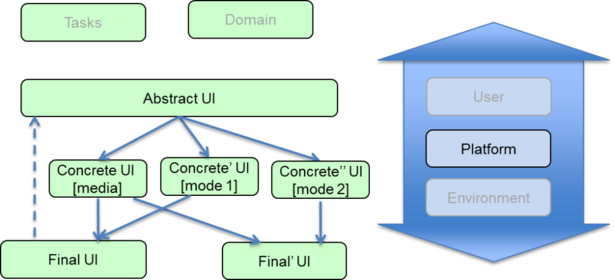
How User Interface Works (Along with Architecture)
User interface architecture refers to the structural design that defines how user inputs are handled and outputs are rendered in digital systems.
🎯 1. Frontend Layer (Presentation Layer)
This is what users see and interact with. It consists of:
- Visual Components: Buttons, input fields, forms, icons, menus.
- Layout and Styling: Managed by HTML/CSS or native styling languages.
- Frontend Logic: JavaScript, TypeScript, or platform-specific code controls interactions and feedback.
Frameworks:
- Web: React, Angular, Vue.js
- Mobile: SwiftUI (iOS), Jetpack Compose (Android), Flutter, React Native
⚙️ 2. Backend/API Layer
Handles business logic, user data, and server responses.
- UI elements fetch or send data via REST APIs, GraphQL, or WebSockets.
- Responses are parsed and rendered in the frontend.
🔄 3. State Management & Data Flow
- UI reacts to changes in data using state management tools like Redux, Context API (React), or Provider (Flutter).
- Component lifecycles manage when and how data is updated or re-rendered.
🛠️ 4. Interaction Flow
- Event-driven: UI changes are triggered by user actions (clicks, taps, gestures).
- Component-based architecture: UI is broken into reusable, modular pieces, improving maintainability and scalability.
Basic Workflow of UI Design and Development
The UI workflow bridges creativity and engineering, starting from user needs and ending in interactive designs implemented as code.
📌 1. Research & Requirement Gathering
Understand users, use cases, business goals, and technical constraints through:
- Stakeholder interviews
- User personas
- Competitor analysis
🎨 2. Wireframing & Prototyping
Draft low-fidelity wireframes and high-fidelity clickable prototypes.
Tools: Figma, Adobe XD, Sketch, Balsamiq
🧩 3. UI Design (Visual Design)
Design the actual screens with visual elements:
- Define color schemes, typography, spacing
- Apply design systems and brand guidelines
- Follow accessibility standards (WCAG)
🔧 4. Development
Convert designs into code using HTML, CSS, JavaScript, or platform-specific languages.
- Set up responsive grids
- Implement interactions and animations
- Connect with backend services
🧪 5. Testing
Test UI across devices and browsers.
- Manual testing for usability
- Automated testing using Jest, Cypress, or Selenium
- Accessibility testing tools like Axe or Lighthouse
🚀 6. Deployment & Maintenance
Deploy to production and monitor using tools like Google Analytics, Hotjar, or Mixpanel.
- Gather user feedback
- Iteratively improve UI based on data
Step-by-Step Getting Started Guide for UI Development
Here’s a quick and modern starter guide for creating a web UI using HTML, CSS, and JavaScript, followed by using a frontend framework like React.
✅ Option A: Native Web UI (HTML/CSS/JS)
Step 1: Create the Project Folder
mkdir ui-demo && cd ui-demo
Step 2: Create Basic HTML Page
<!-- index.html -->
<!DOCTYPE html>
<html lang="en">
<head>
  <meta charset="UTF-8">
  <title>Simple UI</title>
  <link rel="stylesheet" href="styles.css">
</head>
<body>
  <h1>Welcome to My UI</h1>
  <button onclick="sayHello()">Click Me</button>
  <script src="script.js"></script>
</body>
</html>
Code language: HTML, XML (xml)
Step 3: Add Styles
/* styles.css */
body {
  font-family: Arial, sans-serif;
  text-align: center;
  margin-top: 50px;
}
button {
  padding: 10px 20px;
  font-size: 16px;
}
Code language: CSS (css)
Step 4: Add Interactivity
// script.js
function sayHello() {
  alert("Hello, UI world!");
}
Code language: JavaScript (javascript)
Step 5: Open in Browser
Simply double-click index.html.
✅ Option B: Modern React App
Step 1: Install Node.js
Install from https://nodejs.org
Step 2: Create React App
npx create-react-app my-ui
cd my-ui
npm start
Step 3: Update App.js
function App() {
  return (
    <div className="App">
      <h1>Welcome to My React UI</h1>
      <button onClick={() => alert("React is working!")}>Click Me</button>
    </div>
  );
}
Code language: JavaScript (javascript)
Step 4: Style in App.css
.App {
  text-align: center;
  margin-top: 50px;
}
Code language: CSS (css)
Now you have a responsive, modern UI in React.