MOTOSHARE 🚗🏍️
Turning Idle Vehicles into Shared Rides & Earnings
From Idle to Income. From Parked to Purpose.
Earn by Sharing, Ride by Renting.
Where Owners Earn, Riders Move.
Owners Earn. Riders Move. Motoshare Connects.
With Motoshare, every parked vehicle finds a purpose.
Owners earn. Renters ride.
🚀 Everyone wins.
Introduction
Video editing software refers to tools that enable users to manipulate, arrange, and polish video footage. They allow you to cut, stitch, color correct, add effects, transitions, audio work, motion graphics, and export in different formats. In 2025, video editing tools are more critical than ever: content demand from platforms like YouTube, TikTok, Instagram Reels, streaming services, corporate video, courses etc., has surged. Also, improvements in camera tech (4K, 8K, high frame-rate, HDR), and AI-assisted capabilities (automatic transcription, generative fill, auto-coloring, speech enhancement) push the bar up.
When selecting a video editor in 2025, key things to consider include:
- Platform support (Windows / macOS / Linux / mobile)
- Format & resolution support (4K, 8K, HDR, variable frame rates)
- Performance & hardware utilization (GPU acceleration, proxy editing)
- User experience & learning curve
- AI / automation features (auto captions, scene detection, background removal etc.)
- Collaboration / Team features if working in teams
- Pricing (free, subscription, one-time payment)
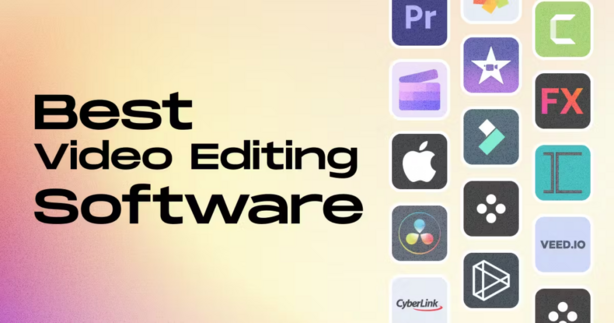
Top 10 Video Editing Software Tools (for 2025)
Here’s a closer look at ten of the standout video editing tools in 2025. For each: what it is, who it’s for, main features, pros & cons.
1. Adobe Premiere Pro
Logo / Brand: Adobe Premiere Pro
Short Description:
A professional-grade non-linear editor used widely in film, TV, advertising, and by creators. Built for those who need full control over the entire editing and post-production workflow.
Key Features:
- Multi-cam editing, timelines with many video and audio tracks
- Advanced color grading, Lumetri tools, HDR support
- Integration with other Adobe tools (After Effects, Audition, Photoshop, etc.)
- Generative AI tools (e.g. Generative Extend; search via text & caption translation) (The Verge)
- Wide format & codec support (including RAW, log, etc.)
- Team collaboration features (Team Projects, shared libraries)
- Strong export/transcoding options, hardware acceleration
Pros:
- Very powerful & flexible; handles complex editing tasks
- Rich plugin ecosystem and lots of learning & community resources
- Frequent updates and new features (especially AI features)
Cons:
- Steep learning curve for new users
- Resource-intensive; needs good hardware
- Subscription pricing can be expensive over time
2. DaVinci Resolve
Logo / Brand: DaVinci Resolve (Blackmagic Design)
Short Description:
An all-in-one tool combining editing, color correction, visual effects (Fusion), motion graphics, and audio post-production (Fairlight). Great for filmmakers, colorists, and prosumers.
Key Features:
- Best-in-class color grading tools & scopes
- Fusion VFX compositing + node-based effects
- Fairlight audio polishing (audio tracks, mixing, restoration)
- Free version is very capable; Studio version unlocks more features
- Support for HDR, high resolution, varied frame rates
- Collaboration tools for teams & remote editing
Pros:
- Excellent value; free version is powerful enough for many heavy-duty tasks
- Very strong in color correction/grading & visual effects
- Cross-platform (Windows, macOS, Linux)
Cons:
- Complex features (especially Fusion) have steep learning curve (G2)
- Free version has some limitations (e.g. noise reduction, high-end effects)
- Might feel overkill for simple social media videos
3. Final Cut Pro
Logo / Brand: Apple Final Cut Pro
Short Description:
Apple’s professional editing tool for macOS and iPadOS, well suited for creators in Apple’s ecosystem. Known for speed, efficiency, and optimized performance on Apple hardware.
Key Features:
- Magnetic timeline and advanced clip organization
- Excellent performance, especially on Apple Silicon (fast rendering, optimized workflows)
- Strong support for 4K, 8K, HDR workflows
- Integrated motion graphics via Motion, consistent plugin / template ecosystem
- Background tasks (transcoding, rendering) run invisibly in the background
- Advanced color correction & HDR handling
Pros:
- Highly efficient; smooth on Macs, especially newer Apple Silicon machines
- One-time purchase (no subscription) — good long-term value for Mac users
- Polished UI and solid performance
Cons:
- macOS/iPadOS only — no Windows or Linux version
- Upfront cost is relatively high compared to free tools
- Some users find certain workflows (e.g. plugin management, collaborative work with non-Mac users) less flexible
4. Wondershare Filmora
Logo / Brand: Wondershare Filmora
Short Description:
A more approachable editor for beginners to intermediate creators. Offers many templates, easy UI and increasingly strong AI features.
Key Features:
- Templates, transitions, overlays, filters out of the box
- AI-assisted functions: auto-cut, dynamic captions, text-to-speech, voice cloning etc. (Wikipedia)
- Cross-platform: Windows, macOS, mobile iOS/Android
- Video format support, social media output presets
- Simple timeline and drag-drop editing
Pros:
- Very user-friendly; quick to get started
- Regular updates with AI features that simplify tasks
- More affordable than many pro tools for hobbyists / small creators
Cons:
- Less control for advanced color grading or detailed effects
- Some performance issues with very large / high resolution projects
- Hidden costs (plugins or content packs) can add up
5. CapCut
Logo / Brand: CapCut
Short Description:
Mobile-friendly / cross-platform tool that’s especially strong for social video creators, short-form content, and fast turnaround edits.
Key Features:
- Intuitive interface, transitions and templates optimized for short videos (Zapier)
- Support for 8K export, keyframe animations, chroma-key background removal in many versions (Zapier)
- AI tools (auto captions, filters etc.)
- Cloud sync / mobile + web versions in some regions
- Fast export to social media formats
Pros:
- Excellent for mobile creators or fast editing cycles
- Often free or freemium; accessible to many users
- Templates and presets let you get high impact quickly
Cons:
- Terms & usage of content rights can be a concern; recent updates in T&C have raised privacy / ownership questions.
- Not as powerful for detailed post-production or fine control
- Free version may have limits / watermark or restrictions
6. Pinnacle Studio 26
Logo / Brand: Pinnacle Studio
Short Description:
A mature Windows editor suited for semi-pro, hobbyists, small businesses who want a robust tool without entering very high end pro pricing.
Key Features:
- Multi-track editing, effects, transitions, titles etc.
- 360° video editing, video stabilization, color grading tools
- User-friendly interface but with depth for more detailed work
- Support for high resolution video formats
- Time-lapse, stop motion etc.
Pros:
- Good feature set for semi-pro users without overwhelming them
- Balanced between power & usability
- Regular updates
Cons:
- Windows only
- Less feature richness & plugin ecosystem than Premiere Pro or DaVinci Resolve
- Some stability / performance issues with high-load / very large projects
7. Shotcut
Logo / Brand: Shotcut
Short Description:
Open-source and cross-platform video editor aimed at users wanting a free but capable editor. Good for hobbyists, learners, and those on modest hardware.
Key Features:
- Support for many formats (using FFmpeg), wide codec & resolution compatibility
- Non-linear editing, multiple tracks, filters & transitions
- Regular updates & active community support
- Cross platform: Windows, macOS, Linux
Pros:
- Free and open source; no cost barrier
- Lightweight; tends to run better on modest hardware
- Decent set of features for basic to intermediate editing
Cons:
- UI less polished than premium software; can feel clunky with complex projects
- GPU acceleration / advanced features may lag behind paid tools
- Less built-in support / fewer premium plugins / templates
8. iMovie
Logo / Brand: Apple iMovie
Short Description:
Apple’s entry-level video editor, good for beginners, simple projects, casual creators who want something easy & free (on Mac / iOS).
Key Features:
- Simple drag-and-drop timeline, basic effects, transitions, templates
- Support for 1080p / 4K video export
- Integration with Apple’s ecosystem (Photos, iCloud etc.)
- Simple audio editing, titles, filters
Pros:
- Extremely easy to learn & use; very little setup overhead
- Free for Mac / iOS users, no subscription required
- Good enough for casual / family / quick social videos
Cons:
- Very limited advanced features; no heavy color grading, limited track support etc.
- Not ideal for professional / complex workflows
- Mac/iOS only
9. VEED / Riverside / VEED.io (choose one)
Logo / Brand: VEED.io (or Riverside)
Short Description:
Web-based video editors tailored for creators, marketers, remote teams. Strong in subtitling, social video formats, collaboration.
Key Features:
- Browser-based editing; no heavy install needed
- Auto subtitles / captions, text overlays optimized for social media
- Templates for marketing / social video sizes (square, portrait etc.)
- Easy collaboration / sharing; version control or cloud storage
- Fast export & resizing
Pros:
- Accessible: works on modest hardware via browser
- Great for social media & marketing video workflows
- Collaboration features make team work easier
Cons:
- Browser tools often less powerful than native desktop tools; feature limitations
- Dependent on internet connection & upload/download speeds
- Subscription cost for full features; free plan often limited
10. VSDC Free Video Editor
Logo / Brand: VSDC Free Video Editor
Short Description:
Free (with optional paid Pro add-ons) non-linear editor for Windows. Good for users who want a capable editor without spending money.
Key Features:
- Motion tracking, color correction, mask tools, chroma keying etc.
- Supports many video formats, custom resolutions including VR / 360°
- Screen capture, voice recording, export profiles for social media etc.
- Non-linear editing with multiple audio/video tracks
Pros:
- Very capable for free; fills gap for budget constrained users
- Many advanced tools that are often paid in other software
Cons:
- Windows only
- UI & workflow may feel less smooth or modern than paid tools
- Support & documentation sometimes lag behind premium tools
Comparison Table
Here is a side-by-side comparison of the 10 tools to help you quickly see which might be best for your scenario.
| Tool Name | Best For / Target User | Platform(s) Supported | Standout Feature(s) | Pricing (Free / Starts at / One-time / Custom) | G2 / Capterra / Trustpilot Rating* |
|---|---|---|---|---|---|
| Adobe Premiere Pro | Professionals, filmmakers, content creators with complex workflows | Windows, macOS | Deep editing/control, AI-assisted generative extend & caption translation, wide format support | Subscription (monthly / annual) (part of Adobe Creative Cloud) | ~ 4.5/5 on G2 from many users |
| DaVinci Resolve | Colorists, VFX / post-production, prosumers who want top color & effects | Windows, macOS, Linux | Best-in-class color grading + Fusion + Fairlight + powerful free version | Free version + Studio version (one-time or upgraded) | Very high ratings; product direction & review praise on G2 |
| Final Cut Pro | Mac / iPad users who want optimized performance & pro-level tools | macOS, iPadOS | Magnetic timeline, excellent performance on Apple Silicon, one-time purchase | One-time purchase for Mac, separate for iPadOS updates | ~ 4.4/5 on G2; praised for clip editing, ease of setup etc. (G2) |
| Wondershare Filmora | Beginners, social media creators, people wanting fast results with less learning | Windows, macOS, iOS, Android | Rich template library, AI tools (auto-cut, dynamic captions etc.) | Freemium or paid plans; affordable vs premium pro tools | Solid ratings; often praised for ease of use; less for depth |
| CapCut | Mobile creators, quick content for social media, short-form video editors | Windows, macOS, Web, iOS, Android | Fast templates, good social export presets, AI tools, free/freemium access | Freemium; some features / exports behind paywalls | Positive reviews for mobile/social workflow; some concerns on T&C |
| Pinnacle Studio 26 | Semi-pro Windows users, businesses wanting more control without full pro complexity | Windows only | 360° video, stabilization, stop motion etc. | Paid license for Windows | Good ratings among Windows users; less visibility than top tiers |
| Shotcut | Budget users, learners, open-source enthusiasts | Windows, macOS, Linux | Free, wide format support, non-linear editing, active community | Free open source | Mixed to good ratings; praised for features vs cost / zero cost |
| iMovie | Beginners, casual users, Mac / iOS users wanting simple editing | macOS, iOS | Very easy learning curve; integrated ecosystem; free with Apple devices | Free (with Apple devices) | Good for ease of use; less for advanced users (as expected) |
| VEED / Riverside | Marketers, social media creators, remote teams needing fast, collaborative social video work | Web / browser (cross-platform) | Online subtitling, collaboration, social media‐friendly formats & templates | Freemium / subscription; often usage-based pricing | Good ratings among marketers; trade-off for lack of offline power |
| VSDC Free Video Editor | Windows users who want advanced tools at no cost | Windows only | Strong free features: motion tracking, color correction, mask, many formats | Free base; Pro features optional pay | Good ratings for value; less for polish compared to top paid tools |
Which Video Editing Software Tool is Right for You?
Here’s a guide to help you decide, depending on your situation:
| Your Situation / Need | What to Prioritize | Suggested Tools |
|---|---|---|
| You are a professional / filmmaker / post-production house requiring full editing, color correction, effects, collaboration | Advanced tools, HDR, RAW, full suite of effects, strong plugin support | Adobe Premiere Pro, DaVinci Resolve (Studio) |
| You are a Mac user who wants fast performance, efficient workflow, one-time purchase | Optimization on Apple hardware, streamlined UI, one-time pay | Final Cut Pro |
| You are a creator on social media / short-form video | Templates, fast export, ease of use, mobile / web support | CapCut, Filmora, VEED |
| You are a beginner / occasional editor | Low learning curve, affordable / free, basic features | iMovie, Shotcut, VSDC Free |
| You want template / AI assistance / automation | Tools that offer auto captions, auto background removal, generative fill, AI-assisted edits | Adobe Premiere Pro, Filmora, CapCut, DaVinci Resolve |
| You need team collaboration / cloud workflows | Version control, cloud storage, shared libraries, cross-platform access | Adobe Premiere Pro (Team Projects), VEED / Riverside |
Conclusion
The video editing software landscape in 2025 is evolving rapidly. AI-powered workflows, efficient hardware usage, better color and format handling, and mobile / cloud flexibility are increasingly important. While flagship tools like Premiere Pro, Final Cut Pro, and DaVinci Resolve continue to push boundaries in terms of power and professional features, there’s strong competition in tools that make editing easier, faster, and more accessible.
The best tool for you depends on your budget, platform, what type of videos you make, and how much time you’re willing to invest in learning. Whenever possible, try the free trials or free versions. For creators, often the difference between tools is not just features but how the tool fits into your workflow.
FAQs
Q1: Can I do professional-grade editing using free or lower-cost tools?
Yes. Tools like DaVinci Resolve (free version), Shotcut, VSDC Free, and even Filmora can deliver impressive results. For many creators, the free (or low-cost) tools provide all the features they need; the trade-offs are usually around speed, rendering, advanced effects, or support.
Q2: How important is hardware for video editing in 2025?
Very important. Good GPU, enough RAM, fast storage (SSD/NVMe), and CPU cores make a big difference, especially with 4K/8K, multi-cam editing, or rendering. Also, tools optimized for specific hardware (e.g. Apple Silicon) can offer much smoother performance.
Q3: What role is AI playing in modern video editing tools?
AI is entering many parts: auto captions & transcription; background removal; auto color correction; generative extension of video; smart scene detection; auto transitions; voice enhancement, etc. These are making editing faster and lowering technical barrier.
Q4: Are subscription-based tools always worse long-term than one-time purchase tools?
Not necessarily. Subscription tools often include ongoing updates, cloud services, and support. One-time purchase tools may have fewer regular updates or new feature additions. It’s about balancing cost vs value vs how often you’ll use the tool.
Q5: How do I choose based on my video resolution / format requirements?
Check whether the tool supports your camera’s codec, RAW footage if needed, high resolutions (4K, 6K, 8K), HDR (if that’s relevant). Also check export options for social formats, aspect ratios, frame rates. Some tools struggle with ultra high specs if your hardware isn’t up to it.