MOTOSHARE 🚗🏍️
Turning Idle Vehicles into Shared Rides & Earnings
From Idle to Income. From Parked to Purpose.
Earn by Sharing, Ride by Renting.
Where Owners Earn, Riders Move.
Owners Earn. Riders Move. Motoshare Connects.
With Motoshare, every parked vehicle finds a purpose.
Owners earn. Renters ride.
🚀 Everyone wins.
Introduction
In 2025, remote work, hybrid collaboration, and IT support continue to dominate the digital landscape — and Remote Desktop Tools have emerged as critical infrastructure for seamless access and support. These tools enable users to securely access and control a remote computer or server from anywhere in the world, empowering IT admins, developers, support agents, and remote employees alike.
Whether you’re managing a global team, offering technical support, or accessing your office machine from home, the right Remote Desktop Tool can enhance productivity, streamline troubleshooting, and improve data security. In this guide, we compare the Top 10 Remote Desktop Tools in 2025, their key features, pros and cons, pricing, and real-world use cases to help you make the right choice.
🏆 Top 10 Remote Desktop Tools in 2025
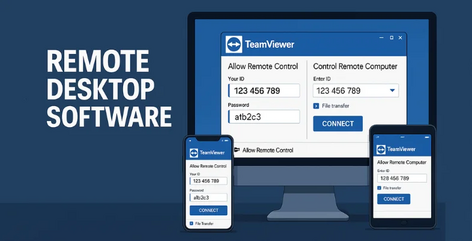
1. TeamViewer
Short Description:
A well-established remote access and support platform known for its reliability and cross-platform compatibility.
Key Features:
- High-performance remote access even on low bandwidth
- Secure file sharing and multi-monitor support
- Wake-on-LAN and unattended access
- Cross-platform support (Windows, macOS, Linux, Android, iOS)
- Two-factor authentication and end-to-end encryption
- Custom branding for enterprises
- IoT device control
Pros:
- Excellent user interface and performance
- Strong security features
Cons:
- Pricing can be high for small businesses
- Free version limited to personal use
2. AnyDesk
Short Description:
A lightweight, fast, and secure remote desktop tool popular for real-time collaboration and IT support.
Key Features:
- Low-latency and high-frame rate access
- Mobile-to-PC and PC-to-mobile support
- Cloud and on-premise options
- Remote printing and file transfer
- Whitelisting and session logging
- Custom alias for easy connection
Pros:
- Blazing fast and responsive interface
- Affordable for small businesses
Cons:
- Lacks advanced integrations
- UI not as polished as competitors
3. Chrome Remote Desktop
Short Description:
Google’s free and easy-to-use remote access tool for individuals and small teams.
Key Features:
- Web-based setup and access
- Unlimited usage for free
- Works across platforms
- Secure PIN-based access
- Screen sharing and basic control features
Pros:
- 100% free and simple to use
- No installation needed (browser extension)
Cons:
- Lacks enterprise features
- No advanced file transfer or chat options
4. Splashtop
Short Description:
A powerful tool tailored for business users, IT support teams, and educational institutions.
Key Features:
- High-definition streaming with low latency
- Scheduled access and role-based permissions
- Remote reboot and command line
- Session recording and logging
- Integration with ticketing systems
- HIPAA/GDPR compliance
Pros:
- Strong security and compliance features
- Great for MSPs and IT helpdesks
Cons:
- UI could be more modern
- May require training for new users
5. Microsoft Remote Desktop (RDP)
Short Description:
A built-in remote access feature in Windows, widely used in enterprise environments.
Key Features:
- Seamless integration with Windows OS
- Active Directory and Group Policy support
- Supports multiple users on Windows Server
- Network Level Authentication (NLA)
- Secure connections via VPN or Azure
Pros:
- Free with Windows Pro/Server editions
- Trusted by enterprise IT teams
Cons:
- Complex setup for non-technical users
- Requires static IP or domain setup
6. LogMeIn Pro
Short Description:
A premium remote access tool for professionals, teams, and businesses focused on secure file access and collaboration.
Key Features:
- Remote printing and multi-monitor support
- Unlimited user access
- 1TB cloud storage included
- Mobile access via dedicated apps
- LastPass password manager included
Pros:
- Great for small businesses
- Strong ecosystem of tools
Cons:
- Expensive compared to other tools
- Can consume significant system resources
7. Zoho Assist
Short Description:
A cloud-based remote support and unattended access tool perfect for support teams and SMBs.
Key Features:
- Web-based remote sessions
- File transfer and screen sharing
- Instant chat with end-user
- Multi-monitor navigation
- Remote reboot and session recording
- Integrates with Zoho ecosystem
Pros:
- Excellent for customer support
- Easy to use and affordable
Cons:
- Some features locked behind higher plans
- Not ideal for high-latency networks
8. ConnectWise ScreenConnect (formerly Control)
Short Description:
A scalable remote access solution for IT teams, help desks, and MSPs.
Key Features:
- Unlimited unattended access
- Branding and customization options
- Session recording and auditing
- Role-based access control
- Remote scripting and diagnostics
- Plugin-based architecture
Pros:
- Very powerful for MSPs
- Great customization and extensibility
Cons:
- Steeper learning curve
- UI feels slightly outdated
9. Parallels Access
Short Description:
A mobile-first remote access tool with strong focus on user experience across devices.
Key Features:
- App Launcher for easy access
- File sharing and clipboard sync
- Full-screen mobile experience
- Gesture-based navigation on mobile
- Optimized for tablets
Pros:
- Great for remote mobile access
- Intuitive design and performance
Cons:
- Limited to basic remote access
- Less suited for IT support
10. BeyondTrust Remote Support (formerly Bomgar)
Short Description:
An enterprise-grade remote access solution focused on secure remote support for regulated industries.
Key Features:
- Support for all platforms and endpoints
- Jump Clients for unattended access
- Session auditing and reporting
- Secure credential injection
- Integrations with ITSM tools (ServiceNow, Jira)
- Strong compliance capabilities
Pros:
- Best-in-class security
- Enterprise-ready features
Cons:
- Very expensive
- Overkill for small businesses
🔍 Comparison Table
| Tool Name | Best For | Platform(s) | Standout Feature | Pricing | Rating (G2/Capterra) |
|---|---|---|---|---|---|
| TeamViewer | Cross-platform IT support | Win, Mac, Linux | IoT control & file transfer | Starts at $24.90/mo | 4.6/5 |
| AnyDesk | Fast personal use & SMBs | Win, Mac, Mobile | High-speed low-latency connection | Free / Starts at $14 | 4.5/5 |
| Chrome Remote Desktop | Casual remote access | All platforms | Free browser-based access | Free | 4.4/5 |
| Splashtop | IT support & education | Win, Mac, Mobile | Compliance + performance | Starts at $5/user/mo | 4.7/5 |
| Microsoft RDP | Windows ecosystem | Windows | Built-in enterprise access | Free with Win Pro | 4.3/5 |
| LogMeIn Pro | Professionals & SMBs | Win, Mac, Mobile | 1TB cloud + LastPass | Starts at $30/mo | 4.2/5 |
| Zoho Assist | Customer service teams | Cloud-based | Remote support + Zoho integrations | Free / Starts at $10 | 4.6/5 |
| ConnectWise ScreenConnect | MSPs and tech support | All platforms | Plugin system + scripting | Starts at $29/mo | 4.5/5 |
| Parallels Access | Mobile-first users | Win, Mac, iOS | Gesture-based mobile experience | Starts at $19.99/yr | 4.1/5 |
| BeyondTrust | Enterprises & compliance | All platforms | Secure credential injection | Custom pricing | 4.7/5 |
🧭 Which Remote Desktop Tool is Right for You?
| User Type | Recommended Tools | Reasoning |
|---|---|---|
| Solo Users / Freelancers | Chrome Remote Desktop, AnyDesk | Free or affordable, easy-to-use, and fast |
| Small Businesses | Zoho Assist, Splashtop | Budget-friendly with IT-friendly features |
| Large Enterprises / Corporates | BeyondTrust, Microsoft RDP, TeamViewer | Scalability, compliance, and advanced management |
| MSPs / IT Support Providers | ConnectWise, TeamViewer, Splashtop | Unattended access, scripting, and ticketing integrations |
| Mobile-Focused Professionals | Parallels Access, AnyDesk | Optimized UI for mobile with high performance |
| Regulated Industries | BeyondTrust, Splashtop | Advanced audit logs, session tracking, and security certifications |
🏁 Conclusion
Remote Desktop Tools in 2025 are more powerful, secure, and diverse than ever before. Whether you’re an enterprise needing audit-compliant access or a freelancer working on the go, there’s a tool perfectly suited to your workflow. As cybersecurity concerns and global teams grow, adopting the right remote access solution is no longer optional — it’s essential.
Take advantage of free trials and demos, and choose a solution based on your specific needs — from speed and security to support and pricing flexibility.
❓ FAQs: Remote Desktop Tools in 2025
Q1: Are free remote desktop tools safe to use?
Yes, tools like Chrome Remote Desktop and AnyDesk (free version) are secure for personal use, but enterprise use should rely on solutions with advanced security protocols.
Q2: Which remote desktop tool is best for low bandwidth?
AnyDesk and Splashtop are known for excellent performance even under low-bandwidth conditions.
Q3: Can I access my office PC from mobile?
Yes, tools like TeamViewer, Splashtop, and Parallels Access offer dedicated mobile apps for remote access.
Q4: What is the most secure remote desktop software?
BeyondTrust and TeamViewer are widely regarded as highly secure options with advanced encryption, auditing, and compliance features.
Q5: Do these tools allow multiple users on the same session?
Yes, most business-level tools like TeamViewer, Zoho Assist, and ConnectWise support collaborative sessions.