MOTOSHARE 🚗🏍️
Turning Idle Vehicles into Shared Rides & Earnings
From Idle to Income. From Parked to Purpose.
Earn by Sharing, Ride by Renting.
Where Owners Earn, Riders Move.
Owners Earn. Riders Move. Motoshare Connects.
With Motoshare, every parked vehicle finds a purpose.
Owners earn. Renters ride.
🚀 Everyone wins.
What is Android ListView?
The Android ListView is a view that displays a list of items in a scrollable format, commonly used in mobile applications for displaying a large number of items in a compact and efficient manner. It is one of the core UI components in Android development, particularly useful for rendering lists of items where each item has the same layout but can vary in content.
ListView allows you to display multiple rows of data, making it suitable for applications that involve lists of objects, such as contacts, messages, products, or any other data that needs to be presented in a scrollable format. It provides a scrollable list view where each item can be customized based on the content that needs to be displayed.
Key Features of ListView:
- Scrollability: ListView automatically handles scrolling when the data exceeds the screen size, improving the user experience.
- Item Reusability: ListView uses a view recycling mechanism (via ViewHolder) to improve performance by reusing view components as the user scrolls.
- Customizable: You can customize how each item in the list appears, allowing you to define your own layout and data-binding mechanisms.
- Interactive: Supports click, long click, and other touch events, making it ideal for building interactive apps.
What Are the Major Use Cases of Android ListView?
The ListView is widely used in Android applications for various purposes. Below are some of the major use cases of Android ListView:
1. Displaying a List of Data:
- Use Case: The most common use case for ListView is displaying a list of data, such as a list of products, users, or messages.
- Example: A shopping app displays a list of products that users can scroll through and interact with.
- Why ListView? It provides a highly efficient and user-friendly way to display large sets of data in an organized, scrollable format.
2. Displaying Contact Lists:
- Use Case: In many apps, particularly those related to communication, ListView is used to display lists of contacts, friends, or members.
- Example: A messaging app such as WhatsApp or Facebook Messenger uses a ListView to display contact lists or conversation threads.
- Why ListView? ListView supports customization and efficient scrolling, making it ideal for displaying long lists of contacts.
3. Dynamic Lists with Different Layouts:
- Use Case: ListView can be used to display dynamic data, where each list item has a different layout or displays varying data.
- Example: A news app where each list item represents a news article, and each article’s layout might differ slightly (e.g., title, image, summary).
- Why ListView? Custom adapters allow the creation of dynamic layouts that can change based on the data.
4. Creating Menus or Navigation Options:
- Use Case: ListView is often used in creating menus or navigation options within apps, offering an interactive list of actions or options.
- Example: A side navigation drawer with a list of options like “Profile”, “Settings”, “Logout”, etc.
- Why ListView? ListView offers an easy way to create scrollable menus and navigation elements that can be dynamically populated.
5. Displaying Data from APIs or Databases:
- Use Case: ListView can be used to fetch and display data from external APIs or local databases like SQLite.
- Example: A weather app fetching and displaying daily forecasts from an API, updating the ListView dynamically.
- Why ListView? With adapters, ListView can easily handle data binding and update the UI with new data from APIs or databases.
How Android ListView Works Along with Architecture?
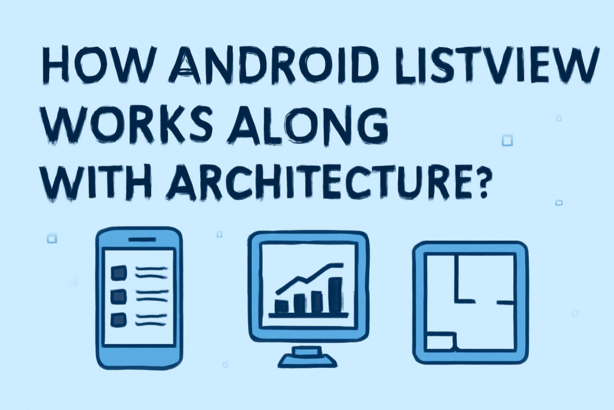
The architecture of ListView is primarily based on two components: Adapter and View. Here’s a breakdown of how it works:
1. Adapter:
- The Adapter is responsible for taking the data (such as an array, list, or database query result) and converting each element of that data into a view. The Adapter provides a mapping between data and views that are displayed in the ListView.
- Types of Adapters:
- ArrayAdapter: A simple adapter for displaying items from an array or list.
- CursorAdapter: Used for working with database cursors.
- BaseAdapter: A base class for more complex custom adapters.
- CustomAdapter: Used for creating custom views in ListView items.
- Example:
String[] data = {"Item 1", "Item 2", "Item 3"};
ArrayAdapter<String> adapter = new ArrayAdapter<>(this, android.R.layout.simple_list_item_1, data);
listView.setAdapter(adapter);
Code language: JavaScript (javascript)
2. View:
- The View in ListView represents each item in the list. A ListView item is essentially a view that is inflated using a layout file (XML) to represent the data.
- Each item can have multiple views, such as text, image, or buttons, arranged using LinearLayout, RelativeLayout, or other layouts.
- The ViewHolder pattern is commonly used in ListView to improve performance by reducing the need to repeatedly find views during scrolling.
3. ViewHolder:
- ViewHolder is a pattern that helps optimize performance in ListView by caching views that are commonly reused. It reduces the findViewById calls during scrolling, which helps prevent lag or slow performance.
- Example: Instead of calling
findViewByIdfor every item in the list each time the list scrolls, you use a ViewHolder to store the views.
public class ViewHolder {
    TextView textView;
}

@Override
public View getView(int position, View convertView, ViewGroup parent) {
    ViewHolder viewHolder;
    if (convertView == null) {
        convertView = LayoutInflater.from(context).inflate(R.layout.list_item, parent, false);
        viewHolder = new ViewHolder();
        viewHolder.textView = convertView.findViewById(R.id.textView);
        convertView.setTag(viewHolder);
    } else {
        viewHolder = (ViewHolder) convertView.getTag();
    }
    viewHolder.textView.setText(data[position]);
    return convertView;
}
Code language: PHP (php)
4. Event Handling:
- ListView also supports click, long-click, and touch events on individual items, allowing users to interact with the list.
- Example:
listView.setOnItemClickListener(new AdapterView.OnItemClickListener() {
    @Override
    public void onItemClick(AdapterView<?> parent, View view, int position, long id) {
        // Handle item click
    }
});
Code language: PHP (php)
What Are the Basic Workflow of Android ListView?
The basic workflow of using ListView in Android involves several steps, from setting up the data to displaying it on the screen. Here’s the typical workflow:
1. Create a ListView in XML Layout:
- Define a ListView in the XML layout file of the activity or fragment.
- Example:
<ListView
    android:id="@+id/listView"
    android:layout_width="match_parent"
    android:layout_height="wrap_content"/>
Code language: HTML, XML (xml)
2. Create and Populate Data:
- Populate the data that will be displayed in the ListView. This data could be static (an array, list, or string) or dynamic (fetched from a database or API).
- Example (Static Data):
String[] data = {"Item 1", "Item 2", "Item 3"};
Code language: JavaScript (javascript)
3. Set Up an Adapter:
- Create an Adapter that will bind the data to the ListView.
- Use an ArrayAdapter, BaseAdapter, or CustomAdapter based on the complexity of the data and how it should be displayed.
- Example:
ArrayAdapter<String> adapter = new ArrayAdapter<>(this, android.R.layout.simple_list_item_1, data);
listView.setAdapter(adapter);
Code language: JavaScript (javascript)
4. Handle Item Clicks and Events:
- Use an OnItemClickListener to handle item clicks or any other interactions like long-clicks.
- Example:
listView.setOnItemClickListener(new AdapterView.OnItemClickListener() {
    @Override
    public void onItemClick(AdapterView<?> parent, View view, int position, long id) {
        // Do something with the clicked item
    }
});
Code language: PHP (php)
5. Customize Item Layout (Optional):
- If the default TextView layout is not sufficient, you can create a custom layout for each item in the ListView.
- Define a custom layout for each item and use it in the Adapter to create customized views for every list item.
View customView = LayoutInflater.from(context).inflate(R.layout.custom_item, parent, false);
TextView textView = customView.findViewById(R.id.customTextView);
Code language: PHP (php)
6. Run the Application and Test:
- Once your data, adapter, and events are set up, run your application to test the ListView’s behavior and interactivity.
- Example: You should now be able to scroll through the ListView and interact with each item.
Step-by-Step Getting Started Guide for Android ListView
Follow these steps to implement ListView in an Android application:
Step 1: Create a New Android Project
- Open Android Studio, create a new project, and select an Empty Activity template.
Step 2: Define the ListView in XML Layout
- Add a ListView element to the
activity_main.xmlfile.
Step 3: Create and Populate Data
- Define your data as an array, list, or data fetched from an external source.
Step 4: Set Up the Adapter
- Create an ArrayAdapter or CustomAdapter to bind data to the ListView.
- Use ViewHolder for efficient recycling of views.
Step 5: Handle Item Clicks
- Implement an OnItemClickListener to perform actions when a user clicks on a list item.
Step 6: Test and Run the App
- Run the app on an emulator or physical device to test the ListView functionality.