MOTOSHARE 🚗🏍️
Turning Idle Vehicles into Shared Rides & Earnings
From Idle to Income. From Parked to Purpose.
Earn by Sharing, Ride by Renting.
Where Owners Earn, Riders Move.
Owners Earn. Riders Move. Motoshare Connects.
With Motoshare, every parked vehicle finds a purpose.
Owners earn. Renters ride.
🚀 Everyone wins.
What is Google Apps Script?
Google Apps Script is a cloud-based scripting platform built on JavaScript that empowers users to automate, extend, and integrate Google Workspace applications—such as Google Sheets, Docs, Gmail, Drive, Calendar, and Forms—with ease and flexibility. Unlike traditional scripting languages that run on local machines, Apps Script runs on Google’s cloud infrastructure, offering a serverless environment that eliminates the need for managing hardware or server configurations.
Designed to streamline workflows, enhance productivity, and enable custom solutions, Google Apps Script provides a rich set of pre-built APIs tailored to Google services. This allows developers and even non-developers with minimal programming experience to create scripts that automate repetitive tasks, integrate third-party services, generate reports, manage data, and build complex workflows that span multiple Google applications.
Because it leverages JavaScript, a widely-known programming language, learning and applying Google Apps Script is accessible to many users, especially those familiar with web development.
What are the Major Use Cases of Google Apps Script?
Google Apps Script’s flexibility makes it useful across diverse domains. Some prominent use cases include:
1. Automating Routine and Repetitive Tasks
Users frequently automate workflows such as sending scheduled emails, formatting spreadsheets automatically, generating recurring reports, or updating calendar events. This reduces manual effort and human error.
2. Customizing Google Workspace Applications
Users can tailor the behavior and interface of Google Sheets, Docs, and Forms by adding custom menus, dialog boxes, and sidebars. This improves usability and adapts the tools to specific business needs.
3. Integrating Data Across Platforms
Apps Script allows seamless integration with external APIs, databases, and cloud services, enabling automatic data import/export, synchronization, and enrichment. For example, syncing CRM data into Sheets or pushing form responses to external systems.
4. Workflow and Approval Systems
Organizations automate complex workflows like leave approvals, purchase requests, or content publishing by combining Forms, Sheets, and Gmail with Apps Script, creating notification systems and multi-step approvals.
5. Developing Custom Add-ons and Web Applications
Beyond simple scripts, Apps Script can be used to develop full-fledged add-ons that extend Google Workspace functionality or standalone web applications hosted on Google’s infrastructure.
6. Real-Time Collaboration Enhancements
Apps Script enables automation that supports collaborative editing, such as tracking changes, sending alerts when documents are updated, or auto-populating data fields during teamwork.
7. Data Analysis and Visualization Automation
Scripts can automatically clean data, update pivot tables, refresh charts, and send summarized insights to stakeholders without manual intervention.
How Google Apps Script Works Along with Architecture?
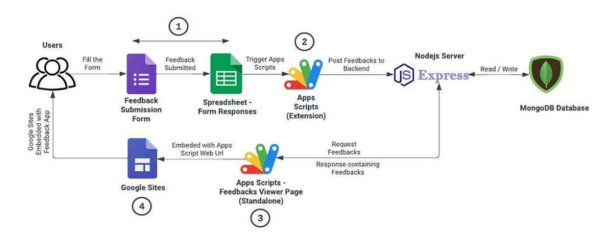
Google Apps Script operates on a serverless, cloud-based architecture managed entirely by Google. Here’s an overview of its architecture and how the components interact:
1. User Interface & Script Editor
Users interact with Apps Script through an online script editor accessible via Google Workspace apps (Sheets, Docs, Forms) or directly at script.google.com. The editor provides tools for writing, debugging, and managing scripts without any local software installation.
2. Execution Environment (Google Cloud)
Scripts execute on Google-managed servers in a secure sandbox environment. This environment handles resource allocation, enforces quotas, and ensures isolation between scripts to maintain security and reliability.
3. Google Workspace APIs
Apps Script includes high-level JavaScript classes (e.g., SpreadsheetApp, GmailApp, DriveApp) that abstract the underlying REST APIs for Google services. This abstraction simplifies programming by providing intuitive methods for common operations like reading cells, sending emails, or creating calendar events.
4. Triggers and Event-Driven Execution
Apps Script supports simple triggers (e.g., onOpen, onEdit) and installable triggers (e.g., time-driven triggers or form submit events). These triggers automate script execution without manual initiation, enabling event-driven workflows.
5. Deployment and Integration
Scripts can be deployed as:
- Bound scripts: Attached to a specific document (Sheet, Doc, Form).
- Standalone scripts: Independent scripts that can interact with multiple services.
- Web apps: Scripts published with web URLs, acting as web servers to receive HTTP requests.
- Add-ons: Packages that extend Google Workspace apps and are installable by users.
6. Authorization and Security
Scripts operate under OAuth 2.0 authentication, requiring user consent for accessing sensitive data. Google enforces strict security controls to protect data privacy.
Architecture Diagram (Conceptual)
User Interaction (Google Sheets/Docs/Forms/Web)
      ↓
Script Editor (Browser)
      ↓
Google Cloud Execution Environment (Serverless Runtime)
      ↓
Google Workspace APIs (Sheets, Gmail, Drive, Calendar, etc.)
      ↓
Underlying Google Cloud Services & Data Storage
What are the Basic Workflow of Google Apps Script?
The typical workflow when creating and deploying Google Apps Script solutions includes:
- Identify the Need or Problem: Analyze repetitive manual tasks, integration gaps, or customization needs within Google Workspace.
- Access Script Editor: From a Google Workspace app or script.google.com, open or create a new script project.
- Design Script Logic: Plan what the script should do — e.g., data processing, automation, integration.
- Write the Code: Use JavaScript and Apps Script APIs to implement the desired functionality.
- Test and Debug: Run the script, monitor logs, use breakpoints, and handle errors to ensure it behaves as expected.
- Set Up Triggers: Automate execution using time-driven, event-driven, or user-action triggers.
- Deploy the Script: Publish as an add-on, web app, or use it bound to a document for internal use.
- Maintain and Iterate: Monitor performance, user feedback, and update the script for improved functionality or new requirements.
Step-by-Step Getting Started Guide for Google Apps Script
Step 1: Access the Script Editor
Open a Google Sheet, Doc, or Form. Navigate to Extensions > Apps Script or go to https://script.google.com.
Step 2: Create a New Script Project
Click on New Project to start with a blank script.
Step 3: Write a Simple Script
Try a basic function that sends an email:
function sendTestEmail() {
  MailApp.sendEmail("your-email@example.com", "Test Email", "Hello! This is a test from Google Apps Script.");
}
Code language: JavaScript (javascript)
Step 4: Save and Name Your Project
Click the floppy disk icon and give your project a descriptive name.
Step 5: Run the Script and Authorize
Click the Run button (▶️). The first time you run a script, Google will prompt for authorization — review permissions and accept.
Step 6: Set Up a Trigger
Click the clock icon in the editor to add a trigger (e.g., run daily, or on form submit).
Step 7: Use Advanced APIs
Explore services like SpreadsheetApp to manipulate spreadsheets or GmailApp to handle emails programmatically.
Step 8: Deploy as Web App or Add-on (Optional)
Go to Deploy > New deployment to publish your script as a web app or add-on for broader use.
Advanced Concepts and Tips
- Error Handling: Use try-catch blocks and log errors with
Logger.log()for better debugging. - Quotas and Limits: Be aware of execution time, API call limits, and storage quotas imposed by Google.
- Libraries: Reuse community or your own libraries to modularize code.
- Custom Menus and UI: Create custom menus and dialogs in Google Docs and Sheets to enhance user experience.
- Best Practices: Modularize code, comment extensively, and use consistent naming conventions.