MOTOSHARE 🚗🏍️
Turning Idle Vehicles into Shared Rides & Earnings
From Idle to Income. From Parked to Purpose.
Earn by Sharing, Ride by Renting.
Where Owners Earn, Riders Move.
Owners Earn. Riders Move. Motoshare Connects.
With Motoshare, every parked vehicle finds a purpose.
Owners earn. Renters ride.
🚀 Everyone wins.
What is Microsoft Access?
Microsoft Access is a desktop-based relational database management system (RDBMS) developed by Microsoft. It is part of the Microsoft Office Suite and is widely used for building data-centric applications that require a user-friendly interface, fast development time, and integration with other Office products.
Unlike large-scale systems like Microsoft SQL Server or Oracle, Access is intended for single users or small teams and enables rapid development of low-code/no-code solutions. It supports data storage, querying, form-based input, reporting, and automation using Visual Basic for Applications (VBA) or macros.
Access uses the Microsoft Jet (earlier) or ACE (current) database engine, and stores its data, forms, queries, reports, macros, and modules in a single .accdb file.
Major Use Cases of Microsoft Access
Microsoft Access remains relevant in a variety of industries and departments thanks to its simplicity, affordability, and powerful features. Below are the most common real-world applications:
1. Small Business Data Management
Access allows small business owners to create and manage customer databases, order tracking systems, and financial records without hiring a database administrator or developer. It supports structured data storage, input forms, and exportable reports.
2. Departmental and Team-Based Applications
In large organizations, non-IT departments often use Access for creating independent, internal tools that don’t require IT infrastructure. HR systems, inventory tracking, travel expense management, and attendance logging are frequently handled with Access.
3. Prototyping and Rapid Application Development
Access serves as an excellent prototyping tool for developers who want to model data, build relationships, and design workflows before porting to enterprise databases.
4. Data Analysis and Reporting
With built-in support for queries and customizable reports, Access is ideal for generating sales summaries, HR reports, performance dashboards, and year-end reviews.
5. Data Integration with Excel and Outlook
Access can import/export data from Excel spreadsheets, link tables from SQL Server, and even send emails through Outlook. This makes it an integration hub for many office workflows.
6. Custom Front-End Applications
For users who need a polished user interface, Access allows the creation of custom forms with controls, dropdowns, buttons, and event-driven programming using VBA.
How Microsoft Access Works: Internal Architecture and Components
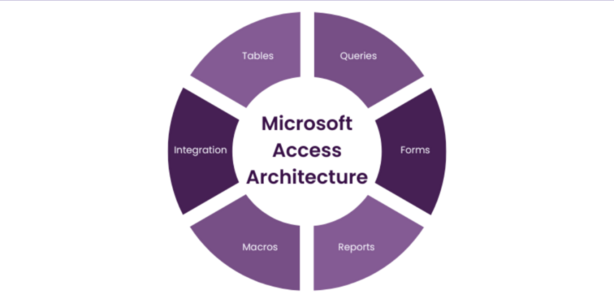
Microsoft Access is a file-based RDBMS that bundles the user interface, logic, and data into a single, easily portable .accdb file. It follows a modular architecture that combines GUI elements with database storage and scripting logic.
🔧 Core Components of Microsoft Access:
- Tables
- Core structure that stores data in rows and columns.
- Each table represents a distinct entity (Customers, Orders, Products).
- Supports various data types: Short Text, Number, Date/Time, Currency, Yes/No, etc.
- Relationships
- Tables are linked using primary and foreign keys to form relational structures.
- Enforces referential integrity to prevent orphaned records and duplicates.
- Queries
- Allow data retrieval, filtering, sorting, and joining.
- Built using a visual designer or SQL.
- Supports select, append, update, delete, and make-table queries.
- Forms
- Graphical user interfaces for inputting and viewing data.
- Can contain buttons, dropdowns, tabs, subforms, and embedded logic.
- Designed for ease of use and data validation.
- Reports
- Output formats for data presentation.
- Includes grouping, summarization, charts, and export to PDF or Excel.
- Macros
- Simplified scripting for automating tasks such as opening forms, sending emails, or running queries.
- VBA (Visual Basic for Applications)
- Enables advanced logic, user interaction, loops, error handling, and event-driven programming.
- Navigation Pane
- Central place to manage all database objects: tables, queries, forms, reports, macros, modules.
- Database Engine (ACE)
- Handles indexing, locking, query optimization, and data storage.
🔄 Backend and Frontend Split (Optional)
For multi-user environments:
- Backend (
.accdb): Contains only tables and data. - Frontend: Contains forms, queries, and reports, and links to backend tables over a network.
Basic Workflow of Microsoft Access
Microsoft Access follows a logical workflow for building applications, even for non-technical users. Here’s a high-level breakdown of how to develop a functioning database system:
1. Plan the Data Model
- Identify entities: e.g., Customers, Products, Orders.
- Define table structures and relationships.
2. Create Tables
- Use Design View to define fields, data types, and keys.
- Normalize data to reduce redundancy and maintain integrity.
3. Define Relationships
- Go to Database Tools → Relationships.
- Set up one-to-many or many-to-many links using join lines.
- Enforce referential integrity and cascading rules if needed.
4. Create Queries
- Use Query Design to pull meaningful data.
- Add criteria to filter or join data.
- Use calculated fields and expressions.
5. Build Forms
- Use Form Wizard or manually design forms.
- Add controls: text boxes, combo boxes, buttons.
- Attach events and macros/VBA to add interactivity.
6. Design Reports
- Generate printable views of data.
- Add headers, footers, totals, and grouping.
- Export to PDF or email directly.
7. Implement Automation
- Use macros for basic tasks.
- Use VBA for complex logic such as validating input, generating reports dynamically, or interacting with Excel and Outlook.
8. Secure and Distribute
- Set user-level security (with split database setup).
- Distribute only the frontend to users.
- Keep the backend on a secure shared drive or server.
Step-by-Step Getting Started Guide for Microsoft Access
Below is a hands-on guide to help beginners build their first Microsoft Access application — a simple Contact Manager.
🔹 Step 1: Open Microsoft Access
- Launch Access → Select Blank Database
- Name the database
ContactManager.accdb - Click Create
🔹 Step 2: Create the Contacts Table
- Go to Table Design
- Define the following fields:
ContactID(AutoNumber, Primary Key)FirstName(Short Text)LastName(Short Text)Email(Short Text)Phone(Short Text)DateCreated(Date/Time)
- Save table as
Contacts
🔹 Step 3: Build a Data Entry Form
- Go to Create → Form Wizard
- Choose the
Contactstable - Select all fields
- Choose Columnar layout
- Name it
ContactForm - Add buttons for Save and Close (optional)
🔹 Step 4: Add Some Sample Data
- Use the
ContactFormto enter several contacts. - Validate input and test navigation.
🔹 Step 5: Create a Search Query
- Go to Create → Query Design
- Add
Contactstable - Drag in
FirstName,LastName,Email - In the
Criteriarow under LastName, write:Like [Enter Last Name:] - Save as
SearchByLastName
🔹 Step 6: Generate a Printable Report
- Use Report Wizard to base the report on
SearchByLastName - Group by LastName
- Add totals for counts
- Save as
ContactReport
🔹 Step 7: Add a Macro to Launch the Report
- Create a new macro with action:
OpenReport → Report Name: ContactReport - Attach macro to a button on the main form.
🔹 Step 8: Save and Share
- Optionally split the database for multi-user access.
- Place backend (
ContactManager_Backend.accdb) on a shared drive. - Distribute frontend (
ContactManager_Frontend.accdb) to users.