MOTOSHARE 🚗🏍️
Turning Idle Vehicles into Shared Rides & Earnings
From Idle to Income. From Parked to Purpose.
Earn by Sharing, Ride by Renting.
Where Owners Earn, Riders Move.
Owners Earn. Riders Move. Motoshare Connects.
With Motoshare, every parked vehicle finds a purpose.
Owners earn. Renters ride.
🚀 Everyone wins.

What is XAML?
XAML (eXtensible Application Markup Language) is a declarative XML-based language primarily used for designing user interfaces in Microsoft’s development frameworks such as WPF (Windows Presentation Foundation), UWP (Universal Windows Platform), and Xamarin.Forms. It allows developers and designers to define UI elements, layouts, controls, and their properties in a readable and structured markup format.
XAML separates UI design from application logic by enabling developers to declare the interface and then implement behavior in languages like C# or VB.NET. This separation improves maintainability, collaboration between designers and developers, and facilitates rapid UI development.
XAML supports data binding, animation, styling, templating, and resource management, making it a powerful tool for building rich, interactive, and visually appealing desktop and mobile applications.
What Are the Major Use Cases of XAML?
XAML is used across a variety of Microsoft-centric application development environments:
1. Desktop Application UI Design (WPF)
- Used extensively in Windows desktop applications built with WPF.
- Enables complex and highly customizable UIs with animations, styles, and control templates.
2. Universal Windows Platform (UWP) Apps
- Design interfaces for Windows 10 and later apps that run across devices (PCs, tablets, Xbox).
- Supports adaptive layouts responsive to device capabilities.
3. Cross-Platform Mobile Apps (Xamarin.Forms)
- Use XAML to define UI once, deploy on Android, iOS, and UWP.
- Simplifies cross-platform UI development with native rendering.
4. Prototyping and Rapid UI Development
- Quickly mock up and iterate UI designs with real-time feedback.
5. Data-Driven Applications
- Combine with data binding and MVVM (Model-View-ViewModel) pattern to build scalable, maintainable apps.
6. Custom Control Development
- Define reusable custom controls with rich styling and templating using XAML.
How XAML Works Along with Architecture
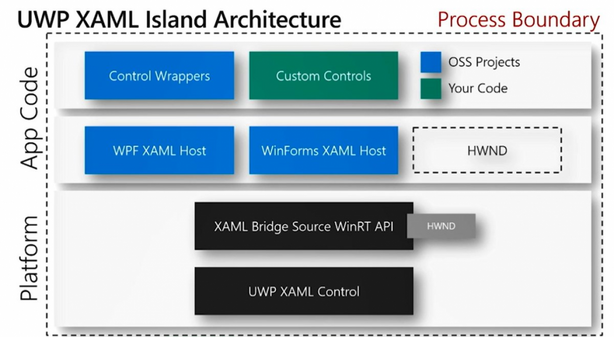
XAML operates within a layered architecture that integrates markup with runtime behavior:
1. Markup Compilation and Parsing
- XAML files (
.xaml) are parsed at compile-time or runtime. - At compile-time, XAML is compiled into partial classes with code-behind (e.g., C# files) that instantiate UI elements.
- Alternatively, XAML can be loaded dynamically at runtime via
XamlReader.
2. Visual Tree and Logical Tree
- The logical tree represents the hierarchical structure of UI elements and their relationships.
- The visual tree details all visual elements including those used internally by controls for rendering.
- These trees enable event routing, resource lookup, and property inheritance.
3. Data Binding and MVVM
- XAML supports powerful data binding mechanisms to connect UI elements to data sources or view models.
- It works closely with the MVVM architecture, separating UI from business logic.
4. Styles, Templates, and Resources
- Styles define reusable property sets.
- Control templates redefine the visual structure of controls.
- Resources provide centralized assets like brushes, data templates, and animations.
5. Event Handling
- Events declared in XAML can be wired to handlers defined in code-behind.
- Routed events enable event propagation through the visual tree.
What Are the Basic Workflows of XAML?
The typical development workflow with XAML includes:
- Design UI in XAML
- Define layout containers (Grid, StackPanel, etc.).
- Add controls (Buttons, TextBoxes, ListViews).
- Set properties directly in markup.
- Bind Data
- Establish bindings between UI elements and data sources or view models.
- Use converters and validation rules if needed.
- Style and Template
- Apply styles and control templates to customize appearance.
- Write Code-Behind
- Implement logic, event handlers, and view model interactions.
- Build and Test
- Compile the app.
- Use visual designers and live preview tools to adjust UI.
- Iterate and Refine
- Modify XAML and code for improved usability, performance, and aesthetics.
Step-by-Step Getting Started Guide for XAML
Step 1: Set Up Development Environment
- Install Visual Studio (Community edition suffices).
- Create a new WPF, UWP, or Xamarin.Forms project.
Step 2: Create Your First XAML File
- Visual Studio auto-generates a MainWindow.xaml.
- Open it and observe the default Grid layout and a Button control.
Step 3: Understand Basic Syntax
- Example of a simple XAML layout:
<Window x:Class="MyApp.MainWindow" xmlns="http://schemas.microsoft.com/winfx/2006/xaml/presentation" xmlns:x="http://schemas.microsoft.com/winfx/2006/xaml" Title="Hello XAML" Height="350" Width="525"> <Grid> <Button Content="Click Me" HorizontalAlignment="Center" VerticalAlignment="Center"/> </Grid> </Window>
Step 4: Add Controls and Layouts
- Use layout panels like
StackPanel,Grid, orCanvas. - Add controls like
TextBox,ListBox, andSlider.
Step 5: Implement Event Handling
- In XAML:
<Button Content="Click Me" Click="Button_Click"/> - In code-behind (C#):
private void Button_Click(object sender, RoutedEventArgs e) { MessageBox.Show("Button clicked!"); }
Step 6: Use Data Binding
- Bind UI element to data context property:
<TextBox Text="{Binding UserName, UpdateSourceTrigger=PropertyChanged}"/> - Set data context in code:
this.DataContext = new ViewModel();
Step 7: Style Your Application
- Define styles in
Window.Resourcesor external resource dictionaries:<Style TargetType="Button"> <Setter Property="Background" Value="LightBlue"/> <Setter Property="FontWeight" Value="Bold"/> </Style>
Step 8: Run and Debug
- Build and run the app.
- Modify XAML and code iteratively using Visual Studio’s live preview.