MOTOSHARE 🚗🏍️
Turning Idle Vehicles into Shared Rides & Earnings
From Idle to Income. From Parked to Purpose.
Earn by Sharing, Ride by Renting.
Where Owners Earn, Riders Move.
Owners Earn. Riders Move. Motoshare Connects.
With Motoshare, every parked vehicle finds a purpose.
Owners earn. Renters ride.
🚀 Everyone wins.

What is Apache?
Apache HTTP Server, commonly referred to as Apache, is one of the most popular and widely used open-source web servers in the world. Originally developed by the Apache Software Foundation and first released in 1995, Apache plays a critical role in serving web content over the Internet.
Apache acts as a software intermediary between a client (such as a web browser) and the web server’s content (HTML files, images, scripts, etc.). It receives requests from clients and serves back the appropriate responses. Apache supports a wide range of features, including dynamic content processing, authentication, SSL/TLS encryption, URL rewriting, and load balancing.
Apache’s modular architecture, reliability, and robust community support have made it the de facto choice for web hosting, powering a significant portion of the internet’s websites.
Major Use Cases of Apache
1. Web Hosting
Apache is widely used to host websites, from simple static pages to complex, dynamic applications. It supports various content types and scripting languages (PHP, Python, Perl).
2. Serving Dynamic Web Content
By integrating with server-side technologies like CGI, FastCGI, and modules such as mod_php, Apache can serve dynamic web content generated by applications.
3. Reverse Proxy and Load Balancing
Apache can act as a reverse proxy server, forwarding client requests to backend servers, balancing load, and providing fault tolerance.
4. Secure Web Server
Apache supports HTTPS through SSL/TLS modules, providing encrypted communication for secure web applications.
5. Virtual Hosting
Apache supports hosting multiple websites/domains on a single server, each with its own configuration.
6. API Gateway
By handling HTTP requests, Apache can be used as a gateway to backend APIs, adding features such as caching, authentication, and rate limiting.
7. Content Compression and Caching
Modules allow Apache to compress responses (e.g., gzip) and cache frequently requested content, enhancing performance.
How Apache Works Along with Architecture
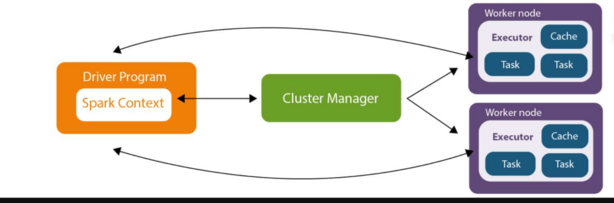
Apache follows a client-server model where the server listens for HTTP requests and responds accordingly.
Core Architectural Components:
- Main Process
The main Apache process runs with administrative privileges, managing configuration, spawning worker processes/threads, and handling shutdowns and restarts.
- Child Processes/Workers
These are spawned by the main process to handle incoming HTTP requests. Depending on the Multi-Processing Module (MPM) used, Apache can handle requests using multiple processes, threads, or a combination.
- Modules
Apache’s modular architecture allows extending core functionality with loadable modules (DSOs). Modules provide features like URL rewriting, authentication, SSL support, logging, caching, and more. Common modules include:
mod_ssl: SSL/TLS supportmod_rewrite: URL rewritingmod_proxy: Proxying requestsmod_auth: Authentication mechanismsmod_cache: Caching- Configuration Files
Apache’s behavior is controlled through configuration files, primarily httpd.conf and additional files like .htaccess for directory-level configuration overrides.
- Request Handling Flow
- Client sends an HTTP request.
- Apache accepts the connection via socket.
- The request is parsed and routed based on the URL and configuration.
- Appropriate modules are invoked to process the request.
- Content is served (static or dynamically generated).
- Response is sent back to the client.
Multi-Processing Modules (MPMs)
MPMs define how Apache manages connections:
- prefork MPM: Uses multiple child processes with one thread each; preferred for compatibility with non-thread-safe libraries.
- worker MPM: Uses fewer child processes with multiple threads; more efficient for high loads.
- event MPM: Similar to worker but optimized for handling keep-alive connections efficiently.
Basic Workflow of Apache
- Server Initialization
Upon startup, Apache reads its configuration files, loads necessary modules, and initializes worker processes or threads.
- Listening for Connections
Apache listens on configured IP addresses and ports (typically port 80 for HTTP, 443 for HTTPS).
- Accepting Client Requests
When a client (browser or API consumer) sends a request, Apache accepts it and creates a request object.
- Request Processing
Apache determines how to process the request using its configuration, routing it to the appropriate handler module.
- Content Generation
The requested content (static files or dynamic scripts) is retrieved or generated.
- Response Delivery
Apache sends the HTTP response back to the client, including headers and body content.
- Connection Handling
Depending on configuration, Apache may keep the connection alive for further requests or close it.
Step-by-Step Getting Started Guide for Apache
Step 1: Install Apache
- On Linux (Ubuntu/Debian):
sudo apt update
sudo apt install apache2
- On CentOS/RHEL:
sudo yum install httpd
sudo systemctl start httpd
sudo systemctl enable httpd
- On Windows:
Download from Apache Lounge and follow the installer instructions.
Step 2: Verify Installation
Open a browser and navigate to http://localhost. You should see the Apache default welcome page.
Alternatively, run:
apachectl status
or
systemctl status apache2
Step 3: Configure Apache
- Configuration files are located at:
/etc/apache2/(Ubuntu/Debian)/etc/httpd/(CentOS/RHEL)- Apache’s
httpd.conffile is the primary configuration file.
- Edit configuration files with a text editor, e.g.,
sudo nano /etc/apache2/sites-available/000-default.conf
Code language: JavaScript (javascript)
Step 4: Serve Your Website
- Place your website files (HTML, CSS, JS) in the web root directory:
/var/www/htmlon most Linux systems.
- Test by navigating to
http://localhost/index.html.
Step 5: Enable Modules
- Enable modules like SSL or rewrite as needed:
sudo a2enmod ssl
sudo a2enmod rewrite
sudo systemctl restart apache2
Step 6: Set Up Virtual Hosts
To serve multiple sites:
- Create separate configuration files under
sites-available, e.g.,
sudo nano /etc/apache2/sites-available/example.com.conf
- Enable the site:
sudo a2ensite example.com.conf
sudo systemctl reload apache2
Code language: CSS (css)
Step 7: Configure Firewall
Allow HTTP and HTTPS traffic:
sudo ufw allow 'Apache Full'
Code language: JavaScript (javascript)
Step 8: Enable HTTPS (Optional)
- Use Let’s Encrypt for free SSL certificates:
sudo apt install certbot python3-certbot-apache
sudo certbot --apache
Step 9: Monitor Logs and Performance
- Access logs:
/var/log/apache2/access.log - Error logs:
/var/log/apache2/error.log
Use logs to troubleshoot and optimize performanc