MOTOSHARE 🚗🏍️
Turning Idle Vehicles into Shared Rides & Earnings
From Idle to Income. From Parked to Purpose.
Earn by Sharing, Ride by Renting.
Where Owners Earn, Riders Move.
Owners Earn. Riders Move. Motoshare Connects.
With Motoshare, every parked vehicle finds a purpose.
Owners earn. Renters ride.
🚀 Everyone wins.
In this example, we’ll demonstrate how to set an icon on a TextField widget to appear at the start and end of input in a Flutter application. The most effective technique to display the data type of a TextField is through icons. For further details, see the example below:
Set the TextField Icon at the Head and Tail of Input
Full Code Example:
Output Screenshot:
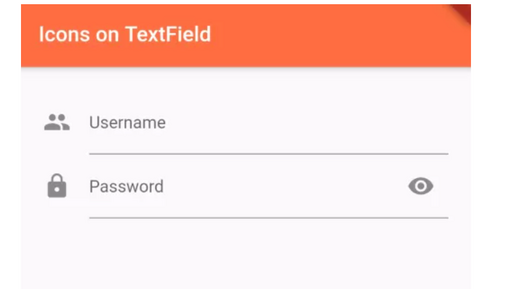
How to add icon inside the field
You need to use the prefixIcon attribute instead of an icon like
TextField(
  decoration: InputDecoration(prefixIcon: Icon(Icons.mail)),
)Code language: CSS (css)