MOTOSHARE 🚗🏍️
Turning Idle Vehicles into Shared Rides & Earnings
From Idle to Income. From Parked to Purpose.
Earn by Sharing, Ride by Renting.
Where Owners Earn, Riders Move.
Owners Earn. Riders Move. Motoshare Connects.
With Motoshare, every parked vehicle finds a purpose.
Owners earn. Renters ride.
🚀 Everyone wins.
To Successfully Install Xampp in your Ubuntu Machine just follow the Below Steps carefully.
Step 1 :- Login to your (Ubuntu) Machine.
Step 2 :- run the below command to download Xampp.
wget https://downloadsapachefriends.global.ssl.fastly.net/7.4.22/xampp-linux-x64-7.4.22-0-installer.run
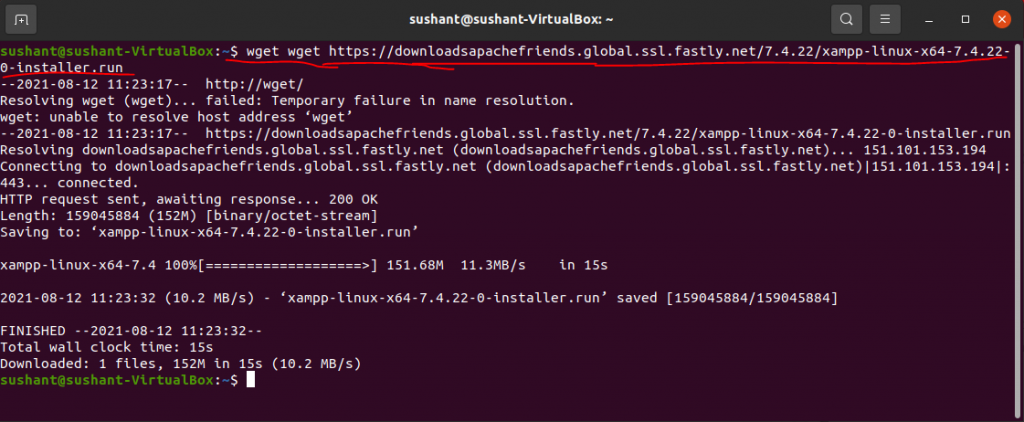
Step 3 :- Go to root user by entering below command
sudo -s
Step 4 :- Now we give permission to execute to the downloaded xampp file. For that run,
chmod 755 xampp-linux-x64-7.4.22-0-installer.run
Step 5 :- Now, we run the downloaded file for installation, for that run
sudo ./xampp-linux-x64-7.4.22-0-installer.run
Output
root@sushant-VirtualBox:/home/sushant# sudo ./xampp-linux-x64-7.4.22-0-installer.run
----------------------------------------------------------------------------
Welcome to the XAMPP Setup Wizard.

----------------------------------------------------------------------------
Select the components you want to install; clear the components you do not want
to install. Click Next when you are ready to continue.

XAMPP Core Files : Y (Cannot be edited)

XAMPP Developer Files [Y/n] :y

Is the selection above correct? [Y/n]: y

----------------------------------------------------------------------------
Installation Directory

XAMPP will be installed to /opt/lampp
Press [Enter] to continue:

----------------------------------------------------------------------------
Setup is now ready to begin installing XAMPP on your computer.

Do you want to continue? [Y/n]: y

----------------------------------------------------------------------------
Please wait while Setup installs XAMPP on your computer.

 Installing
 0% ______________ 50% ______________ 100%
 #########################################

----------------------------------------------------------------------------
Setup has finished installing XAMPP on your computer.

root@sushant-VirtualBox:/home/sushant#
Code language: PHP (php)
Step 6 :- Installation Done. Now we want to start server for that run,
sudo /opt/lampp/lampp start
List of commands to start, stop and restart server
To Start Server :- sudo /opt/lampp/lampp start
To Stop Server :- sudo /opt/lampp/lampp stop
To Restart Server :- sudo /opt/lampp/lampp restart
That’s all, I hope this article helps you to solve your problem.
Keep Exploring.
Thanks for reading.