
This guide is based on a walkthrough originally published by Jitendra Zaa at jitendrazaa.com. It covers how to configure Microsoft Team Foundation Server (TFS) — now known as Azure DevOps Server — to run automated Salesforce metadata deployments using Apache ANT and the Salesforce Migration Toolkit.
Overview
Continuous Integration (CI) for Salesforce metadata differs from traditional software CI because deployments target a cloud platform rather than a compiled binary. The Salesforce Metadata API, exposed through the ANT Migration Toolkit, is the standard mechanism for scripted deployments. By combining TFS (or its cloud-hosted equivalent, Visual Studio Team Services) with Apache ANT, teams can trigger automated retrieve-and-deploy cycles on every code commit or on a schedule.
This guide uses the cloud-hosted version of TFS (Visual Studio Team Services) to avoid the overhead of maintaining a local TFS installation, but the same build definition steps apply to an on-premises TFS server.
Prerequisites
- A Microsoft account (used to sign in to Visual Studio Team Services)
- Apache ANT installed on your local machine for local testing
- The Salesforce ANT Migration Toolkit (
ant-salesforce.jar), downloaded from your Salesforce org’s Setup page - A Git client (for example, TortoiseGit) for pushing code to TFS
- Credentials for the source and target Salesforce orgs
Step 1: Create a Developer Account on Visual Studio Team Services
Navigate to https://www.visualstudio.com/ and choose Get Started for free under the Visual Studio Team Services section. If you do not already have a Microsoft developer account, you will be prompted to create one during sign-up. Once registered, you will land in the VSTS dashboard where you can create your first Team Project.
Step 2: Create a TFS Git Repository for Your Salesforce Metadata
One advantage TFS has over Jenkins-based CI setups is that source control is built in — you do not need a separate GitHub or Bitbucket account. After logging in, use the New Project wizard to create a project. The wizard is straightforward: provide a project name, choose a version control type (select Git), and choose a process template.

Once the project exists, clone the repository to your local machine using any Git client. For authentication you can use your VSTS username and password, or generate an SSH key pair and register the public key in your VSTS profile under Security > SSH public keys. SSH key authentication is recommended for CI agents because it avoids storing plain-text passwords.
Step 3: Create and Test the ANT Deployment Script Locally
Before wiring ANT into TFS, verify that the scripts work correctly on your local workstation. You need two files in the root of your repository: build.properties (credentials and environment URLs) and build.xml (the ANT targets).
build.properties
This file stores environment-specific values. Keep it in version control for non-sensitive settings, but consider externalising passwords as TFS build variables or secrets so that plain-text credentials are never committed to source control.
# build.properties

# Server URLs
sfSandbox.serverurl = https://test.salesforce.com
sfPRO.serverurl    = https://login.salesforce.com

# Source org (retrieve)
sfdc.cb.df14.username        = your-source-org@example.com
sfdc.cb.df14.password        = yourPasswordPlusSecurityToken
sfdc.cb.df14.retrieveTarget  = src
sfdc.cb.df14.unpackaged      = src/package.xml
sfdc.cb.df14.retrieveMessage = Retrieve metadata from source Salesforce org

# Target org (deploy)
sfdc.cb.df15.username        = your-target-org@example.com
sfdc.cb.df15.password        = yourPasswordPlusSecurityToken
sfdc.cb.df15.retrieveTarget  = src
sfdc.cb.df15.unpackaged      = src/package.xml
sfdc.cb.df15.retrieveMessage = Deploy metadata to target Salesforce org

# Salesforce ANT JAR — path relative to repository root
sfdcJarFile = ant-salesforce.jarCode language: PHP (php)
build.xml
The build.xml file defines two ANT targets: df14 retrieves metadata from the source org, and deploy pushes that metadata to the target org. Notice that classpath points to ${sfdcJarFile}, which resolves to a path relative to the repository root. This is essential for cloud CI agents that have no pre-installed copy of the Salesforce JAR, so the JAR must be committed to the repository alongside the build scripts.
<project name="Deployment Scripts" default="deploy" basedir="." xmlns:sf="antlib:com.salesforce">

    <property file="build.properties"/>

    <!-- Retrieve metadata from source org -->
    <target name="df14">
        <taskdef resource="com/salesforce/antlib.xml"
                 uri="antlib:com.salesforce"
                 classpath="${sfdcJarFile}"/>

        <echo message="Retrieving as: ${sfdc.cb.df14.username}"/>

        <sf:retrieve
            username="${sfdc.cb.df14.username}"
            password="${sfdc.cb.df14.password}"
            serverurl="${sfPRO.serverurl}"
            retrieveTarget="${sfdc.cb.df14.retrieveTarget}"
            unpackaged="${sfdc.cb.df14.unpackaged}"/>
    </target>

    <!-- Deploy metadata to target org -->
    <target name="deploy">
        <taskdef resource="com/salesforce/antlib.xml"
                 uri="antlib:com.salesforce"
                 classpath="${sfdcJarFile}"/>

        <sf:deploy
            username="${sfdc.cb.df15.username}"
            password="${sfdc.cb.df15.password}"
            serverurl="${sfPRO.serverurl}"
            deployRoot="src"
            maxPoll="1000"
            testLevel="NoTestRun"
            checkOnly="false"
            pollWaitMillis="10000"
            rollbackOnError="true"/>
    </target>

</project>Code language: HTML, XML (xml)
To test locally, run the following command from the repository root:
ant df14 deployThe df14 target retrieves metadata from the source Salesforce instance; the deploy target then pushes that retrieved metadata to the target instance. Confirm that both targets complete without errors before moving to the TFS build definition.
Files to commit to the repository
build.xmlbuild.properties(with passwords replaced by TFS build variables in production)ant-salesforce.jar— the Salesforce Migration Toolkit JAR, committed so the TFS cloud agent can find itsrc/package.xml— your metadata manifestsrc/— the retrieved metadata directory
Step 4: Create a New Build Definition in Team Foundation Server
With the scripts in the repository, you can now tell TFS how to run them automatically.
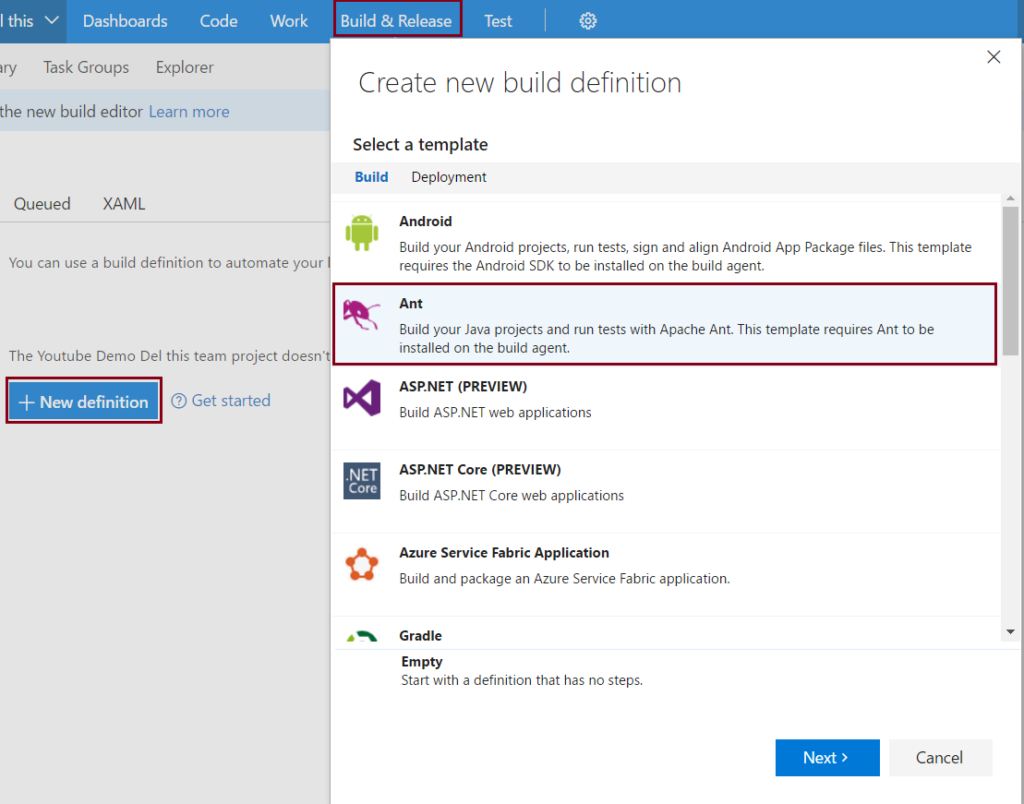
In the VSTS portal, navigate to Build & Release → Builds → New definition and select the ANT template.
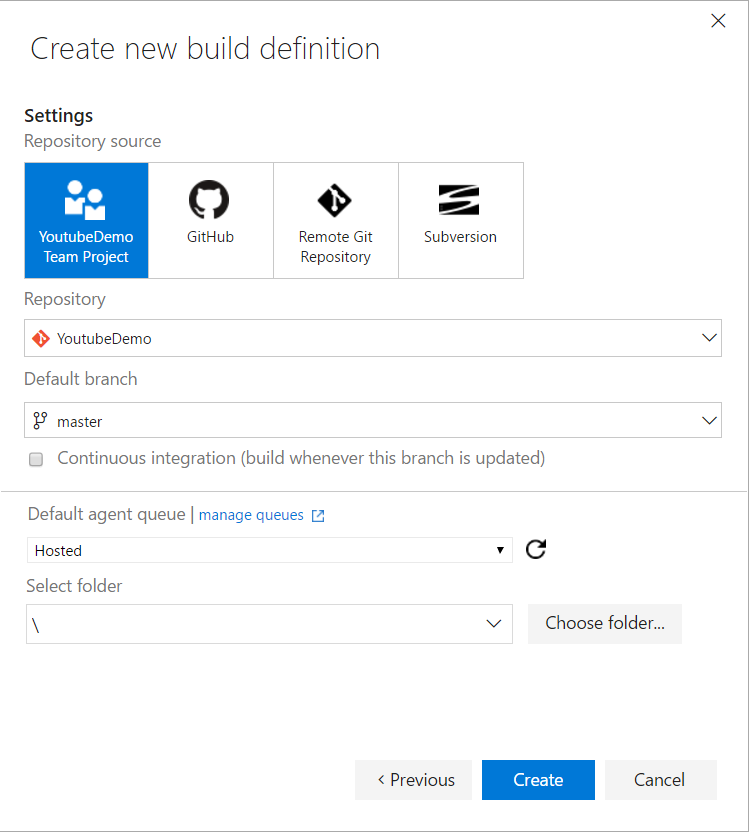
Select the repository and branch
On the repository selection screen, choose your TFS-hosted Git repository. You can also connect to GitHub, a remote Git server, or SVN if your code lives elsewhere. Select the branch you want this build definition to monitor. TFS supports multiple build definitions per project, so you can configure, for example, a nightly build on main and a triggered build on a develop branch independently.
Configure the ANT build step
In the build steps editor, configure the ANT task:
- ANT build file:
build.xml - Options: specify the targets to run, for example
df14 deploy, or leave blank to use the default target defined inbuild.xml - JDK version: ensure a compatible JDK is selected on the build agent
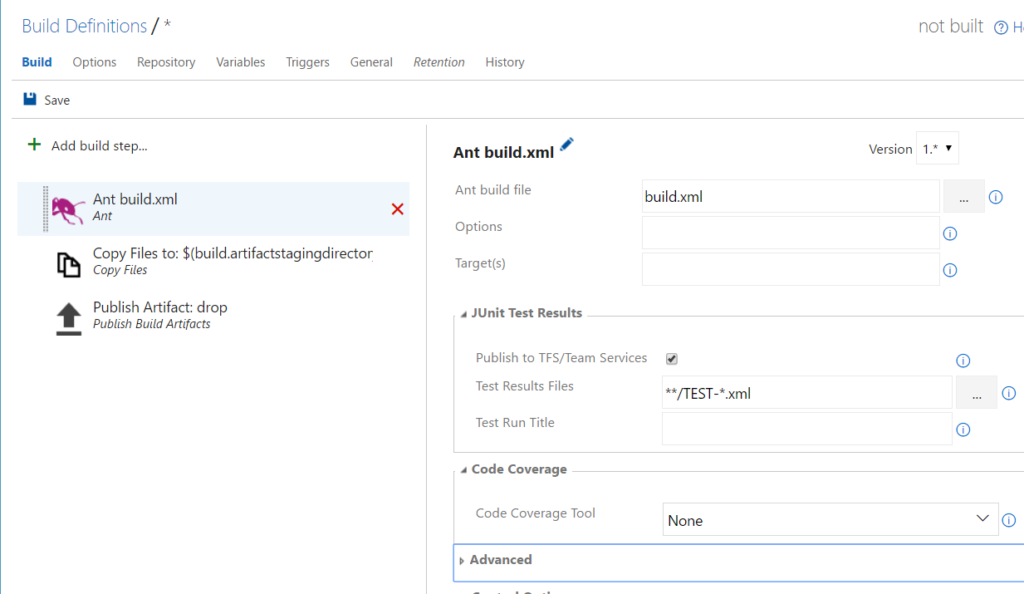
Save the build definition. You can trigger it manually the first time using the Queue build button to confirm everything works end to end before enabling a continuous integration trigger.
Security Considerations
Storing Salesforce credentials in build.properties and committing that file to source control is convenient for demonstration purposes but is a security risk in production. Instead:
- Define Salesforce usernames and passwords as TFS/VSTS build variables marked as secret. Reference them in
build.xmlusing ANT property overrides passed via the build options field (e.g.,-Dsfdc.cb.df15.password=$(SF_PASSWORD)). - Use a connected app with OAuth and a session ID instead of username/password where your tooling supports it.
- Consider whether committing
ant-salesforce.jarto Git is appropriate for your organisation; an alternative is to download it as an artifact during the build using a script step.
Summary
Setting up Salesforce CI with TFS involves four main steps: creating a VSTS account and project, pushing your Salesforce metadata and ANT scripts (including the Salesforce JAR) to the built-in Git repository, validating the ANT script locally, and then creating an ANT build definition in TFS that executes the same script on every commit or on a schedule. The integrated source control in TFS/VSTS reduces the number of third-party tools required compared to a Jenkins-based approach, making it a practical choice for teams already in the Microsoft ecosystem.
Original source: jitendrazaa.com